![How to use du to sort files by size? [SOLVED]](/du-sort-by-size/du-sort-by-size.jpg)
du stands for disk usage which is one of
the most used tool in Unix/Linux to estimate the file space usage. Here
are some commonly used command arguments and options that can be used
with du:
du [options] [directory]
-a, --all: Write counts for all files, not just directories.-h, --human-readable: Print sizes in human-readable format (e.g., 1K, 234M, 2G).-k: Print sizes in 1024-byte blocks.-m: Print sizes in 1 MB blocks.-s, --summarize: Display only a total for each argument.-c, --total: Produce a grand total.-d, --max-depth=N: Print the total for a directory (or file, with--all) only if it is N or fewer levels below the command line argument.--time: Show the time of the last modification of any file in the directory, or any of its subdirectories.
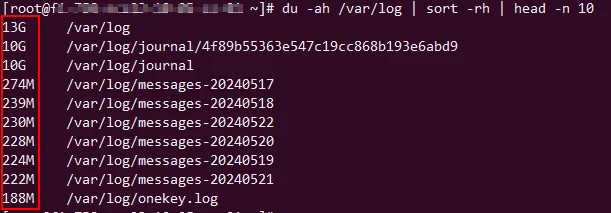
1. Print top 10 files with highest size
To search and print the files taking up highest space within specified directory you can use:
du -ah /path/to/directory | sort -rh | head -n 10
2. Print top 10 files with smallest size
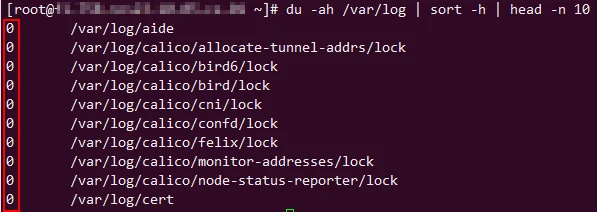
We will use the same command as used to print all files with their size
but without -r argument:
du -ah /path/to/directory | sort -h | head -n 10
3. Sort files based on specific type and size
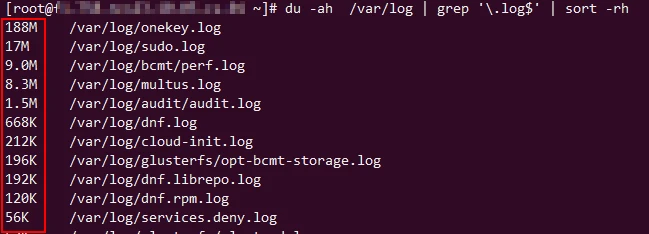
To sort files of a specific type (e.g., .txt files) by size, you can
use:
du -ah /path/to/directory | grep '\.log$' | sort -rh
4. Specify depth of directories to search
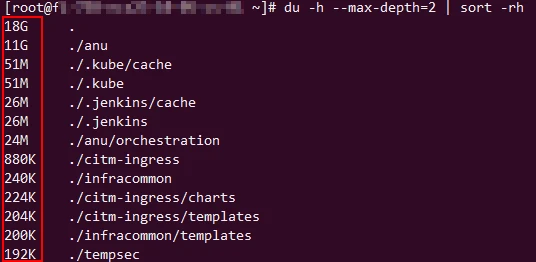
To search up to a specific depth (e.g., depth of 2):
du -h --max-depth=2
Here is an example where I have combined du and sort command to sort
the output:
5. Sort files within specific size range
To sort files within a specific size range (e.g., between 1M and
10M) we will have to use awk and sort command along with du. You
can read more about awk command in my other cheat sheet 30+ awk examples for beginners / awk
command tutorial in Linux/Unix
du -ah | awk '$1 ~ /[0-9.]+M/ && $1+0 >= 1 && $1+0 <= 10' | sort -rh
$1 ~ /[0-9.]+M/: Matches any size in megabytes (MB). The[0-9.]+part matches one or more digits or a period (to cover both integers and decimal numbers), and theMensures it’s in megabytes.$1+0 >= 1 && $1+0 <= 10: Ensures the size is between 1 and 10 megabytes.
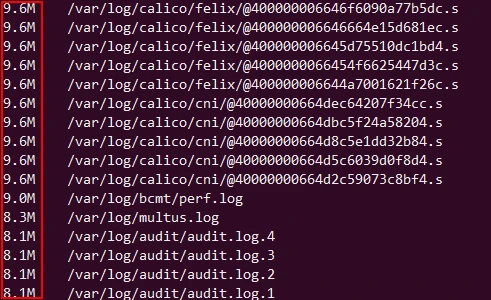
To modify this command for searching within 100K and 1M size:
du -ah | awk '$1 ~ /[0-9.]+K/ && $1+0 >= 100 && $1+0 <= 1024' | sort -rh
$1 ~ /[0-9.]+K/: Matches sizes in kilobytes (KB).$1+0 >= 100 && $1+0 <= 1024: Filters sizes between 100K and 1024K (1M).
To search between1G and 5G:
du -ah | awk '$1 ~ /[0-9.]+G/ && $1+0 >= 1 && $1+0 <= 5' | sort -rh
$1 ~ /[0-9.]+G/: Matches sizes in gigabytes (GB).$1+0 >= 1 && $1+0 <= 5: Filters sizes between 1G and 5G.
To search between 10M and 100M:
du -ah | awk '$1 ~ /[0-9.]+M/ && $1+0 >= 10 && $1+0 <= 100' | sort -rh
$1 ~ /[0-9.]+M/: Matches sizes in megabytes.$1+0 >= 10 && $1+0 <= 100: Filters sizes between 10M and 100M.
Hint to use awk regex:
- Identify the Size Unit: Determine the unit you want to filter by (K, M, G, etc.).
- Adjust the Regex: Modify the regex pattern to match the desired
unit:
Kfor kilobytesMfor megabytesGfor gigabytes
- Set the Range: Adjust the numeric range in the conditions:
$1+0 >= MIN && $1+0 <= MAX
6. Sort files larger than specified size
To sort files larger than a specified size (e.g., larger than 100M):
du -ah | awk '$1 ~ /[0-9.]+M/ && $1+0 > 100' | sort -rh
$1 ~ /[0-9.]+M/: Matches any size in megabytes (MB). The[0-9.]+part matches one or more digits or a period (covering both integers and decimal numbers), and theMensures it’s in megabytes.$1+0 > 100: Ensures the size is greater than 100 megabytes.
To sort files larger than 1K:
du -ah | awk '$1 ~ /[0-9.]+K/ && $1+0 > 1' | sort -rh
$1 ~ /[0-9.]+K/: Matches sizes in kilobytes (KB).$1+0 > 1: Filters sizes greater than 1 kilobyte.
To sort files larger than 500K:
du -ah | awk '$1 ~ /[0-9.]+K/ && $1+0 > 500' | sort -rh
$1 ~ /[0-9.]+K/: Matches sizes in kilobytes (KB).$1+0 > 500: Filters sizes greater than 500 kilobytes.
To sort files larger than 2G:
du -ah | awk '$1 ~ /[0-9.]+G/ && $1+0 > 2' | sort -rh
$1 ~ /[0-9.]+G/: Matches sizes in gigabytes (GB).$1+0 > 2: Filters sizes greater than 2 gigabytes.
To sort files larger than 1M:
du -ah | awk '$1 ~ /[0-9.]+M/ && $1+0 > 1' | sort -rh
$1 ~ /[0-9.]+M/: Matches sizes in megabytes.$1+0 > 1: Filters sizes greater than 1 megabyte.
Hint to use awk regex:
- Identify the Size Unit: Determine the unit you want to filter by (K, M, G, etc.).
- Adjust the Regex: Modify the regex pattern to match the desired
unit:
Kfor kilobytesMfor megabytesGfor gigabytes
- Set the Condition: Adjust the numeric condition to specify the
minimum size:
$1+0 > MIN
7. Sort files smaller than specified size
Suppose you want to sort files smaller than 100M in size.
du -ah | awk '$1 ~ /[0-9.]+M/ && $1+0 < 100' | sort -hr
$1 ~ /[0-9.]+M/: Matches any size in megabytes (MB). The[0-9.]+part matches one or more digits or a period (covering both integers and decimal numbers), and theMensures it’s in megabytes.$1+0 < 100: Ensures the size is less than 100 megabytes.
To sort files smaller than 1K:
du -ah | awk '$1 ~ /[0-9.]+K/ && $1+0 < 1' | sort -h
$1 ~ /[0-9.]+K/: Matches sizes in kilobytes (KB).$1+0 < 1: Filters sizes less than 1 kilobyte.
To sort files smaller than 500K:
du -ah | awk '$1 ~ /[0-9.]+K/ && $1+0 < 500' | sort -h
$1 ~ /[0-9.]+K/: Matches sizes in kilobytes (KB).$1+0 < 500: Filters sizes less than 500 kilobytes.
To sort files smaller than 2G:
du -ah | awk '$1 ~ /[0-9.]+G/ && $1+0 < 2' | sort -h
$1 ~ /[0-9.]+G/: Matches sizes in gigabytes (GB).$1+0 < 2: Filters sizes less than 2 gigabytes.
To sort files smaller than 1M:
du -ah | awk '$1 ~ /[0-9.]+M/ && $1+0 < 1' | sort -h
$1 ~ /[0-9.]+M/: Matches sizes in megabytes.$1+0 < 1: Filters sizes less than 1 megabyte.
Hint to use awk regex:
- Identify the Size Unit: Determine the unit you want to filter by (K, M, G, etc.).
- Adjust the Regex: Modify the regex pattern to match the desired
unit:
Kfor kilobytesMfor megabytesGfor gigabytes
- Set the Condition: Adjust the numeric condition to specify the
maximum size:
$1+0 < MAX
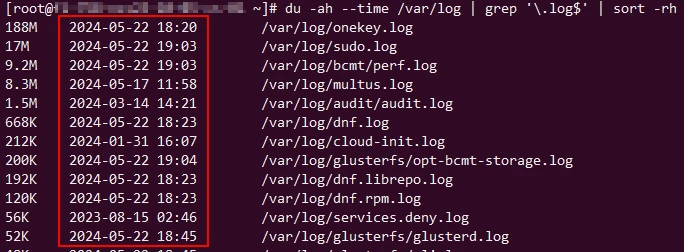
8. Print file modification time along with file size
We can use --time argument with any of the above explained du commands
to also print the last modification time of the file. For example I have
re-used the command to search files for specific type and also print
last modification time of individual file:
9. Sort and print files and directory by name
To sort the files and directories by name in a specific directory (e.g.,
/path/to/directory):
du -ah /path/to/directory | sort -k2
If you want to summarize sizes for directories and then sort by name:
du -sh /path/to/directory/* | sort -k2
To limit the depth of the directories displayed and sort by name:
du -h --max-depth=1 /path/to/directory | sort -k2
To combine size and name sorting where you first list files by size and then sort by name within those sizes:
du -ah /path/to/directory | sort -k1,1h -k2,2
Here, sort -k1,1h -k2,2: This sorts primarily by the first column
(size) in human-readable order and secondarily by the second column
(name) alphabetically.
10. Sorting files and directory with their size and date
he du --time option includes the last modification time in the output,
which we can then sort.
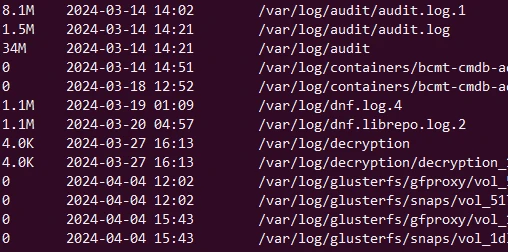
du -ah --time /path/to/directory | sort -k2,2 -k3,3
This sorts the files primarily by modification time and secondarily by size. Here
sort -k2,2: Sorts by the second column (date).sort -k3,3: Sorts by the third column (time) within the same date.
Sample Output:
Alternative to du command
An alternative to the du command is ncdu, which provides a more
user-friendly interface for checking disk usage.
To install ncdu:
sudo apt-get install ncdu  # On Debian/Ubuntu
sudo yum install ncdu      # On CentOS/RHEL
brew install ncdu          # On macOS
To use ncdu:
ncdu /path/to/directory
ncdu provides an interactive interface where you can easily navigate
through directories and see their sizes.
Summary
The du command is a powerful tool that can be used to sort files by
size in various ways. One of the most common ways to use the du
command is to sort files by size recursively within a directory. This
method is useful when you want to sort files by size in nested folders
within a directory. By using the -r or -R flag with the du
command, you can perform a recursive search and sort files by size.
Another way to use the du command to sort files by size is to filter
files by their file extension. This method is useful when you want to
sort files of a specific type by size. By using the grep command along
with the du command, you can filter files by their extension and sort
them by size.
In addition to these methods, the du command can be used to sort files
by size in ascending or descending order. This is useful when you want
to sort files by size from smallest to largest or vice versa. By using
the sort command with the du command, you can sort files by size and
display the results in ascending or descending order.