
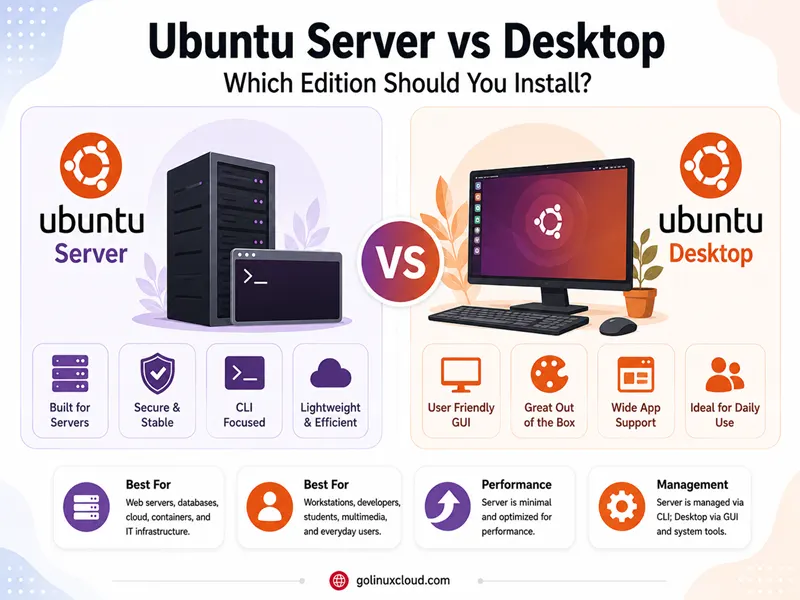
You are provisioning a machine—VPS, homelab PC, or laptop—and the download page splits into two ISOs: Ubuntu Server and Ubuntu Desktop. They share the same version number, the same LTS promise, and the same apt repositories, yet they ship very different defaults. Picking the wrong edition wastes RAM on a cloud instance or leaves you without a GUI when you expected one.
This guide compares Ubuntu 26.04 LTS Server and Ubuntu 26.04 LTS Desktop in mid-2026: what Canonical actually changes between editions, published hardware requirements, installers, security footprint, cloud images, and how to add a desktop to Server (or server stacks to Desktop). Figures come from ubuntu.com and Ubuntu Server documentation—confirm metapackage names and systemd defaults on your own install.
Quick answer: Ubuntu Server vs Desktop in 2026
Pick Ubuntu Server when you want a headless system—VPS, web stack, database, Kubernetes node, homelab NAS—installed with a text-based installer, 1.5 GB RAM minimum, and the ubuntu-server tool bundle (git, byobu, cloud-init helpers, and similar) without GNOME.
Pick Ubuntu Desktop when you want GNOME, local graphical apps, certified laptop workflows, TPM-backed full-disk encryption options in the installer story, and 6 GB RAM minimum—on a PC or VM you use interactively.
Pick a minimal or cloud image when you want an even smaller Server base than the full Server ISO—Ubuntu releases documentation notes minimal configurations for Server, Desktop, and separate cloud images.
| Pick this | Best reason |
|---|---|
| Ubuntu Server 26.04 LTS | VPS, APIs, databases, SSH-only admin |
| Ubuntu Desktop 26.04 LTS | Laptop, daily GUI, local development |
Server + ubuntu-desktop later |
Server first, occasional local GUI |
| Cloud minimal image | Smallest AWS/Azure/GCP footprint |
For how Ubuntu compares to other distros on servers, see Debian vs Ubuntu and Ubuntu vs Fedora.
Ubuntu Server vs Desktop at a glance
| Topic | Ubuntu Server 26.04 LTS | Ubuntu Desktop 26.04 LTS |
|---|---|---|
| Primary interface | Text-based installer; CLI administration | Graphical installer; GNOME desktop |
| Default GUI | None (headless) | GNOME 50 |
| Published RAM minimum | 1.5 GB | 6 GB |
| Published disk minimum | 5 GB | 25 GB |
| Typical ISO size (amd64) | ~3 GB | ~5.9 GB |
| Metapackage | ubuntu-server |
ubuntu-desktop |
| Linux kernel (GA) | 7.0 | 7.0 |
| LTS standard support | Through May 2031 | Through May 2031 |
| Ubuntu Pro | Available | Available (Desktop tier) |
| Default systemd target | multi-user.target (typical) |
graphical.target |
| Snap | Available; less desktop snap pull at install | snap integral to many desktop apps |
| Installer style | Live Server / Subiquity (TUI) | Desktop Bootstrap / graphical flow |
| Architectures | Broad server architecture coverage: amd64, arm64, ppc64el, s390x, RISC-V options | Desktop downloads focus mainly on PC/laptop-class images such as amd64 and arm64 |
| Positioning | Scale-out workloads, datacenter | PCs, laptops, developers |
Sources: Download Ubuntu Server, Download Ubuntu Desktop, Ubuntu release cycle, Ubuntu releases (project docs).
Same Ubuntu, different package sets
The most important fact—stated explicitly in Ubuntu Server documentation:
An Ubuntu image is a collection of files we need to install and run Ubuntu. We don't need to specify "server" or "desktop" anywhere in our command, because the image is the same for both. The only difference between Ubuntu Server and Ubuntu Desktop is the subset of software packages we use from the Ubuntu Archive.
Managing your software repeats the same point: tutorials can be completed on either edition because the underlying archive is shared.
Ubuntu releases documentation frames the product split in user terms:
- Ubuntu Desktop provides a Graphical User Interface (GUI) for everyday computing on PCs and laptops.
- Ubuntu Server provides a Text-based User Interface (TUI) optimized for headless server environments—web services, databases, and similar roles.
There are no separate desktop-only or server-only apt repositories. Anything in the archive can be installed on either edition once you add the right packages.
Metapackages: what each edition actually installs
Ubuntu editions are defined by metapackages—dependency bundles that pull coherent sets of software (MetaPackages community documentation).
Check the metapackages on your installed release:
apt-cache policy ubuntu-server ubuntu-desktop
dpkg -l ubuntu-desktop ubuntu-server ubuntu-standard 2>/dev/null
systemctl get-default
The exact metapackage version changes by Ubuntu release, but the pattern is the same: ubuntu-server pulls server-oriented defaults, while ubuntu-desktop pulls the GNOME desktop stack.
ubuntu-server
Installing the Server ISO pulls server-oriented tools. The ubuntu-server metapackage depends on packages such as git, byobu, htop, cloud-init helpers, multipath-tools, sos (support tooling), vim, and lxd-installer—not GNOME or Xorg.
ubuntu-desktop
The ubuntu-desktop metapackage depends on gdm3, gnome-shell, gnome-control-center, nautilus, xorg, pipewire-pulse, ubuntu-drivers-common, update-manager, and the broader GNOME desktop stack.
Supporting metapackages
| Metapackage | Role |
|---|---|
ubuntu-minimal |
Core bootable system (apt, systemd, netplan, …) |
ubuntu-standard |
Common CLI utilities (cron, wget, rsync, …) |
ubuntu-desktop |
Full GNOME desktop experience |
ubuntu-server |
Server administration bundle |
Installers and first-boot experience
Ubuntu Server
Download Ubuntu Server documents a Live Server flow: write the ISO to USB, boot, and follow the text-based installer—optimized for headless machines and remote serial consoles. The Server docs position this as the path for datacenter and scale-out workloads (ubuntu.com/server).
Server 26.04 LTS highlights include Linux kernel 7.0, a dual-track approach for container stacks, and long-term supported database versions (Valkey 9, PostgreSQL 18, MySQL/MariaDB, DocumentDB introduction)—features aimed at operators, not laptop users.
Ubuntu Desktop
Download Ubuntu Desktop ships a graphical install experience documented at documentation.ubuntu.com/desktop—including try-from-USB without installing.
Desktop 26.04 LTS highlights GNOME 50, fractional scaling, new core apps (document viewer, image viewer, terminal, video player), accessibility improvements, TPM-backed full-disk encryption management, and experimental application permissions prompting.
Practical installer takeaway
| Scenario | Lean toward |
|---|---|
| Remote VPS you only SSH into | Server or cloud image |
| Laptop with monitor and Wi-Fi wizard | Desktop ISO |
| Automated bare-metal provisioning | Server + MAAS |
| Try Ubuntu without installing | Desktop live session |
Hardware requirements and footprint
Canonical publishes different minimums for each edition on the download pages:
| Resource | Ubuntu Server 26.04 | Ubuntu Desktop 26.04 |
|---|---|---|
| RAM | 1.5 GB | 6 GB |
| Disk | 5 GB | 25 GB |
| CPU | Not listed separately | 2 GHz dual-core or better |
| Installer media | USB or DVD | USB or DVD |
Those numbers are floors, not comfort targets. For real workloads, Canonical’s Server documentation suggests 3 GB RAM or more for more complex setup plans; production databases, containers, and Kubernetes nodes need far more. A comfortable GNOME desktop wants more than 6 GB if you run browsers, IDEs, and snaps together.
ISO size also differs: Server amd64 ~3 GB vs Desktop amd64 ~5.9 GB—reflecting the desktop payload left out of the Server image.
For constrained VPS SKUs, providers often offer minimal cloud images smaller than either full ISO install—Ubuntu releases documentation lists minimal configurations alongside Server and Desktop.
Kernel, releases, and LTS support
Same kernel family on modern releases
Historically Ubuntu shipped a separate linux-image-server package. Since Ubuntu 12.04, Server and Desktop use the same linux-image-generic kernel line—the server-optimized kernel was merged (Server FAQ). On 26.04 LTS, both editions GA with Linux 7.0 per download pages.
Ubuntu LTS also offers Hardware Enablement (HWE) kernel stacks for newer hardware. HWE is not Desktop-only—it can be used on Desktop, Server, cloud, and virtual images—but it is usually more visible on laptops and mixed hardware fleets than on fixed VPS images.
Identical LTS calendar
Ubuntu release cycle applies to both editions:
| Release | Standard security maintenance |
|---|---|
| 26.04 LTS (Apr 2026) | Through May 2031 |
| 24.04 LTS (Apr 2024) | Through May 2029 |
There is no longer a shorter Desktop-only LTS window—the old three-year Desktop / five-year Server split ended years ago (Server FAQ).
Ubuntu Pro extends LTS coverage with Expanded Security Maintenance to 10 years; the optional Legacy add-on can extend selected LTS releases further, up to 15 years total—available for Server and Desktop (free for personal use on up to five machines).
Package management: identical apt, different defaults
Both editions use APT and the same archive. Daily workflows match APT command in Linux:
sudo apt update
sudo apt install nginx
Installing nginx, PostgreSQL, Docker, or Podman on Desktop is valid—your machine simply also runs GNOME and desktop services in the background.
Installing on Server avoids that overhead but gives you no local graphical login until you add display packages.
snap on Desktop vs Server
Ubuntu release cycle documentation describes deb packages as the core and snap for independently updating applications. Desktop editions pull snapd and snap-delivered apps (Firefox on current LTS lines, for example) into the default experience. Minimal Server installs can stay leaner without desktop snaps—verify on your image:
dpkg -l snapd 2>/dev/null
systemctl is-active snapd 2>/dev/null || echo "snapd not active"
Desktop installs commonly include snap-delivered applications; minimal Server and cloud images may be leaner depending on the image selected.
Workloads: where each edition fits
Choose Ubuntu Server for
- Cloud VPS and Kubernetes nodes
- Web servers (nginx, Apache), reverse proxies, APIs
- Databases (PostgreSQL, MySQL, Valkey—26.04 Server highlights on ubuntu.com/download/server)
- CI runners, bastion hosts, mail and DNS when administered over SSH
- MAAS-provisioned bare metal (ubuntu.com/server)
- LXD hosts and private clouds
Headless admin matches tutorials for Plex on Ubuntu Server (browser UI, no local GNOME) and similar stacks.
Choose Ubuntu Desktop for
- Laptops and workstations with local monitor and keyboard
- GNOME daily driving, certified hardware programs (ubuntu.com/desktop)
- GUI IDEs, browsers, and multimedia without SSH tunneling
- WSL users who mirror Desktop tooling on Windows (ubuntu.com/desktop)
- Learning Linux with a graphical installer and Settings app
Gray area: homelab and dev machines
A Desktop install running Docker, Samba, or a media server is common at home—you trade higher idle RAM for convenience. A Server install in the basement with only SSH is the cleaner production pattern.
| Workload | Server | Desktop |
|---|---|---|
| Public cloud VPS | Excellent | Poor default choice |
| Homelab NAS + monitor | Good | Good |
| Laptop daily driver | Possible but wrong ISO | Excellent |
| Docker host | Excellent | Good (extra GUI cost) |
| Kubernetes worker | Excellent | Avoid |
| Classroom GUI lab | Add desktop to Server | Excellent |
| Plex / Jellyfin headless | Excellent | Works but wasteful |
Adding a GUI to Server (or Server stacks to Desktop)
Because repositories are shared, editions are mutable—with trade-offs.
GUI on Ubuntu Server
ServerGUI community documentation describes adding a full desktop:
sudo apt update
sudo apt install ubuntu-desktop
Reboot and log in through gdm. Result is broadly similar to installing from the Desktop ISO, plus whatever server packages you already had.
For a lighter GUI, install a spin metapackage instead of the full GNOME stack—for example xubuntu-desktop or xfce4—see install XFCE on Ubuntu. ServerGUI warns that full desktop installs may pull extra services (for example networking helpers) you may not want on a strict server.
tasksel offers another path:
sudo taskselSelect Ubuntu Desktop or another environment—use carefully because tasksel can remove manually installed packages when dependencies conflict (MetaPackages).
Server software on Ubuntu Desktop
Install daemons normally:
sudo apt install nginx postgresql
sudo systemctl enable --now nginx
Your GNOME session keeps running; services listen on network ports like any Server install. Harden with UFW, SSH keys, and non-graphical admin habits—see Chrony NTP setup as an example baseline task that applies to both editions.
Cloud images, minimal installs, and architectures
Cloud and minimal
Ubuntu release cycle documents Ubuntu Minimal—images with the fewest packages—for VMs and custom environments on major public clouds.
Cloud marketplaces typically publish Ubuntu Server-oriented images as default LTS SKUs—not Desktop ISOs with GNOME.
Server-only architecture breadth
Download Ubuntu Server links alternative architectures:
- ARM (arm64, armhf)
- IBM POWER
- IBM Z (s390x)
- RISC-V
Desktop downloads emphasize amd64 and arm64 for PCs and laptops. If you need mainframe or hyperscale ARM server images, start from the Server product line.
Security and attack surface
Ubuntu Server reduces exposure by default:
- No gdm login surface on the console
- No GNOME shell or desktop applets listening on the session bus
- Fewer background agents than a full Desktop metapackage
Adding ubuntu-desktop to a internet-facing Server expands the attack surface—install a GUI only when you need local interaction or isolate the host on a management network.
Both editions inherit Ubuntu security maintenance, AppArmor profiles on many services, and optional Ubuntu Pro hardening (ubuntu.com/pro).
Administrative best practices are the same: SSH keys, automatic security updates, firewall rules, and least-privilege service accounts—whether the default target is multi-user or graphical.
How to tell what you are running
After install or when inheriting a VM:
cat /etc/os-release
systemctl get-default
dpkg -l ubuntu-desktop ubuntu-server 2>/dev/null | grep ^ii
Confirm release and codename with check Ubuntu version.
| Signal | Likely edition |
|---|---|
graphical.target + ubuntu-desktop installed |
Desktop (or Server + GUI added) |
multi-user.target, no display manager |
Server-style |
Cloud image labeled ubuntu-minimal |
Minimal Server base |
Common mistakes when choosing Server vs Desktop
- Downloading Desktop for a 1 GB VPS and wondering why GNOME struggles (Server minimum is 1.5 GB; Desktop asks for 6 GB)
- Assuming different apt repositories—they are the same archive
- Believing Server still uses a special kernel on 26.04—it does not
- Installing
ubuntu-desktopon a production VPS “just in case”—use SSH and web UIs instead - Picking Desktop for Kubernetes workers—waste RAM and widen attack surface
- Skipping
ubuntu-servertools on a manual minimal install when you wanted byobu,sos, and cloud-init helpers out of the box - Confusing Ubuntu Desktop with Ubuntu flavours (Kubuntu, etc.)—flavors are still Desktop-class products; Server is a separate ISO line
Summary
Ubuntu Server and Ubuntu Desktop are not different operating systems—they are different metapackage selections from the same Ubuntu 26.04 LTS archive, with the same kernel 7.0 line and the same five-year standard support through 2031. Server gives you a headless, TUI-installed base tuned for datacenter and VPS work at 1.5 GB RAM minimum. Desktop gives you GNOME 50 and a graphical path at 6 GB RAM minimum.
Install Server (or a cloud minimal image) for VPS, databases, and SSH-only administration. Install Desktop for laptops and interactive GUI work. Convert later with apt install ubuntu-desktop or server daemons when you must—but pick the leanest edition that matches how you will actually operate the machine.
For comparisons beyond this Ubuntu-internal choice, read Debian vs Ubuntu on servers, Ubuntu vs Linux Mint on desktops, and Ubuntu vs Fedora across families.
References
- Download Ubuntu Server
- Download Ubuntu Desktop
- Ubuntu Server product page
- Ubuntu Desktop product page
- Ubuntu Server documentation
- Ubuntu Server tutorial — command line in depth
- Ubuntu Server tutorial — managing your software
- Install Ubuntu Desktop (documentation)
- Ubuntu releases (project documentation)
- Ubuntu release cycle
- Ubuntu Pro
- MetaPackages (Ubuntu Help)
- ServerGUI (Ubuntu Help)
- Server FAQ (Ubuntu Help)
- On-site: check Ubuntu version, APT command in Linux, Debian vs Ubuntu, install XFCE on Ubuntu, install Plex on Ubuntu
