

You run commands all day, reboot or open a new terminal, and the up arrow shows nothing useful—or yesterday's work never made it into ~/.bash_history. That is a common Bash configuration problem, not a sign that Linux forgot your account.
Commands appear in the current terminal but not in ~/.bash_history.
Commands executed in one terminal are missing from another terminal.
Commands disappear after closing several SSH or terminal sessions.
Some commands are stored while others are silently skipped.
Bash normally keeps each terminal's history in memory and writes it to
~/.bash_historywhen that shell exits. With multiple terminals, commands may not be shared immediately and can be lost when sessions end abruptly or overwrite the same history file. Enablehistappendand append/read history at every prompt to synchronize sessions.
The fixes below were verified with Bash 5.2 on Rocky Linux 10. The same settings apply on other distributions that use Bash as the default interactive shell.
Tested on: Rocky Linux 10.2; Bash 5.2.26.
Quick reference
Use this section to match what you see with the right fix. Each row links to the chapter that explains the cause and the full steps.
Bash keeps two copies of your command history:
history— commands in the current terminal's memory~/.bash_history— commands saved on disk
They are not always the same. A command can appear when you press the up arrow but still be missing from the file until Bash flushes memory to disk.
Category 1 — history works, but ~/.bash_history is empty or behind
| What you see | Why it happens | What to do | Details |
|---|---|---|---|
history lists commands, but tail ~/.bash_history is empty, missing, or old |
Bash has not written memory to the file yet; the file may not even exist on a new account | Run history -a, then check with tail or the existence test in Diagnose |
Diagnose why Bash history commands are missing |
You ran history -a and got no output |
That is normal — history -a succeeds silently and appends new lines to the file |
Run tail ~/.bash_history to confirm your commands appeared on disk |
Diagnose why Bash history commands are missing |
| You want this to happen automatically after every command | Default Bash only flushes on exit unless you add a prompt hook | Add the ~/.bashrc block with history -a in PROMPT_COMMAND |
Fix history lost across multiple terminals |
Category 2 — commands missing across multiple open terminals
| What you see | Why it happens | What to do | Details |
|---|---|---|---|
| Terminal A has a command, but terminal B's up arrow does not | Each terminal keeps its own in-memory list until shells share the file | In terminal B run history -n after terminal A runs history -a |
Fix history lost across multiple terminals |
| Closing one terminal seems to erase another terminal's history | Without histappend, the last shell to exit can overwrite the whole file |
Add shopt -s histappend and prompt-time history -a + history -n to ~/.bashrc |
Fix history lost across multiple terminals |
Category 3 — history gone after reboot, crash, or forced close
| What you see | Why it happens | What to do | Details |
|---|---|---|---|
| Commands worked yesterday but vanished after reboot | They were never written to ~/.bash_history before the system shut down |
Add prompt-time history -a so each command flushes soon after you press Enter |
Why history disappears after forced termination |
SSH drop, terminal crash, or kill -9 lost recent commands |
The shell did not get a normal exit to flush history |
Same permanent fix; accept that the very last command may still be lost in a hard kill | Fix history lost across multiple terminals |
Category 4 — some commands never appear in history at all
| What you see | Why it happens | What to do | Details |
|---|---|---|---|
| Running the same command twice stores only one copy | HISTCONTROL=ignoredups on Rocky Linux hides consecutive duplicates |
Expected behaviour; unset HISTCONTROL only if you need every repeat |
Fix commands filtered by HISTCONTROL or HISTIGNORE |
| A command you typed with a leading space is missing | ignorespace or ignoreboth in HISTCONTROL hides it on purpose |
Check echo "$HISTCONTROL"; remove the leading space or change the setting |
Fix commands filtered by HISTCONTROL or HISTIGNORE |
Common commands like ls or cd never appear |
A broad HISTIGNORE pattern may be filtering them |
Run declare -p HISTIGNORE and search startup files |
Fix commands filtered by HISTCONTROL or HISTIGNORE |
Category 5 — permissions, sudo, or wrong account
| What you see | Why it happens | What to do | Details |
|---|---|---|---|
.bash_history is owned by root or is not writable |
A privileged shell or manual change left the file owned by another account | Run ls -l ~/.bash_history; repair with sudo chown and chmod 600 |
Fix .bash_history permission and ownership problems |
| Commands saved for root but not your user (or the reverse) | sudo -i and su - use the target user's home and history file |
Check HOME and HISTFILE for the account shown in your prompt |
Why history differs for root, sudo, and other shells |
Category 6 — IDE, script, or non-Bash shell
| What you see | Why it happens | What to do | Details |
|---|---|---|---|
| No history in an IDE panel or automation terminal | The shell may be non-interactive or HISTFILE may be unset |
Run echo $- and look for i; run echo "$HISTFILE" |
Diagnose why Bash history commands are missing |
| Up arrow works in Zsh but not Bash | Different shell, different history file and rules | Run ps -p $$ -o comm= and configure the shell you are actually using |
Why history differs for root, sudo, and other shells |
Permanent fix at a glance
Add this to ~/.bashrc after /etc/bashrc is sourced, then run source ~/.bashrc in every open terminal:
| Setting | Value | What it does for you |
|---|---|---|
HISTSIZE |
10000 |
Keeps more commands in the current terminal's memory |
HISTFILESIZE |
20000 |
Keeps more lines in ~/.bash_history on disk |
shopt -s histappend |
on | Stops the last closed terminal from replacing the whole history file |
PROMPT_COMMAND hook |
history -a then history -n |
Writes each command to disk and pulls in commands from other terminals |
Full copy-paste block and Rocky Linux 10 PROMPT_COMMAND array handling: Fix history lost across multiple terminals.
Test commands (silent success is normal)
| Command | What it does | How to know it worked |
|---|---|---|
history -a |
Appends new commands from this terminal to ~/.bash_history |
No output — run tail ~/.bash_history and look for your latest command |
history -n |
Reads new lines from the file into this terminal's memory | No output — run history | tail and look for commands from another terminal |
shopt -p histappend |
Shows whether append mode is enabled | Prints shopt -s histappend when on |
tail ~/.bash_history |
Shows what is saved on disk right now | A missing or empty file often means nothing has been flushed yet, but also verify HISTFILE, the parent directory, and write permissions |
How Bash command history is stored
Bash history has three layers:
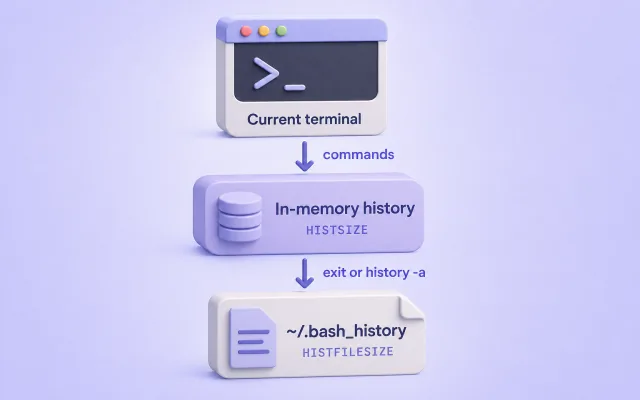
The diagram shows how commands sit in the current shell's memory first. They reach ~/.bash_history when the shell exits or when you run history -a.
A command can appear in history without yet appearing in ~/.bash_history if the shell has not flushed memory to disk.
| Setting | Purpose |
|---|---|
HISTFILE |
Persistent history-file location |
HISTSIZE |
Maximum entries retained in the current shell |
HISTFILESIZE |
Maximum number of lines retained in the history file |
HISTCONTROL |
Excludes spaces or duplicate commands |
HISTIGNORE |
Excludes commands matching patterns |
histappend |
Appends instead of overwriting at shell exit |
PROMPT_COMMAND |
Runs commands before Bash displays each prompt |
Bash may keep additional lines in the file when necessary to avoid cutting a multi-line history entry in half.
On the tested Rocky Linux 10.2 host, /etc/profile sets HISTSIZE=1000 and HISTCONTROL=ignoredups, while /etc/bashrc enables histappend for interactive shells. That helps at shell exit, but it does not synchronize history while multiple terminals stay open.
Confirm the defaults on your own distribution:
grep -nE 'HISTSIZE|HISTFILESIZE|HISTCONTROL|histappend|history -a' /etc/profile /etc/bashrc /etc/bash.bashrc /etc/profile.d/*.sh 2>/dev/nullSample output on Rocky Linux 10.2:
/etc/bashrc:40:    shopt -s histappend
/etc/profile:50:    HISTSIZE=1000
/etc/profile:56:    export HISTCONTROL=ignoredups
Including /etc/bash.bashrc makes the same search useful on Debian and Ubuntu hosts.
Diagnose why Bash history commands are missing
Run the checks below in the same interactive shell where history is failing—an IDE panel, SSH session, or local terminal.
Start by comparing memory and disk: history | tail shows what this shell remembers, while tail "$HISTFILE" (or the existence check below) shows what has been saved. They often differ until you run history -a or exit the shell.
Confirm the shell is Bash and note its version:
echo "$BASH_VERSION"5.2.26(1)-releaseA version string confirms you are troubleshooting Bash history, not Zsh or another shell.
See which file this shell will write to on flush or exit:
echo "$HISTFILE"/root/.bash_historyAn empty line here means persistent history is disabled for this session.
Check how many commands Bash keeps in memory and on disk:
echo "$HISTSIZE"1000Check the on-disk history limit with declare, not only echo:
declare -p HISTFILESIZE 2>/dev/null || echo "HISTFILESIZE is unset"HISTFILESIZE is unsetBash normally initializes HISTFILESIZE from HISTSIZE after reading startup files. If HISTFILESIZE is later unset or assigned an empty, non-numeric, or negative value, Bash does not truncate the history file. It also does not dynamically fall back to HISTSIZE again after that invalid assignment.
See whether duplicate or leading-space commands are filtered:
echo "$HISTCONTROL"ignoredupsignoredups drops consecutive identical commands. It does not hide leading-space commands unless the value is ignorespace or ignoreboth.
List custom ignore patterns, if any:
echo "$HISTIGNORE"No output means HISTIGNORE is unset and not excluding commands by pattern.
Confirm that command-history recording is enabled:
set -o | grep '^history'history onhistory on means the shell maintains the command-history list. history off would explain an empty in-memory list. History expansion (!!, !$, and similar) is controlled separately by the histexpand option.
Recheck append mode in this session:
shopt -p histappendshopt -s histappendSee whether a prompt hook already synchronizes history between terminals:
declare -p PROMPT_COMMAND 2>/dev/nullOn Rocky Linux 10, an empty array is common until you add the sync hook:
declare -a PROMPT_COMMANDInspect the history file on disk when it exists:
if [[ -z "${HISTFILE:-}" ]]; then
  echo "HISTFILE is unset or empty"
else
  ls -l "$HISTFILE"
fi-rw-------. 1 root root 0 Jul 7 07:00 /root/.bash_historyA zero-byte file with commands visible in history means nothing has been flushed to disk yet. No such file or directory means Bash has not created the file yet.
Check whether Bash can write the history file:
if [[ -z "${HISTFILE:-}" ]]; then
  echo "HISTFILE is unset or empty"
elif [[ ! -e "$HISTFILE" ]]; then
  echo "History file does not exist yet"
elif [[ -w "$HISTFILE" ]]; then
  echo "History file is writable"
else
  echo "History file is not writable"
fiHistory file is writableA failed check is not always a permission problem. Bash also skips persistent history when HISTFILE is unset, the file does not exist yet, the parent directory is missing, or the filesystem is read-only. Fix the reported condition before changing HISTSIZE or PROMPT_COMMAND.
Bash does not save persistent history when HISTFILE is unset or the target file is not writable. Non-interactive shells—scripts, some IDE terminals, and bash -c one-liners—do not behave like login or interactive SSH sessions.
Fix history lost across multiple terminals
Add the following block to ~/.bashrc after the line that sources /etc/bashrc. If you are unsure when each startup file runs, see .bashrc vs .bash_profile.
# Retain a larger Bash history
HISTSIZE=10000
HISTFILESIZE=20000

# Append this shell's history instead of replacing the history file
shopt -s histappend

# Share history between concurrent interactive shells
__golinuxcloud_hist_sync() {
  history -a
  history -n
}

if declare -p PROMPT_COMMAND 2>/dev/null | grep -q 'declare -a'; then
  if [[ "${PROMPT_COMMAND[*]}" != *'__golinuxcloud_hist_sync'* ]]; then
    PROMPT_COMMAND+=(__golinuxcloud_hist_sync)
  fi
else
  case "${PROMPT_COMMAND:-}" in
    *__golinuxcloud_hist_sync*) ;;
    *) PROMPT_COMMAND="${PROMPT_COMMAND:+${PROMPT_COMMAND%;};}__golinuxcloud_hist_sync" ;;
  esac
fi| Command | Behaviour |
|---|---|
history -a |
Appends only new commands from this shell to HISTFILE |
history -n |
Reads new entries written by other shells into this session |
history -r |
Re-reads the complete history file into memory |
history -w |
Replaces the history file with the current in-memory list |
The PROMPT_COMMAND hook runs before each prompt, so every command is flushed soon after you press Enter. The array branch preserves Rocky Linux's existing PROMPT_COMMAND array from /etc/bashrc. The case branch covers distributions that still use a string PROMPT_COMMAND. The duplicate guard prevents adding the hook twice when you source ~/.bashrc again.
Reload the file in each open terminal so the new variables and hook take effect:
source ~/.bashrcThe command returns to a prompt with no message when sourcing succeeds. Open two terminals, run unique markers such as echo "terminal-a-$(date +%s)" and echo "terminal-b-$(date +%s)", press Enter once in each terminal, then search with history | grep terminal- in the other window. Both markers should appear without closing either session.
Fix commands filtered by HISTCONTROL or HISTIGNORE
Some commands never reach history because Bash filters them before they are stored. Check both variables before you change retention settings.
Check HISTCONTROL
On the tested Rocky Linux 10.2 host, /etc/profile sets HISTCONTROL=ignoredups unless the variable was already ignorespace, in which case it becomes ignoreboth.
Display the active filtering mode before you change it:
echo "$HISTCONTROL"ignoredups| Value | Commands not retained |
|---|---|
ignorespace |
Commands beginning with a leading space |
ignoredups |
A command identical to the immediately previous command |
ignoreboth |
Both leading-space and consecutive duplicate commands |
erasedups |
Earlier matching commands are removed from history |
Run the same command twice to see duplicate suppression:
echo histcontrol-dup-testRun it again immediately:
echo histcontrol-dup-testInspect the last few history lines:
history | tail -3Only one echo histcontrol-dup-test line is stored when ignoredups is active.
Test leading-space exclusion only when ignorespace or ignoreboth is set—the extra space before echo matters:
echo histcontrol-hidden-testSearch for that marker:
history | grep histcontrol-hidden-testWith Rocky's default ignoredups, the leading-space command is still recorded. With ignoreboth, grep finds no match.
Check HISTIGNORE
HISTIGNORE uses colon-separated shell patterns, not regular expressions. See whether it is set in the current shell:
declare -p HISTIGNORE 2>/dev/nullNo output means the variable is unset. A broad pattern silently drops common commands:
HISTIGNORE='ls*:cd*:history*'That example would stop ls, cd, and history from being saved.
Search startup files for overrides that load before your ~/.bashrc changes:
grep -RnsE 'HISTCONTROL|HISTIGNORE|HISTFILE|HISTSIZE|PROMPT_COMMAND' ~/.bashrc ~/.bash_profile ~/.bashrc.d /etc/bashrc /etc/profile /etc/bash.bashrc /etc/profile.d 2>/dev/nullSample output on Rocky Linux 10.2:
/etc/bashrc:40:    shopt -s histappend
/etc/profile:50:    HISTSIZE=1000
/etc/profile:56:    export HISTCONTROL=ignoredups
Comment out or narrow any HISTIGNORE line that excludes commands you still expect in history.
If you need every entered command retained, remove or unset HISTCONTROL and clear HISTIGNORE in ~/.bashrc after the /etc/profile sourcing chain runs. That also keeps password-like commands you type on the command line in plaintext history—avoid that on shared or compliance-sensitive hosts.
Fix .bash_history permission and ownership problems
Before changing ownership, confirm that HISTFILE is set and inspect the target path:
if [[ -z "${HISTFILE:-}" ]]; then
  echo "HISTFILE is unset or empty"
else
  ls -l "$HISTFILE"
fi-rw-------. 1 root root 412 Jul 15 12:05 /root/.bash_historyMode 600 and ownership by your user are correct. A root owner on a normal user's home file often follows an incorrectly configured privileged shell, a command that wrote to the file through sudo, a restored home directory, or manual file manipulation. A one-command invocation such as sudo dnf update does not by itself change ownership of the calling user's history file.
Walk the path to catch a non-writable home directory or intermediate mount:
namei -l ~/.bash_historyEach directory in the path needs execute permission for your user, and the file needs write permission.
Common breakages include:
- A root shell inherited the normal user's
HOMEorHISTFILE, or the file was created, copied, restored, or redirected using elevated privileges - Home directory not writable, preventing updates
- Read-only filesystem or full disk
HISTFILEpointing to a missing directoryHISTFILEunset, empty, or set to/dev/null
Restore ownership and permissions when the file belongs to the wrong user. A normal user cannot repair a root-owned file without privilege, and the primary group is not guaranteed to share the username:
sudo chown "$(id -u):$(id -g)" "$HISTFILE"chmod 600 "$HISTFILE"Both commands exit silently on success when you have the required permissions. Run ls -l "$HISTFILE" again to confirm the owner and mode.
Do not delete ~/.bash_history as the first troubleshooting step—you lose whatever was already saved.
Privilege, shell type, and abrupt termination
Some history problems are not caused by HISTSIZE or histappend at all. The sections below cover the wrong account, the wrong shell, and sessions that never flush history cleanly.
Why history differs for root, sudo, and other shells
Identify the shell process that is running your current session and the environment it is using. The sudo command reference explains how privileged shells differ from a normal sudo command line.
printf 'Current process: '
ps -p $$ -o comm=Current process: bashprintf 'Configured login shell: %s\n' "$SHELL"
printf 'HOME=%s\nHISTFILE=%s\n' "$HOME" "${HISTFILE:-<unset>}"Configured login shell: /bin/bash
HOME=/root
HISTFILE=/root/.bash_historyecho "$SHELL" does not reliably identify the shell currently executing commands. Bash normally initializes $SHELL from the account's configured login shell, so you can be running Zsh, a nested Bash, or another shell while $SHELL still shows the login-shell path. Use ps -p $$ -o comm= for the active process.
| Scenario | History behavior |
|---|---|
| Normal user shell | Uses the current shell's $HISTFILE, normally ~/.bash_history |
sudo command |
The typed sudo ... line remains in the calling user's Bash history |
sudo -i |
Starts a target-user login shell; for root this normally uses /root/.bash_history |
sudo -s |
Starts a privileged shell, but inspect $HOME and $HISTFILE because environment policy can differ |
su user |
Starts a target-user shell without a full login environment |
su - user |
Starts a target-user login shell and changes to the target home directory |
| Zsh or Fish | Uses that shell's own history implementation |
Check HOME and HISTFILE for the account shown in your prompt—not only the file in your personal home directory.
Why history disappears after forced termination
Bash flushes history most reliably on normal exit or end-of-file on an interactive shell. History can be lost when:
- An SSH client disconnects abruptly
- A terminal emulator crashes
- The shell receives
kill -9 - The system reboots or loses power before open shells exit
- A long-running shell is replaced with
execwithout flushing - Containers or ephemeral home directories are destroyed
Prompt-time history -a writes after each command, which greatly reduces loss but still cannot guarantee recovery from every failure mode.
Verify the permanent history synchronization
| Test | Expected result |
|---|---|
| Command entered in terminal A | Written to .bash_history after the next prompt |
| Run a command in terminal B | Terminal B imports terminal A's command with history -n |
| Close terminals in either order | Commands from both remain in the file |
| Run the same command twice | Second copy omitted when HISTCONTROL=ignoredups |
| Run a leading-space command | Omitted only when ignorespace or ignoreboth is set |
| Reboot the system | Commands flushed to disk before reboot remain |
Use unique markers during verification so you can tell terminals apart:
echo "terminal-a-$(date +%s)"echo "terminal-b-$(date +%s)"After the next prompt in each terminal, confirm both markers reached the shared file when it exists:
if [[ -e "${HISTFILE:-$HOME/.bash_history}" ]]; then
  grep terminal- "${HISTFILE:-$HOME/.bash_history}"
else
  echo "The history file has not been created yet"
fi
You should see one line per marker. If a marker is missing, the shell that ran it has not flushed history yet or HISTCONTROL filtered the command.
Bash history is not an audit log
Users can disable history, change HISTFILE, edit ~/.bash_history, run leading-space commands, or kill shells before flush. Built-in Bash history is a convenience feature, not tamper-resistant evidence.
For security or compliance requirements, evaluate dedicated mechanisms:
auditdfor syscall-level auditing (not a complete record of every shell builtin)tlogfor terminal session recording- Sudo I/O logging for privileged commands
- Centralized session recording or privileged-access management
- Login and session records such as those described in Linux login history
Pick tooling that matches your retention, search, and integrity requirements instead of relying on .bash_history alone.
Troubleshoot Bash history problems
| Symptom | Likely cause | Fix |
|---|---|---|
history shows commands but ~/.bash_history is empty |
Shell has not flushed yet, or session is non-interactive | Use prompt-time history -a; confirm interactive Bash with echo $- containing i |
| Commands vanish across multiple terminals | No prompt-time sync; or histappend disabled |
Enable histappend and the PROMPT_COMMAND hook in ~/.bashrc |
| History lost after reboot or crash | Commands never written to disk | Add prompt-time history -a; accept that killed shells may still lose the last command |
| Some commands never appear | HISTCONTROL or HISTIGNORE filtering |
Inspect with echo "$HISTCONTROL" and declare -p HISTIGNORE |
.bash_history is owned by root or is not writable |
Privileged shell, restored home, or manual file change | Run ls -l "$HISTFILE"; repair with sudo chown "$(id -u):$(id -g)" and chmod 600 |
| No history in IDE or automation terminal | Non-interactive or custom HISTFILE |
Confirm HISTFILE and interactive mode; IDE terminals may not run full login profile |
| Up arrow works in Zsh but not Bash | Different shell | Configure Zsh history separately; check ps -p $$ -o comm= |
Summary
Work through Bash history problems in this order:
- Confirm you are in interactive Bash (
echo $BASH_VERSION,echo $-). - Compare
history | tailwithtail ~/.bash_history. - Check
HISTFILE, sizes, ownership, and permissions withdeclare -p HISTFILESIZEandls -l "$HISTFILE". - Inspect
HISTCONTROLandHISTIGNOREin profile scripts. - Enable
histappendand largerHISTSIZE/HISTFILESIZEvalues. - Add prompt-time
history -aandhistory -nfor multiple terminals. - Preserve existing
PROMPT_COMMANDhooks—use the array-safe block on Rocky Linux 10. - Use proper auditing tools when command recording must be tamper-resistant.
References
- Bash manual — Bash History Facilities
- Bash manual — The
historybuiltin - Red Hat — How to save command history immediately after you type it in bash
- Red Hat — Shell history cannot be shared between terminals
- Red Hat — How to manage your Linux command history
