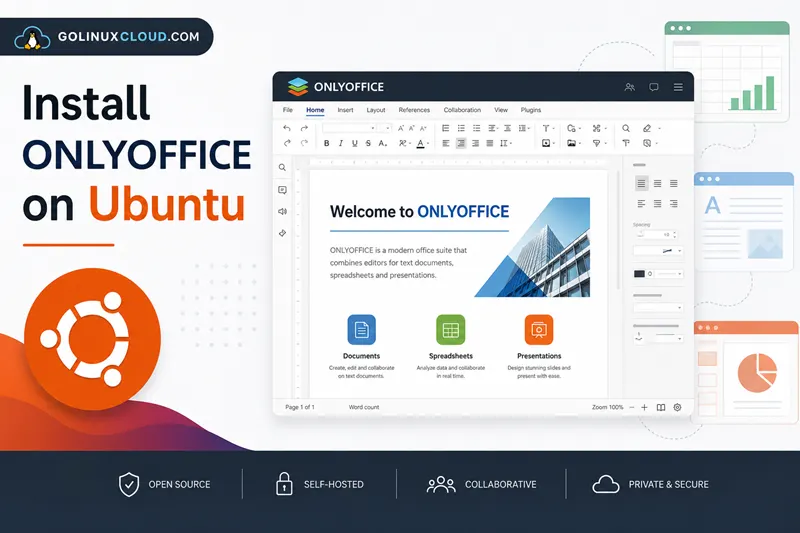
OnlyOffice Desktop Editors is a free office suite for Ubuntu that edits local docx, xlsx, pptx, PDFs, and PDF forms without a browser tab. It is a common pick when you want Microsoft Office–friendly layout and formatting instead of—or alongside—LibreOffice on a Ubuntu Desktop machine.
This guide covers how to install OnlyOffice on Ubuntu from the official APT repository (the path Ascensio documents for Debian and Ubuntu), a direct .deb, Snap, and Flatpak. I ran the repository install on Ubuntu 25.04 and finished with 9.4.0-129 under /opt/onlyoffice. The install briefly stalled on ttf-mscorefonts-installer until dependencies were reconciled—you will see that fix below. This article is about Desktop Editors, not OnlyOffice Docs (the self-hosted collaboration server).
Tested on: Ubuntu 25.04 (Plucky Puffin); kernel 6.14.0-37-generic.
onlyoffice-documentserver target servers, not the desktop app. This page installs onlyoffice-desktopeditors for local editing.
Quick command summary
| Task | Command |
|---|---|
| Add official APT repo | See Step 1 below |
| Install from repo | sudo apt install -y onlyoffice-desktopeditors |
| Check version | desktopeditors --version |
Install direct .deb |
wget -O onlyoffice.deb https://download.onlyoffice.com/install/desktop/editors/linux/onlyoffice-desktopeditors_amd64.deb && sudo apt install -y ./onlyoffice.deb |
| Install via Snap | sudo snap install onlyoffice-desktopeditors |
| Install via Flatpak | flatpak install flathub org.onlyoffice.desktopeditors |
| Launch (terminal) | desktopeditors |
| Remove (keep config) | sudo apt remove onlyoffice-desktopeditors |
| Completely remove | sudo apt purge -y onlyoffice-desktopeditors |
Prerequisites
- Ubuntu 22.04 LTS, 24.04 LTS, or newer (25.04 tested here). Only 64-bit amd64 is published in the main Debian repo; ARM builds are separate downloads on onlyoffice.com.
- sudo and outbound HTTPS to
download.onlyoffice.com. - A desktop session (GNOME, KDE, Xfce, etc.) if you want the GUI—Server images need a desktop stack first.
- Roughly 1.3 GB under
/opt/onlyofficeafter install, plus download cache duringapt install. - Optional: remove LibreOffice first when you only want one suite—the remove LibreOffice on Ubuntu guide covers purge and
autoremove.
OnlyOffice is not in the default Ubuntu archive; you add Ascensio’s vendor repo or use Snap/Flatpak. The must-have Ubuntu apps roundup lists Snap as a quick path when you are still choosing an office stack.
Step 1: Add the official OnlyOffice APT repository
Ascensio publishes Desktop Editors in a Debian squeeze suite that also works on Ubuntu derivatives. Import the signing key and list file:
sudo apt-get install -y gnupg wget
mkdir -p -m 700 ~/.gnupg
gpg --no-default-keyring --keyring gnupg-ring:/tmp/onlyoffice.gpg \
  --keyserver hkp://keyserver.ubuntu.com:80 --recv-keys CB2DE8E5
chmod 644 /tmp/onlyoffice.gpg
sudo chown root:root /tmp/onlyoffice.gpg
sudo mv /tmp/onlyoffice.gpg /usr/share/keyrings/onlyoffice.gpg
echo 'deb [signed-by=/usr/share/keyrings/onlyoffice.gpg] https://download.onlyoffice.com/repo/debian squeeze main' \
  | sudo tee /etc/apt/sources.list.d/onlyoffice.list
sudo apt-get update
On Ubuntu 25.04 the key import and apt update for OnlyOffice completed without errors. The key owner line looked like this:
gpg: key 8320CA65CB2DE8E5: public key "Ascensio System Limited (ONLYOFFICE) <[email protected]>" importedConfirm the candidate version before you install:
apt-cache policy onlyoffice-desktopeditorsonlyoffice-desktopeditors:
Installed: (none)
Candidate: 9.4.0-129
Version table:
9.4.0-129 500
500 https://download.onlyoffice.com/repo/debian squeeze/main amd64 PackagesStep 2: Install OnlyOffice from APT
sudo apt-get install -y onlyoffice-desktopeditorsThe package is large (about 348 MB in the apt cache on my host). Near the end of a successful run you should see:
Setting up gstreamer1.0-plugins-ugly:amd64 ...
Setting up gstreamer1.0-libav:amd64 ...
Setting up onlyoffice-desktopeditors (9.4.0-129) ...
Verify:
dpkg -l onlyoffice-desktopeditors
desktopeditors --versionii onlyoffice-desktopeditors 9.4.0-129 amd64 Desktop editors for text ...
ONLYOFFICE ver. 9.4.0.129The main binary is /usr/bin/desktopeditors (symlink to onlyoffice-desktopeditors). Application files live under /opt/onlyoffice/desktopeditors/.
If install stalls on ttf-mscorefonts-installer
OnlyOffice recommends ttf-mscorefonts-installer for Arial and Times New Roman metrics. On my VM the postinst script spent several minutes downloading .exe font payloads from SourceForge mirrors. Some mirrors failed with:
ERROR: cannot verify excellmedia.dl.sourceforge.net's certificate ...
  Issued certificate not yet valid.
That showed up alongside System clock synchronized: no in timedatectl—the same class of clock-skew issue that breaks other vendor repos until NTP catches up.
Workarounds:
- Sync time, then finish configuration:
sudo timedatectl set-ntp true
echo "ttf-mscorefonts-installer msttcorefonts/accepted-mscorefonts-eula boolean true" | sudo debconf-set-selections
sudo DEBIAN_FRONTEND=noninteractive apt-get install -f -y- Skip the font recommend if you do not need Microsoft core fonts immediately:
sudo apt-get install -y --no-install-recommends onlyoffice-desktopeditors- If
dpkgleft OnlyOffice half-configured (iUstatus), repair with:
sudo apt-get install -f -yThat command configured gstreamer1.0-libav and onlyoffice-desktopeditors on my host after the font installer was removed.
Step 3: Launch OnlyOffice Desktop Editors
Graphical: open the app menu → Office → ONLYOFFICE (or search “OnlyOffice”).
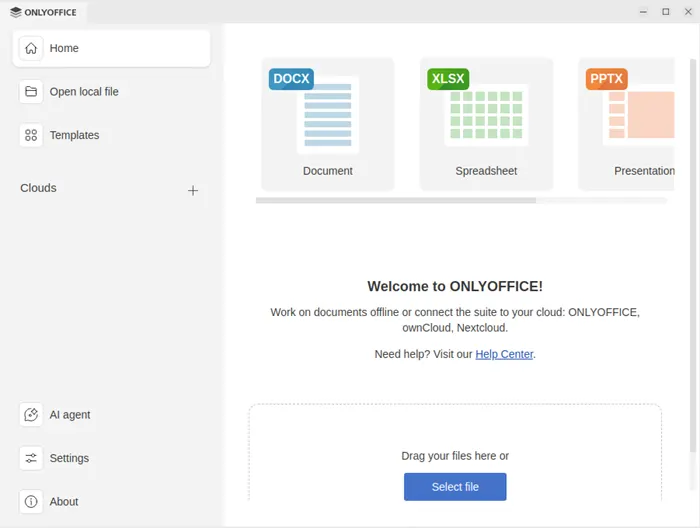
After a successful install on Ubuntu 25.04, opening ONLYOFFICE from the app menu lands on the home screen with Document, Spreadsheet, and Presentation tiles, sidebar links for local files and templates, and a Select file drop zone:
Terminal:
desktopeditorsOpen a specific file:
desktopeditors ~/Documents/report.docxThe .desktop entry registers dozens of MIME types—docx, xlsx, pptx, ODF, PDF, and more—so you can set OnlyOffice as the default handler in Settings → Apps → Default applications after install.
User settings and caches land under ~/.config/onlyoffice, ~/.local/share/onlyoffice, and ~/.cache/onlyoffice once you run the app.
Alternative: install the official .deb package
When you cannot add a repository (locked-down image, one-off VM, or policy that forbids extra sources.list entries), download the current amd64 package from Ascensio:
cd ~/Downloads
wget -O onlyoffice-desktopeditors_amd64.deb \
  https://download.onlyoffice.com/install/desktop/editors/linux/onlyoffice-desktopeditors_amd64.deb
sudo apt install -y ./onlyoffice-desktopeditors_amd64.deb
apt install ./file.deb resolves the same dependency chain as the repository package. The .deb URL returned HTTP 200 with content-length: 364644136 (~348 MB) when I checked headers—expect a long download on slow links.
You can still add the APT repo later for apt upgrade without reinstalling from scratch.
Alternative: Snap package
Canonical’s Snap store carries the same product name:
sudo snap install onlyoffice-desktopeditorssnap info onlyoffice-desktopeditors showed 9.4.0 on latest/stable (June 2026) at about 1.06 GB installed size. Snap confinement is convenient on Ubuntu Desktop when you do not want a vendor sources.list entry.
Remove later with:
sudo snap remove onlyoffice-desktopeditorsDo not install both the deb and Snap builds unless you intentionally want two copies—they register similar menu entries.
Alternative: Flatpak
Flatpak distributes OnlyOffice as org.onlyoffice.desktopeditors on Flathub. Enable Flathub once, then:
flatpak install flathub org.onlyoffice.desktopeditors
flatpak run org.onlyoffice.desktopeditors
Flatpak builds sometimes trail the .deb by a short window after major releases—fine for trials, but the APT repo is usually first for x86_64 Ubuntu.
Uninstall:
flatpak uninstall org.onlyoffice.desktopeditorsUninstall OnlyOffice
Ascensio’s docs distinguish remove (keep local config) from purge (delete package metadata).
Keep configuration files:
sudo apt-get remove onlyoffice-desktopeditorsRemove configuration too:
sudo apt-get purge -y onlyoffice-desktopeditors
sudo apt-get autoremove -y
A purge dry-run on my host reported:
The following packages will be REMOVED:
  onlyoffice-desktopeditors*
Purg onlyoffice-desktopeditors [9.4.0-129]
Drop the repository when you no longer need updates:
sudo rm -f /etc/apt/sources.list.d/onlyoffice.list /usr/share/keyrings/onlyoffice.gpgDelete personal data only when you are sure you do not need it:
rm -rf ~/.config/onlyoffice ~/.local/share/onlyoffice ~/.cache/onlyofficeIf anything remains under /opt/onlyoffice after a broken uninstall, Ascensio documents manual cleanup of that path and stale .desktop files—normally apt purge handles it.
Troubleshooting
| Symptom | Likely cause | Fix |
|---|---|---|
onlyoffice-desktopeditors stuck at iU / dpkg --configure hangs |
ttf-mscorefonts-installer downloading fonts |
Sync NTP; pre-accept EULA with debconf-set-selections; run sudo apt install -f -y |
| SSL certificate not yet valid on SourceForge mirrors | Clock behind real time or TLS inspection | sudo timedatectl set-ntp true; retry, or install with --no-install-recommends |
desktopeditors: command not found after install |
Package not fully configured | sudo apt install -f -y; check dpkg -l onlyoffice-desktopeditors shows ii |
| Two OnlyOffice icons in the app menu | Both Snap and .deb installed |
Remove one channel (snap remove or apt purge) |
| Wrong architecture / no amd64 package | ARM or 32-bit CPU | Use ARM build from OnlyOffice download page or AppImage where published |
Cannot open docx by double-click |
MIME default still LibreOffice | Settings → Default applications, or xdg-mime default |
References
- Installing ONLYOFFICE Desktop Editors on Debian/Ubuntu (official)
- ONLYOFFICE Desktop download page
- Install via Flatpak (official guide)
- OnlyOffice Desktop Editors on Snapcraft
- ONLYOFFICE Desktop Editors on Flathub
Summary
To install OnlyOffice on Ubuntu, add Ascensio’s signed download.onlyoffice.com repository, run sudo apt install onlyoffice-desktopeditors, and launch ONLYOFFICE from the Office menu or with desktopeditors. Version 9.4.0-129 landed under /opt/onlyoffice on Ubuntu 25.04. If apt pauses on Microsoft core fonts, sync time or use --no-install-recommends, then sudo apt install -f. For repo-less installs, use the official amd64 .deb; Snap and Flatpak suit sandboxed setups. This guide covers Desktop Editors only—pair it with the site’s LibreOffice removal walkthrough when you want a single local office suite.