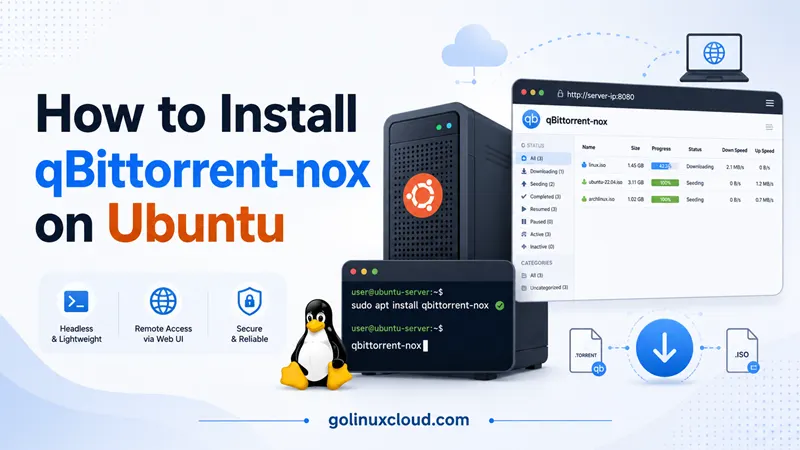
qbittorrent-nox is the headless build of qBittorrent for Ubuntu Server and other systems without a graphical desktop. You manage torrents through a browser-based Web UI instead of a local window, which makes it a good fit for NAS boxes, VPS instances, and home servers.
This guide covers installing qbittorrent-nox on Ubuntu, creating a dedicated service user, completing the first-run legal notice, logging into the Web UI (including the temporary-password behavior in current releases), enabling the official systemd template, basic firewall and remote-access options, and the pitfalls that still appear in outdated forum posts.
Tested on: Ubuntu 25.04 (Plucky Puffin); kernel 6.14.0-37-generic.
Quick command summary
| Task | Command |
|---|---|
| Install from Ubuntu universe | sudo apt update && sudo apt install -y qbittorrent-nox |
| Install latest from official PPA | sudo add-apt-repository -y ppa:qbittorrent-team/qbittorrent-stable && sudo apt update && sudo apt install -y qbittorrent-nox |
| Check version | qbittorrent-nox --version |
| Create service user | sudo useradd -r -m -d /var/lib/qbittorrent -s /usr/sbin/nologin qbtuser |
| First interactive run | sudo -u qbtuser qbittorrent-nox --confirm-legal-notice |
| Start systemd service | sudo systemctl enable --now qbittorrent-nox@qbtuser |
| Read temporary Web UI password | journalctl -u qbittorrent-nox@qbtuser -b --no-pager | grep -i password |
| Check listening port | ss -ltnp | grep 8080 |
| Stop and disable | sudo systemctl disable --now qbittorrent-nox@qbtuser |
What is qbittorrent-nox?
qBittorrent is a popular open-source BitTorrent client. The nox variant drops the Qt desktop interface and exposes a Web UI you reach from another machine’s browser—typically at http://server-ip:8080.
On Ubuntu you install the qbittorrent-nox package. Configuration and torrent data live under the Linux user that runs the process (for example /var/lib/qbittorrent/.config/qBittorrent/ when that user’s home is /var/lib/qbittorrent).
Use qbittorrent-nox when you want a always-on torrent box without installing a full desktop environment. If you need a GUI on the same machine, install the qbittorrent package instead.
Prerequisites
You need:
- A supported Ubuntu release (22.04 LTS, 24.04 LTS, and newer non-LTS versions such as 25.04 are covered here).
sudoaccess.- Enough disk space for downloads—see check disk space in Linux before pointing qBittorrent at a large volume.
- Outbound network access for torrent peers and optional inbound access if you rely on direct peer connections.
For adding PPAs on minimal images, install software-properties-common first if add-apt-repository is missing—see add-apt-repository command not found.
Install qbittorrent-nox on Ubuntu
You have two practical package sources on Ubuntu.
apt-cache policy qbittorrent-nox first—mixed or duplicate sources cause confusing upgrades.
Method 1: Install from Ubuntu universe (simplest)
The universe repository ships qbittorrent-nox on current Ubuntu releases. This is the fastest path when the packaged version is new enough for you.
sudo apt update
sudo apt install -y qbittorrent-nox
Check the installed build:
qbittorrent-nox --versionTested output:
qBittorrent v5.0.4On Ubuntu 25.04 the universe package was 5.0.4-1 at the time of writing. Older LTS releases may lag behind the upstream project.
Method 2: Install from the official qBittorrent PPA (newer builds)
The qBittorrent project wiki recommends the qbittorrent-stable PPA when you want newer releases than Ubuntu’s default archive.
sudo add-apt-repository -y ppa:qbittorrent-team/qbittorrent-stable
sudo apt update
sudo apt install -y qbittorrent-nox
After adding the PPA on Ubuntu 25.04, apt offered 5.1.4.x while universe still had 5.0.4-1. Run apt-cache policy qbittorrent-nox to compare candidates before you install.
ppa:qbittorrent-team/qbittorrent-unstable for nightly builds. Use it only when you accept breakage risk; most servers should stay on qbittorrent-stable or universe.
What to avoid
Several older tutorials (and gist copies) still show unsafe or outdated patterns on modern Ubuntu:
- Running qbittorrent-nox as root in a custom unit file.
- Using
Type=forkingwithqbittorrent-nox -dinstead of the shipped simple[email protected]template. - Assuming the Web UI password is always
adminadmin(it is not on qBittorrent 4.6+). - Installing random third-party
.debfiles or curl-to-bash scripts when the PPA or universe package already matches your needs.
Create a dedicated service user
Run qbittorrent-nox under an unprivileged account that owns its config and download directories. This matches the official systemd guidance and aligns with running a systemd service as a specific user.
sudo useradd -r -m -d /var/lib/qbittorrent -s /usr/sbin/nologin qbtuser-rcreates a system account.-d /var/lib/qbittorrentkeeps torrent data off/root./usr/sbin/nologinblocks interactive SSH login while still allowing the service to run.
Create your download directory and set ownership before you add torrents:
sudo mkdir -p /var/lib/qbittorrent/downloads
sudo chown -R qbtuser:qbtuser /var/lib/qbittorrent
For useradd options in more detail, see the useradd command guide.
First run: legal notice and Web UI password
Before systemd can manage qbittorrent-nox cleanly, complete the one-time legal notice as the service user.
Interactive first start
sudo -u qbtuser qbittorrent-nox --confirm-legal-notice--confirm-legal-notice accepts the sharing disclaimer non-interactively (equivalent to agreeing at the prompt). Without it, qbittorrent-nox waits for keyboard input, which blocks a clean systemd start.
After internal startup you should see a banner similar to:
******** Information ********
To control qBittorrent, access the WebUI at: http://localhost:8080
The WebUI administrator username is: admin
The WebUI administrator password was not set. A temporary password is provided for this session: URVADwjAs
You should set your own password in program preferences.adminadmin. Copy it from this output (or from journalctl after you start the service). Press Ctrl+C to stop this test run once you have noted the password.
The legal acceptance is stored in ~/.config/qBittorrent/qBittorrent.conf under [LegalNotice] Accepted=true for that user.
Log in to the Web UI
On the Ubuntu server (with a desktop browser) or from another machine (after you open access—see the security section), open:
http://SERVER_IP:8080Log in with:
- Username:
admin - Password: the temporary password from first-run output or
journalctl(until you set your own)
In the Web UI go to Tools → Options → Web UI to set a strong permanent password, change the listening port if 8080 is taken, and optionally restrict the Web UI to a specific network interface.
Default download location and categories are also configured under Tools → Options → Downloads.
Run qbittorrent-nox as a systemd service
qbittorrent-nox packages ship a template unit at /usr/lib/systemd/system/[email protected]. Use qbittorrent-nox@qbtuser instead of hand-writing a forking service with -d.
Enable and start the instance for qbtuser:
sudo systemctl enable --now qbittorrent-nox@qbtuserCheck status:
systemctl status qbittorrent-nox@qbtuser --no-pagerTested output (trimmed):
● [email protected] - qBittorrent-nox service for user qbtuser
     Loaded: loaded (/usr/lib/systemd/system/[email protected]; enabled; preset: enabled)
     Active: active (running) since Wed 2026-06-24 18:44:03 IST; 5s ago
   Main PID: 30268 (qbittorrent-nox)
Confirm the Web UI port is listening:
ss -ltnp | grep 8080Read the temporary password from journald
When the service starts before you set a permanent password, qBittorrent logs the temporary value:
journalctl -u qbittorrent-nox@qbtuser -b --no-pager | grep -i passwordTested output:
The WebUI administrator password was not set. A temporary password is provided for this session: RrrWJAehmFor more journal filtering examples, see view logs with journalctl.
Service management commands
| Action | Command |
|---|---|
| Start | sudo systemctl start qbittorrent-nox@qbtuser |
| Stop | sudo systemctl stop qbittorrent-nox@qbtuser |
| Restart | sudo systemctl restart qbittorrent-nox@qbtuser |
| Disable at boot | sudo systemctl disable qbittorrent-nox@qbtuser |
| Follow live logs | journalctl -u qbittorrent-nox@qbtuser -f |
Wait for a mount before starting (optional)
If downloads live on a separate disk or NFS share, add mount dependencies so qbittorrent-nox does not write to an empty path when the volume is missing. The pattern is the same as starting a systemd service after NFS mount: create a drop-in override with After= and BindsTo= for the mount unit (for example mnt-data.mount for /mnt/data).
Firewall and remote access
Local firewall (UFW)
If you use UFW and want LAN browsers to reach the Web UI directly:
sudo ufw allow from 192.168.0.0/24 to any port 8080 proto tcp comment 'qBittorrent Web UI'
sudo ufw reload
Adjust the source subnet to match your network.
8080 to 0.0.0.0/0 or the entire internet exposes the Web UI admin panel without encryption. Prefer the SSH tunnel below for remote administration, or put HTTPS and authentication in front of a reverse proxy.
Safer remote access: SSH tunnel
Instead of exposing the Web UI port publicly, tunnel it over SSH from your laptop:
ssh -L 8080:127.0.0.1:8080 your-user@SERVER_IPThen open http://127.0.0.1:8080 locally. The Web UI traffic rides inside SSH.
If SSH is exposed to the internet, consider Fail2ban for SSH as a baseline hardening step.
Reverse proxy (optional)
Some guides terminate TLS in Nginx or Apache and proxy to http://127.0.0.1:8080. That works, but you must forward WebSocket headers for live UI updates. A minimal Nginx location block looks like:
location / {
    proxy_pass http://127.0.0.1:8080;
    proxy_set_header Host $host;
    proxy_set_header X-Real-IP $remote_addr;
    proxy_set_header X-Forwarded-For $proxy_add_x_forwarded_for;
    proxy_set_header Upgrade $http_upgrade;
    proxy_set_header Connection "upgrade";
}Uninstall qbittorrent-nox
Stop the service and remove the package:
sudo systemctl disable --now qbittorrent-nox@qbtuser
sudo apt purge -y qbittorrent-nox
sudo apt autoremove -y
If you added the PPA:
sudo add-apt-repository --remove ppa:qbittorrent-team/qbittorrent-stable
sudo apt updatesudo rm -rf /var/lib/qbittorrent/.config/qBittorrentTroubleshooting
| Problem | What to check |
|---|---|
admin / adminadmin login fails |
You are on qBittorrent 4.6+. Read the temporary password from first-run output or journalctl -u qbittorrent-nox@qbtuser -b. |
| Web UI does not load | systemctl status qbittorrent-nox@qbtuser, ss -ltnp | grep 8080, and local firewall rules. |
| Service exits immediately | Run once interactively as qbtuser to accept the legal notice, or pass --confirm-legal-notice. |
| Port 8080 already in use | Change the port in Tools → Options → Web UI or add ExecStart=/usr/bin/qbittorrent-nox --webui-port=8081 via a systemd drop-in override. |
| Permission errors on downloads | chown -R qbtuser:qbtuser on the download path; confirm the disk is mounted before the service starts. |
Old tutorial uses -d and Type=forking |
Switch to the shipped [email protected] template (Type=simple, no -d). |
Application logs also land under ~/.local/share/data/qBittorrent/logs/ for the service user (for example /var/lib/qbittorrent/.local/share/data/qBittorrent/logs/).
References
- qBittorrent wiki: Running without X server (Web UI + systemd)
- qBittorrent wiki: Installing qBittorrent
- Official qbittorrent-stable PPA on Launchpad
- APT command reference on GoLinuxCloud
Frequently Asked Questions
1. What is the difference between qbittorrent and qbittorrent-nox on Ubuntu?
2. What is the default qbittorrent-nox Web UI password on Ubuntu?
3. Which port does qbittorrent-nox use for the Web UI?
4. Should I run qbittorrent-nox as root?
5. How do I make qbittorrent-nox start automatically on boot?
6. Why does admin / adminadmin not work after I install qbittorrent-nox?
7. How do I uninstall qbittorrent-nox from Ubuntu?
Summary
To install qbittorrent-nox on Ubuntu, add the official qbittorrent-stable PPA when you need a newer build—or install from universe when the default version is enough. Create a dedicated user such as qbtuser, complete the first-run legal notice, and log into the Web UI with username admin and the temporary password printed on first start (not adminadmin on current releases). Enable qbittorrent-nox@qbtuser with systemd, read passwords from journalctl if needed, and prefer an SSH tunnel over exposing port 8080 to the internet.
For day-to-day package work on Debian-based systems, keep the apt command cheat sheet handy when you add PPAs or purge the client later.