Ubuntu can mount a network drive the same way Windows “maps” a share: you attach a remote folder to a local path such as /mnt/nas and read or write files through it. Most home and office setups use SMB/CIFS (Samba, NAS vendors, Unraid) or NFS (Linux file servers).
This guide covers mounting a network drive on Ubuntu from the terminal and the Files app: install cifs-utils, mount SMB shares with a credentials file, mount NFS exports, make mounts survive reboots with /etc/fstab, and unmount safely. I stood up a dummy Samba and NFS server on the same Ubuntu 25.04 host (glc-netshare and glc-public on 127.0.0.1) so every command below has real output. Swap 127.0.0.1 for your NAS IP or hostname.
Tested on: Ubuntu 25.04 (Plucky Puffin); kernel 6.14.0-37-generic.
chmod 600). Do not put plain-text passwords in /etc/fstab or shell history when you can avoid it.
Quick command summary
| Task | Command |
|---|---|
| Install SMB client tools | sudo apt install -y cifs-utils smbclient |
| Install NFS client tools | sudo apt install -y nfs-common |
| List SMB shares | smbclient -L //SERVER -U username |
| List NFS exports | showmount -e SERVER |
| Create mount point | sudo mkdir -p /mnt/nas && sudo chmod 755 /mnt/nas |
| Mount SMB (one-off) | sudo mount -t cifs //SERVER/SHARE /mnt/nas -o credentials=/root/.smbcredentials,uid=$(id -u),gid=$(id -g) |
| Mount NFS (one-off) | sudo mount -t nfs SERVER:/export/path /mnt/nas |
| Verify mount | findmnt /mnt/nas or df -hT /mnt/nas |
| Unmount | sudo umount /mnt/nas |
| fstab + apply | Edit /etc/fstab, then sudo mount -a |
What you are mounting
| Protocol | Typical server | Ubuntu package | Mount type |
|---|---|---|---|
| SMB / CIFS | Windows, Samba, Synology, Unraid | cifs-utils |
cifs |
| NFS | Linux NAS, ESXi datastore, backup server | nfs-common |
nfs or nfs4 |
SMB URLs look like //192.168.0.10/backups. NFS paths look like 192.168.0.10:/srv/backups. WebDAV (davfs2) and SSHFS are other options; this article focuses on SMB and NFS because those are what most “map network drive” guides target.
If you already export folders from an Ubuntu server, see how to set up a NAS server on Ubuntu for Samba and NFS on the server side.
Prerequisites
On the Ubuntu client:
sudo apt update
sudo apt install -y cifs-utils nfs-common smbclient
On Ubuntu 25.04:
cifs-utils:
  Installed: 2:7.2-2ubuntu0.1
nfs-common:
  Installed: 1:2.8.2-2ubuntu1
You also need:
- The server hostname or IP (for example
192.168.0.4ornas.local). - The share or export name (for example
glc-netshare). - For authenticated SMB: a username and password allowed on that share.
- A local mount point directory—create it before you mount, same idea as mounting a USB drive.
Use sudo for system-wide mounts under /mnt or /media.
Lab setup used for testing (optional)
To reproduce my session without external hardware, I created a dummy share on the same machine:
sudo mkdir -p /srv/glc-netshare /srv/glc-public
echo 'Hello from dummy network drive' | sudo tee /srv/glc-netshare/welcome.txt
Samba shares glc-netshare (authenticated) and glc-public (guest read-only) were added to /etc/samba/smb.conf, and NFS exported /srv/glc-netshare to 127.0.0.1 in /etc/exports. You do not need this on a normal desktop—point commands at your real NAS instead.
Discover shares on the server
SMB: list share names
smbclient -L 192.168.0.4 -U glcshareWhen prompted for a password, enter the SMB account password. On my host:
Sharename       Type      Comment
	---------       ----      -------
	glc-netshare    Disk
	glc-public      Disk
	IPC$            IPC       IPC Service (mail server (Samba, Ubuntu))
Use the Sharename column in your mount command: //192.168.0.4/glc-netshare.
NFS: list exports
showmount -e 127.0.0.1Export list for 127.0.0.1:
/srv/glc-netshare 127.0.0.1Your server may export to * or a subnet instead of a single IP.
Mount a network drive on Ubuntu (SMB / CIFS)
Step 1: Create a mount point
sudo mkdir -p /mnt/glc-netshare
sudo chmod 755 /mnt/glc-netshare
Step 2: Store credentials (recommended)
sudo install -m 600 -o root -g root /dev/null /root/.smbcredentials
sudo nano /root/.smbcredentials
Contents:
username=glcshare
password=YourPasswordHere
domain=WORKGROUP
domain= is optional for many home NAS units.
Step 3: Mount the share
sudo mount -t cifs //127.0.0.1/glc-netshare /mnt/glc-netshare \
  -o credentials=/root/.smbcredentials,uid=$(id -u),gid=$(id -g),file_mode=0664,dir_mode=0775
Verify:
findmnt /mnt/glc-netshare
cat /mnt/glc-netshare/welcome.txtTARGET SOURCE FSTYPE OPTIONS
/mnt/glc-netshare //127.0.0.1/glc-netshare cifs rw,relatime,vers=3.1.1,...,uid=1000,forceuid,gid=1000,forcegid,...
Hello from dummy network driveuid= and gid= make files appear owned by your login user instead of root.
Guest read-only SMB mount
For a public share that allows guests:
sudo mkdir -p /mnt/glc-public
sudo mount -t cifs //127.0.0.1/glc-public /mnt/glc-public -o guest,ro,uid=$(id -u),gid=$(id -g)
cat /mnt/glc-public/public.txtpublic share fileWrong password (real error)
This is what I saw with a bad password:
mount error(13): Permission denied
Refer to the mount.cifs(8) manual page (e.g. man mount.cifs) and kernel log messages (dmesg)
Fix the credentials file or test with smbclient -L //SERVER -U user%pass before mounting again.
Write permission gotcha
My first mount could read but not create files until the server export was owned by the Samba user:
tee: /mnt/glc-netshare/from-client.txt: Permission deniedAfter sudo chown glcshare:glcshare /srv/glc-netshare on the server, this worked:
echo 'written from client mount' > /mnt/glc-netshare/from-client.txt
cat /mnt/glc-netshare/from-client.txtwritten from client mountOn a NAS you usually set permissions in the vendor UI instead of SSH.
Older SMB servers
If negotiation fails, pin an older dialect:
sudo mount -t cifs //SERVER/SHARE /mnt/nas -o credentials=/root/.smbcredentials,vers=3.0,uid=$(id -u),gid=$(id -g)findmnt then shows vers=3.0 in the options list.
Mount a network drive on Ubuntu (NFS)
NFS fits Linux-to-Linux shares and many NAS “NFS export” toggles.
sudo mkdir -p /mnt/glc-nfs
sudo mount -t nfs 127.0.0.1:/srv/glc-netshare /mnt/glc-nfs
findmnt /mnt/glc-nfs
cat /mnt/glc-nfs/welcome.txtTARGET SOURCE FSTYPE OPTIONS
/mnt/glc-nfs 127.0.0.1:/srv/glc-netshare nfs4 rw,relatime,vers=4.2,...
Hello from dummy network driveCheck space:
df -hT /mnt/glc-nfsFilesystem Type Size Used Avail Use% Mounted on
127.0.0.1:/srv/glc-netshare nfs4 58G 42G 14G 76% /mnt/glc-nfsFor export options and server tuning, see NFS mount options examples.
Mount permanently with /etc/fstab
Edit fstab when you want the network drive available after every boot.
sudo cp /etc/fstab /etc/fstab.bak.$(date +%F)
sudo nano /etc/fstab
SMB example:
//192.168.0.4/glc-netshare /mnt/glc-netshare cifs credentials=/root/.smbcredentials,uid=1000,gid=1000,file_mode=0664,dir_mode=0775,_netdev,x-systemd.automount 0 0NFS example:
192.168.0.4:/srv/glc-netshare /mnt/glc-nfs nfs _netdev,x-systemd.automount 0 0| Option | Why |
|---|---|
_netdev |
Wait for networking before this mount; avoids hanging early boot when the NAS is off |
x-systemd.automount |
Mount on first access instead of blocking boot |
credentials= |
Keeps passwords out of fstab |
Test before reboot:
sudo umount /mnt/glc-netshare /mnt/glc-nfs 2>/dev/null || true
sudo mount -a
cat /mnt/glc-netshare/welcome.txtHello from dummy network driveFor systemd .mount units instead of fstab, see mount a partition using systemd.
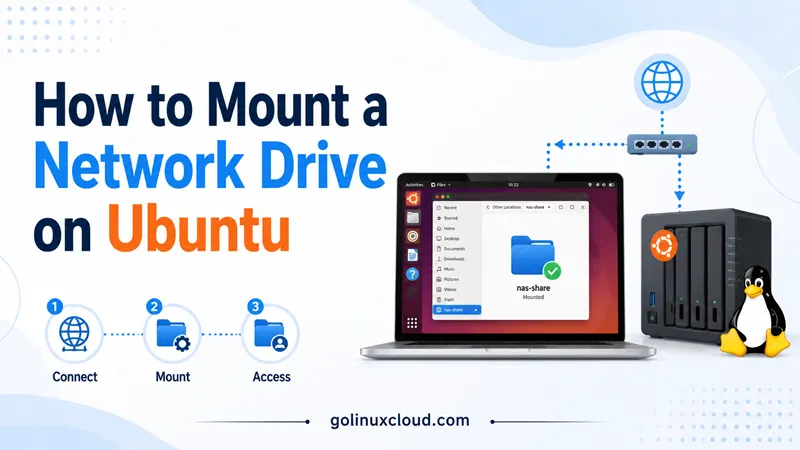
Map a network drive in the Ubuntu GUI (Files)
On Ubuntu Desktop:
- Open Files (Nautilus).
- Click Other Locations in the sidebar.
- At Connect to Server, enter
smb://192.168.0.4/glc-netshareornfs://192.168.0.4/srv/glc-netshare. - Click Connect and enter SMB credentials when asked.
The share appears in the sidebar for your session. GNOME typically mounts it under /run/user/$(id -u)/gvfs/. That is fine for interactive use; use /mnt plus fstab when you need a fixed path for scripts, Docker bind mounts, or servers.
Install gvfs-backends if the Connect to Server dialog lacks SMB:
sudo apt install -y gvfs-backendsUnmount a network drive
sudo umount /mnt/glc-netshareConfirm:
findmnt /mnt/glc-netshare || echo "not mounted"not mountedIf you see target is busy, close terminals and apps using the mount point. Lazy unmount (sudo umount -l) detaches the tree while processes finish—use only when you understand leftover handles may still hold files open.
Troubleshooting
| Symptom | Likely cause | Fix |
|---|---|---|
mount: /mnt/nas: unknown filesystem type 'cifs' |
cifs-utils missing |
sudo apt install cifs-utils |
mount error(13): Permission denied |
Bad credentials or no guest access | Test with smbclient; fix credentials file |
mount.nfs: access denied |
Client IP not in server export | Adjust NAS NFS export / /etc/exports |
No such file or directory for mount point |
Directory missing | sudo mkdir -p /mnt/nas |
| Boot hangs on NAS mount | fstab without _netdev |
Add _netdev and x-systemd.automount |
| Files owned by root on SMB | Missing uid/gid options |
Add uid=$(id -u),gid=$(id -g) to mount options |
| Can read but not write CIFS | Server-side ownership | Fix export permissions on NAS or Samba force user |
References
Summary
To mount a network drive on Ubuntu, install cifs-utils for SMB or nfs-common for NFS, create a mount point under /mnt, and run sudo mount -t cifs //server/share /mnt/nas with a root-only credentials file. Use showmount and smbclient -L to discover exports before you mount. For mounting a network drive permanently, add a line to /etc/fstab with _netdev and test with sudo mount -a. The Files app can connect via Other Locations → Connect to Server when you prefer a GUI over the terminal.