
In this article I will share step by step instructions with screenshots to create KVM Virtual Machine using Cockpit web console in RHEL/CentOS 8 Linux
⇒ Virtual Manager (Deprecated starting RHEL/CentOS 8)
⇒ virt-install Command Line Tool
What is Cockpit?
- The RHEL/CentOS web console is an open source project called Cockpit that provides a user-friendly web interface allowing for the remote administration of servers.
- Starting with RHEL/CentOS 7, the cockpit package provides a powerful and extensible web console for system administration.
- You can learn more about cockpit from their official project page
- Cockpit is installed by default on RHEL/CentOS 8, which is why you may
see a login message on screen
"
Activate the web console with: systemctl enable --now cockpit.socket" every time you connect to your RHEL/CentOS 8 box.
Pre-requisite
As a pre-requisite, you must first install KVM and enable KVM Virtualization on your Linux server host before you can create KVM Virtual Machine using Cockpit or any other method in RHEL/CentOS 8 Linux
Install Cockpit
- As told earlier, cockpit should be installed by default on your RHEL/CentOS 8 Linux server
- But if not installed, you can manually install it using
Allow the bundled service with firewall-cmd --add-service; see the firewalld for http, https, and custom service definitions.
The step below uses rpm on an RPM-based distro; see the rpm command for install, query, verify, and erase options.
Enable or disable the unit at boot with systemctl enable; the systemctl command documents enable --now, symlinks under /etc/systemd/system, and masks.
[dnf or yum. I hope you are already aware of YUM alternative DNF tool - We will also need cockpit-machines to add a new plugin in cockpit which we will use to create KVM virtual machine using Cockpit [root@rhel-8 ~]# dnf install -y cockpit cockpit-machines Below are the cockpit rpm versions used in this article [root@rhel-8 ~]# rpm -q cockpit cockpit-196.3-1.el8.x86_64 [root@rhel-8 ~]# rpm -q cockpit-machines cockpit-machines-197.3-1.el8.noarch --- ## Enable and start Cockpit - The cockpit service is handled by cockpit.socket - So you don't need to worry about cockpit.service (unless it is masked) - You just need to start and enable cockpit.socket [root@rhel-8 ~]# systemctl enable cockpit.socket --now Check the status of the socket [root@rhel-8 ~]# systemctl status cockpit.socket ● cockpit.socket - Cockpit Web Service Socket Loaded: loaded (/usr/lib/systemd/system/cockpit.socket; enabled; vendor preset: disabled) Active: active (listening) since Wed 2020-04-29 01:45:39 IST; 4 days ago Docs: man:cockpit-ws(8) Listen: [::]:9090 (Stream) Tasks: 0 (limit: 26213) Memory: 2.4M CGroup: /system.slice/cockpit.socket - It is possible that cockpit.service is dead. This is because currently there are no incoming request for the cockpit.service - As soon as cockpit.socket received a request, it will start the service automatically [root@rhel-8 ~]# systemctl status cockpit ● cockpit.service - Cockpit Web Service Loaded: loaded (/usr/lib/systemd/system/cockpit.service; static; vendor preset: disabled) Active: inactive (dead) Docs: man:cockpit-ws(8) Apr 29 01:45:39 rhel-8.example.com systemd[1]: Starting Cockpit Web Service Socket. Apr 29 01:45:39 rhel-8.example.com systemd[1]: Listening on Cockpit Web Service Socket. --- ## Enable Firewall for Cockpit By default there should be a rule to allow cockpit.service [root@rhel-8 ~]# firewall-cmd --list-services cockpit dhcpv6-client ssh But if it is not present you can create a new firewall rule to allow cockpit in firewalld # firewall-cmd --add-service=cockpit --permanent # firewall-cmd --reload --- ## Access Cockpit Web Console GUI After you enable and start cockpit.socket, next you can access your cockpit web console GUI: ### Connect using browser Open browser and in address link put : http://server-ip:9090 or http://localhost:9090 ### Connect using CLI From command line as root or non-root user you can launch firefox. $ firefox server-ip:9090 or $ firefox localhost:9090 Login as any Linux system user by providing the username and password. Below is the Cockpit web console login screen, 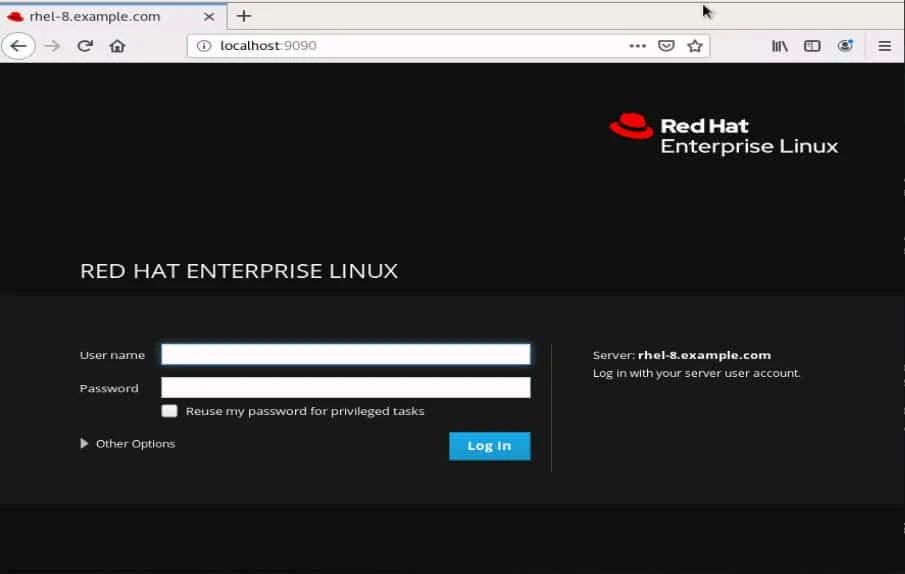
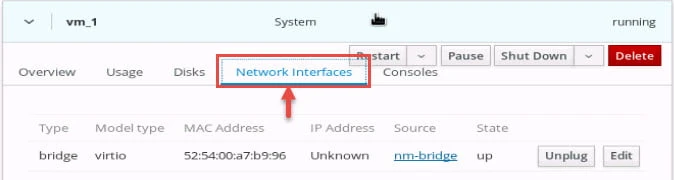
nm-bridge as my Bridged Interface and virbr0 which is system's default bridge interface. 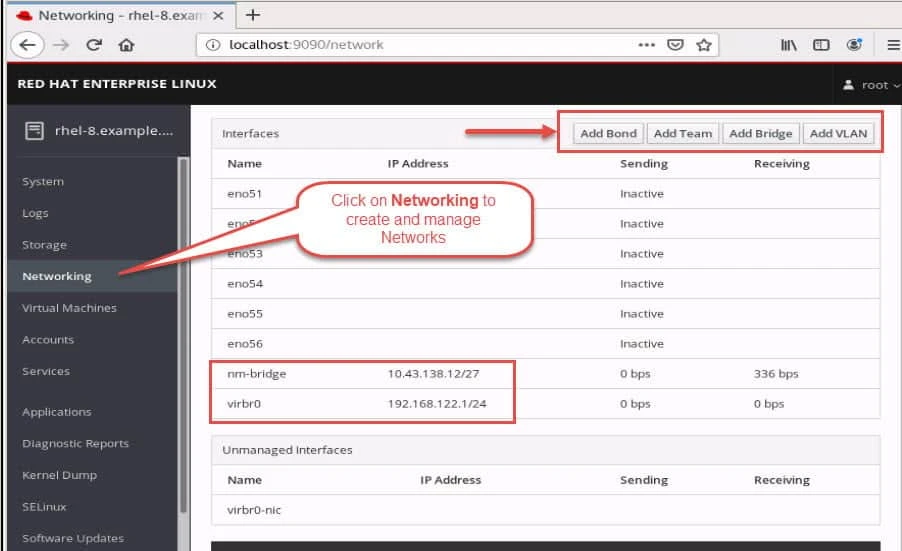
cockpit-machines then you won't get this option on Cockpit Web Console. In my case I already have different virtual machines running on my KVM host. You can ignore them for now. 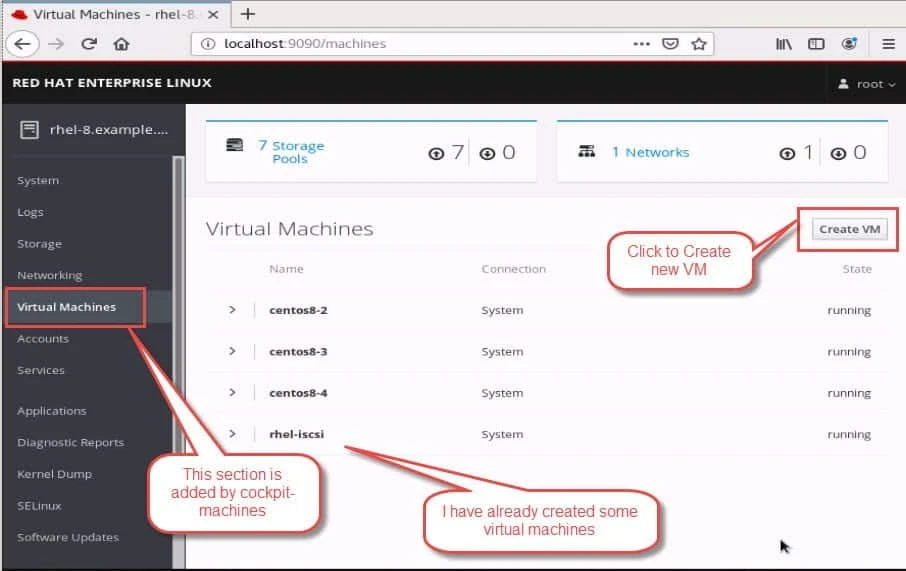
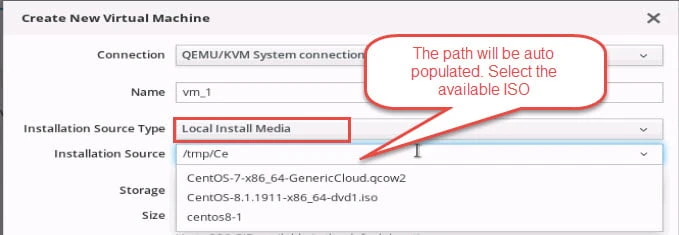
/tmp to create KVM Virtual Machine
using Cockpit
[root@rhel-8 ~]# ls -l /tmp/CentOS-8.1.1911-x86_64-dvd1.iso
-rw-r--r--. 1 qemu qemu 7554990080 Jan  4 03:17 /tmp/CentOS-8.1.1911-x86_64-dvd1.iso
We will provide the path to this ISO under "Installation Source"
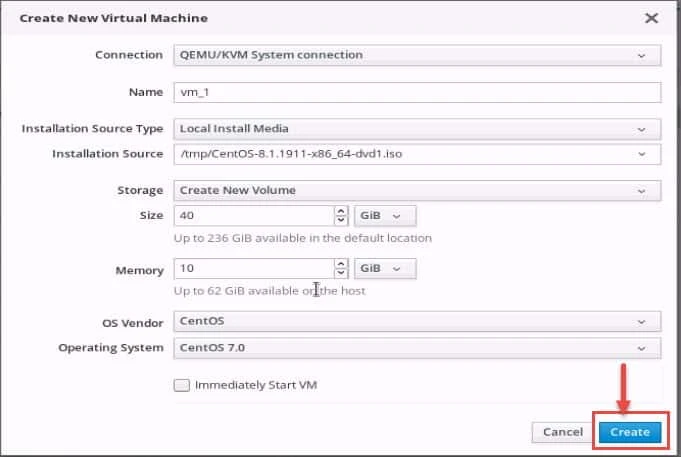
Next provide other details for your VM such as Disk Size, Memory, OS Vendor. At the time of writing this article, CentOS 8 was not shown under list of OS Vendor so I have selected CentOS 7.
Lastly click on Create to create KVM Virtual Machine using Cockpit
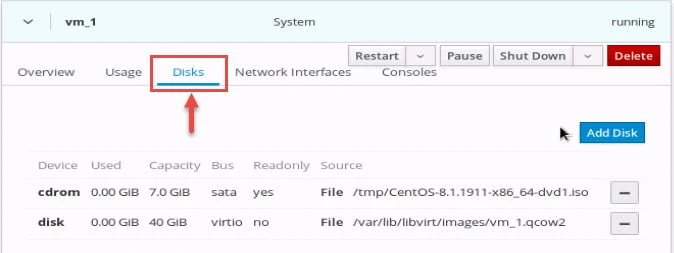
In the next step, you will be again on the main section of "Virtual Machines" and a new VM will have been created if all was successful. You can check the VM's details, such as attached Disks, Network Interfacesby selecting the respective TAB menu for the respective VM.
Currently at the time of writing this article, Cockpit does not supports many important features required to manage KVM Virtual Machine. You can get the complete list of missing features between Cockpit Web Console and Virtual Manager from Red Hat's documentation
Alternatively you can also use command line tool virsh to manage and modify KVM Virtual Machine
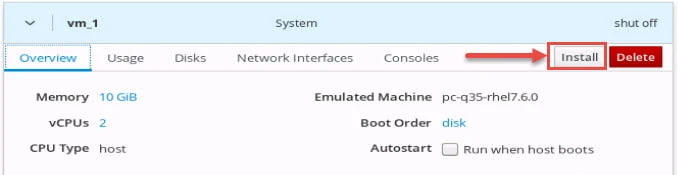
Next click on Install to start the Installation Process which will automatically re-direct you to the Console of the VM.
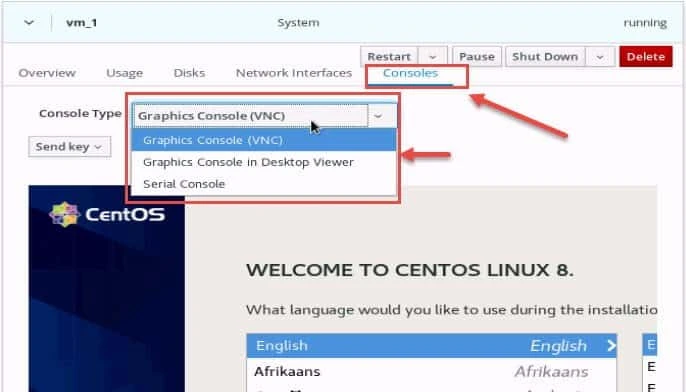
You can also click on Consoles to access the console of the VM using
VNC.
From the drop down menu you can choose to access console using serial
console or using virt-viewer
You can next follow the steps to install your respective OS on the KVM VM
The Virtual Machine which we created using Cockpit will also be
accessible using virt-manager
and virsh. You can use virt-manager to manage the Virtual Machine
List every PATH match with which -a; the which command compares which to type -a and command -v.
which currently provides more list of features to modify and manage the KVM Virtual Machines
References:
How to
install Cockpit in RHEL/CentOS 8?
