
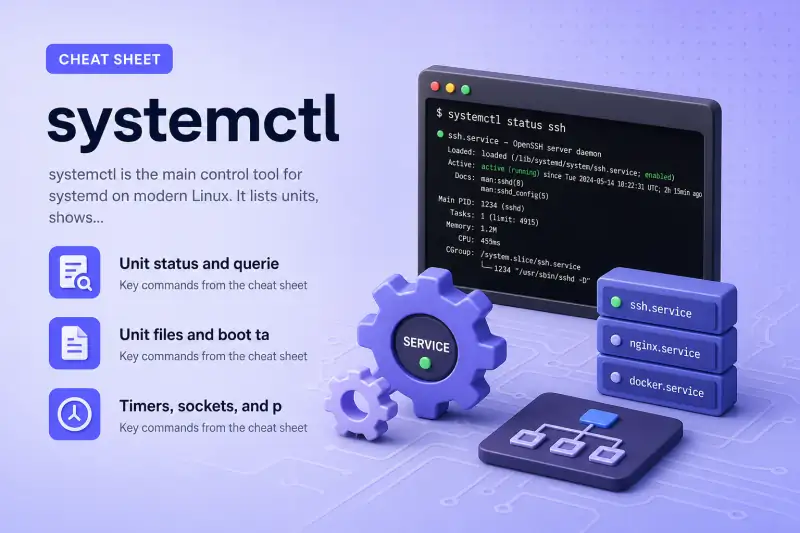
systemctl — quick reference
Unit status and queries
Check whether units are loaded, active, failed, or waiting — without changing anything on the system.
| When to use | Command |
|---|---|
| Show runtime status, recent log lines, and cgroup for a unit | systemctl status ssh |
| Quick yes/no: is the unit active right now? | systemctl is-active ssh |
| Check whether the unit file is enabled at boot | systemctl is-enabled ssh |
| See if any units failed or the system is degraded | systemctl is-failed |
| List units currently in memory, filtered by name pattern | systemctl list-units 'ssh*' --all |
| List only running service units | systemctl list-units --type=service --state=running |
| Read selected unit properties (PID, state, path) | systemctl show ssh -p ActiveState -p SubState -p MainPID |
| Show which units this service needs or is wanted by | systemctl list-dependencies ssh |
| Print the effective unit file and drop-in snippets | systemctl cat ssh |
| Show the on-disk path of the unit definition | systemctl show -p FragmentPath ssh |
Unit files and boot target
Inspect installed unit files and the default boot target — still read-only.
| When to use | Command |
|---|---|
| List installed unit files and their enable state | systemctl list-unit-files --type=service |
| Show the default target (roughly the old "runlevel") | systemctl get-default |
| List active timer units and next run times | systemctl list-timers |
Timers, sockets, and paths
Narrow listings when you care about scheduled jobs or activation units instead of plain .service files.
| When to use | Command |
|---|---|
| List socket units (services triggered by connections) | systemctl list-sockets |
| List path units (services triggered by file changes) | systemctl list-paths |
Output and version
Control paging and confirm the installed systemd build.
| When to use | Command |
|---|---|
Disable the pager for scripts (head, grep) |
systemctl --no-pager list-units |
| Show brief usage | systemctl --help |
| Show systemd version | systemctl --version |
systemctl — command syntax
Synopsis from systemctl --help on Ubuntu 25.04 (systemd 257.4):
systemctl [OPTIONS...] COMMAND ...systemctl talks to PID 1 (systemd). Query commands need no privilege; start, stop, enable, disable, and mask need root or sudo. Unit definitions live under /usr/lib/systemd/system/, /etc/systemd/system/, and runtime paths under /run/systemd/system/.
systemctl — command examples
Essential Check whether a service is running (status)
When SSH or a web server acts up, systemctl status is the first check. It prints load state, active state, main PID, cgroup, and the last few journal lines for that unit.
Run the command:
systemctl status sshSample output:
● ssh.service - OpenBSD Secure Shell server
     Loaded: loaded (/usr/lib/systemd/system/ssh.service; enabled; preset: enabled)
     Active: active (running) since Wed 2026-07-01 17:34:32 IST; 1h 31min ago
 Invocation: a1dae6f6f1ad471ea580b4d118fa6c82
TriggeredBy: ● ssh.socket
       Docs: man:sshd(8)
             man:sshd_config(5)
   Main PID: 1437 (sshd)
      Tasks: 1 (limit: 3682)
     Memory: 10.6M (peak: 13.4M, swap: 280K, swap peak: 280K)
        CPU: 942ms
     CGroup: /system.slice/ssh.service
             └─1437 "sshd: /usr/sbin/sshd -D [listener] 0 of 10-100 startups"
The green active (running) line means the daemon is up. Loaded: … enabled means it will start on boot. For deeper logs, follow with journalctl (journalctl -u ssh).
Essential Quick active and enabled checks for scripts
Scripts and health checks often need a short answer instead of a full status block. is-active and is-enabled exit zero only when the condition is true.
Run the commands:
systemctl is-active ssh
systemctl is-enabled ssh
Sample output:
active
enabled
Use is-active before alerting on a down service. Use is-enabled when you are verifying install scripts set the right boot policy. A unit can be enabled but inactive if it is socket-activated or waiting for a trigger.
Essential List running service units
See every .service unit that is running right now — useful after boot or when hunting what is consuming resources.
Run the command:
systemctl list-units --type=service --state=running --no-pagerSample output:
UNIT                          LOAD   ACTIVE SUB     DESCRIPTION
  accounts-daemon.service       loaded active running Accounts Service
  avahi-daemon.service          loaded active running Avahi mDNS/DNS-SD Stack
  colord.service                loaded active running Manage, Install and Generate Color Profiles
  cron.service                  loaded active running Regular background program processing daemon
  cups-browsed.service          loaded active running Make remote CUPS printers available locally
  cups.service                  loaded active running CUPS Scheduler
  dbus.service                  loaded active running D-Bus System Message Bus
  dm-event.service              loaded active running Device-mapper event daemon
  fwupd.service                 loaded active running Firmware update daemon
  gdm.service                   loaded active running GNOME Display Manager
  ModemManager.service          loaded active running Modem Manager
  NetworkManager.service        loaded active running Network Manager
  polkit.service                loaded active running Authorization Manager
  power-profiles-daemon.service loaded active running Power Profiles daemon
Add a name pattern to narrow the list, for example systemctl list-units 'nginx*'. See systemctl list services for more filter ideas.
Common Show unit dependencies as a tree
Dependencies explain why a service will not start or what else must be running first. The tree shows Requires, Wants, and target membership.
Run the command:
systemctl list-dependencies sshSample output:
ssh.service
● ├─-.mount
● ├─ssh.socket
○ ├─sshd-keygen.service
● ├─system.slice
● └─sysinit.target
×   ├─apparmor.service
●   ├─blk-availability.service
●   ├─dev-hugepages.mount
●   ├─dev-mqueue.mount
●   ├─finalrd.service
●   ├─keyboard-setup.service
Filled circles (●) are active; hollow (○) are inactive; × marks failed units that can leave the system degraded. Fix failed dependencies before blaming the service itself.
Common Read unit properties for automation
show prints machine-friendly fields. Pick only the properties your script needs instead of parsing status output.
Run the command:
systemctl show ssh -p ActiveState -p SubState -p MainPIDSample output:
MainPID=1437
ActiveState=active
SubState=running
ActiveState is the high-level state (active, inactive, failed). SubState adds detail (running, dead, exited). MainPID is the primary process when the unit is running.
Common View the effective unit file on disk
cat merges the vendor unit file with any drop-in overrides under /etc/systemd/system/. Use it when status says loaded but behaviour does not match what you expect.
Run the command:
systemctl cat sshSample output:
# /usr/lib/systemd/system/ssh.service
[Unit]
Description=OpenBSD Secure Shell server
Documentation=man:sshd(8) man:sshd_config(5)
After=network.target nss-user-lookup.target auditd.service
ConditionPathExists=!/etc/ssh/sshd_not_to_be_run

[Service]
EnvironmentFile=-/etc/default/ssh
ExecStartPre=/usr/sbin/sshd -t
ExecStart=/usr/sbin/sshd -D $SSHD_OPTS
ExecReload=/usr/sbin/sshd -t
ExecReload=/bin/kill -HUP $MAINPID
KillMode=process
Restart=on-failure
If a drop-in exists, systemd prints it after the base file with a # /etc/systemd/system/ssh.service.d/… header.
Advanced List scheduled timer units
Timers replace many cron jobs on systemd hosts. list-timers shows the next and last run time for each active timer.
Run the command:
systemctl list-timers --no-pagerSample output:
NEXT                                 LEFT LAST                              PASSED UNIT                           ACTIVATES
Wed 2026-07-01 19:10:00 IST      3min 17s Wed 2026-07-01 19:00:16 IST     6min ago sysstat-collect.timer          sysstat-collect.service
Wed 2026-07-01 19:33:16 IST         26min Wed 2026-07-01 19:06:26 IST      16s ago anacron.timer                  anacron.service
Wed 2026-07-01 20:00:37 IST         53min Wed 2026-07-01 19:01:44 IST 4min 58s ago fwupd-refresh.timer            fwupd-refresh.service
Thu 2026-07-02 00:00:00 IST      4h 53min Wed 2026-07-01 08:54:30 IST            - dpkg-db-backup.timer           dpkg-db-backup.service
The ACTIVATES column names the .service unit each timer starts. Pair with systemctl cat UNIT.timer to read the schedule.
Advanced Detect failed units and degraded system state
When something broke at boot, systemd may mark the overall state as degraded even though most services look fine. is-failed with no arguments reports that and lists failed units.
Run the command:
systemctl is-failedSample output:
degradedList failed units explicitly:
systemctl --failed --no-pagerClear a resolved failure flag with sudo systemctl reset-failed UNIT after you fix the root cause — only when you are sure the unit is healthy again.
systemctl — when to use / when not
Use systemctl on any host where systemd is PID 1. Reach for something else when the distro still uses SysV init, when you only need log text, or when you are inside a container without systemd.
| Use systemctl when | Use something else when |
|---|---|
|
|
systemctl vs service
On systemd distros, service nginx status often still works because it forwards to systemd. Prefer systemctl for scripts and documentation — names match unit files and flags are consistent.
| systemctl | service (wrapper) | |
|---|---|---|
| Unit names | Exact (nginx.service) |
Short name often accepted (nginx) |
| Enable at boot | enable / disable |
No direct equivalent |
| Properties and deps | show, list-dependencies |
Not available |
| Portability | systemd distros | Broader on mixed fleets |
Related commands
Nearby tools for services, logs, and unit authoring on systemd hosts.
| Command | One line |
|---|---|
| systemctl | Control and query systemd units (this page) |
| journalctl | Read service and kernel logs from journald |
| systemctl list services | Filtered listings of running and installed units |
| create systemd service | Write a new .service unit file |
Browse the full index on the Linux commands cheat sheet.
systemctl — interview corner
What does systemctl do in Linux?
systemctl is the command-line front end to systemd, the init system and service manager on most modern Linux distributions. It sends requests to PID 1: start or stop daemons, enable units at boot, and query state.
Every managed app, mount, timer, or socket is a unit with a name like ssh.service or nginx.service. systemctl status ssh tells you if that unit is loaded, active, and which PID it owns. That is the day-to-day mental model: units in, state and control out.
A strong answer is:
"systemctl talks to systemd to query and control units — services, timers, mounts, and sockets. I use it to check status, enable services at boot, and inspect unit files on systemd-based distros."
What is the difference between active and enabled in systemctl?
They answer different questions:
| Term | Meaning |
|---|---|
| active | The unit is running (or in its active state) right now |
| enabled | A symlink exists so systemd starts it on boot (or when its trigger fires) |
A unit can be enabled but inactive — common for socket-activated services that wait for a connection. It can also be active but disabled if you started it manually this session only.
systemctl is-active ssh
systemctl is-enabled ssh
A strong answer is:
"Active means running now; enabled means configured to start at boot or by its trigger. I check both — a service can be enabled but inactive until something connects."
Where are systemd unit files stored?
Vendor packages ship units under /usr/lib/systemd/system/. Local admin overrides go in /etc/systemd/system/. Runtime units can appear under /run/systemd/system/ during the current boot.
systemctl cat UNIT prints the merged view — base file plus drop-ins. systemctl show -p FragmentPath UNIT prints the main file path only.
A strong answer is:
"Packaged units live in /usr/lib/systemd/system; admin changes go in /etc/systemd/system. I use systemctl cat to see the effective unit including drop-in overrides."
What does a degraded system state mean in systemd?
degraded means at least one unit in the boot transaction failed, but systemd continued booting. The system may be partly usable — for example networking works but a non-critical helper died.
Check with:
systemctl is-failed
systemctl --failed
Fix the broken unit, then sudo systemctl reset-failed on that unit when you are done troubleshooting.
A strong answer is:
"Degraded means systemd finished boot but one or more required units failed. I list them with systemctl --failed, fix the root cause, then reset-failed when resolved."
When do you use systemctl versus journalctl?
systemctl answers state: is the unit running, enabled, failed, what PID, what dependencies.
journalctl answers history: what the unit printed, kernel messages, boot sessions, time-filtered logs.
Typical workflow: systemctl status nginx for a quick health check, then journalctl -u nginx -b for this boot's log lines. They complement each other; neither replaces the other.
A strong answer is:
"systemctl for unit state and control; journalctl for log content. I start with systemctl status, then journalctl -u UNIT when I need the actual error messages."
Troubleshooting
| Symptom | Likely cause | Fix |
|---|---|---|
Unit UNIT.service could not be found |
Typo or package not installed | systemctl list-unit-files 'pattern*'; install the package |
Access denied on start/stop |
Missing root | Prefix with sudo |
inactive (dead) but you expect running |
Service stopped or never started | sudo systemctl start UNIT; check status for errors |
enabled but not listening |
Socket activation or failed start | systemctl status UNIT; read journalctl -u UNIT |
degraded at boot |
Failed unit in default target | systemctl --failed; fix and reset-failed |
| Pager blocks scripts | Default pager on | Add --no-pager |
References
Further reading beyond this cheat sheet — deeper guides and the upstream man page.
- journalctl command cheat sheet — filter logs by unit and boot
- Beginner's guide to systemd in Linux — concepts and targets
- Create systemd service example — author a new unit
- systemctl(1) man page (Ubuntu noble — Plucky manpages not yet published for this page)
