
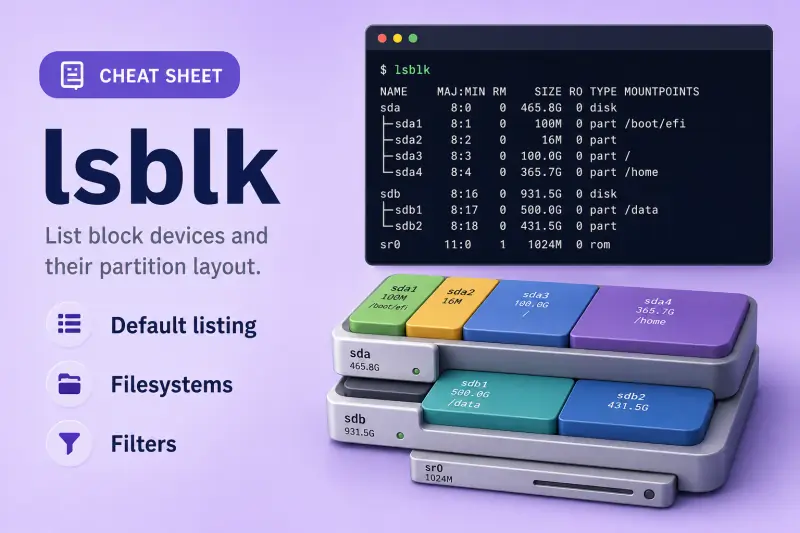
lsblk — quick reference
Default listing
Show the block-device tree with name, size, type, and mount points — no root required.
| When to use | Command |
|---|---|
| Default tree of all block devices | lsblk |
| Limit output to one disk and its children | lsblk /dev/sda |
| List format (one line per device, no tree branches) | lsblk -l |
| Show disks only — skip partition children | lsblk -d |
| Hide empty devices with no holders | lsblk -A |
Filesystems and identifiers
See filesystem type, UUID, and usage alongside block layout.
| When to use | Command |
|---|---|
| Add filesystem type, label, UUID, and use% columns | lsblk -f |
Print full /dev/... paths in the NAME column |
lsblk -p |
| Print sizes in bytes instead of human units | lsblk -b /dev/sda |
| Show owner, group, and device node permissions | lsblk -m /dev/sda |
Columns, filters, and layout
Pick columns, sort, and hide device classes you do not care about.
| When to use | Command |
|---|---|
| Choose explicit columns | lsblk -o NAME,SIZE,TYPE,MOUNTPOINTS |
| Exclude devices by major number (hide loop devices: major 7) | lsblk -e7 |
| ASCII tree characters only (safe for logs) | lsblk -i |
Tree layout with the -T formatter |
lsblk -T |
| Sort by a column (for example size) | lsblk -x SIZE |
| Skip the header row | lsblk -n |
Dependencies, topology, and scripting
Trace holders, inspect queue settings, or emit JSON for scripts.
| When to use | Command |
|---|---|
| Show inverse dependencies (which disk holds this partition) | lsblk -s /dev/sda1 |
| Print topology columns (alignment, scheduler, rotational) | lsblk -t |
| JSON output for parsers | lsblk -J |
| List available output column names | lsblk --list-columns |
Help and version
| When to use | Command |
|---|---|
| Show brief usage | lsblk --help |
| Show util-linux version | lsblk --version |
lsblk — command syntax
Synopsis from lsblk --help on Ubuntu 25.04 (util-linux 2.40.2):
lsblk [options] [<device> ...]lsblk reads the kernel block layer and udev; it does not change partitions or filesystems. Pair it with parted or fdisk when you need to create or resize partitions.
lsblk — command examples
Essential Default block device tree
Run lsblk with no arguments when you want a quick map of disks, partitions, LVM volumes, and loop devices on the host.
Run the command:
lsblkSample output:
NAME                      MAJ:MIN RM   SIZE RO TYPE MOUNTPOINTS
loop0                       7:0    0     4K  1 loop /snap/bare/5
sda                         8:0    0   25G  0 disk
├─sda1                      8:1    0    1M  0 part
├─sda2                      8:2    0    2G  0 part /boot
└─sda3                      8:3    0   23G  0 part
  └─ubuntu--vg-ubuntu--lv 252:0    0 58.4G  0 lvm  /
sdb                         8:16   0 35.4G  0 disk
└─ubuntu--vg-ubuntu--lv   252:0    0 58.4G  0 lvm  /
Tree branches show parent/child relationships: sda3 is a partition; the LVM logical volume underneath is where / is mounted. TYPE tells you disk, part, lvm, or loop.
Essential Filesystem type, UUID, and usage (-f)
Before mounting or editing /etc/fstab, -f adds filesystem columns so you can match UUIDs without a separate blkid call.
Run the command:
lsblk -f /dev/sdaSample output:
NAME                      FSTYPE      FSVER    LABEL UUID                                   FSAVAIL FSUSE% MOUNTPOINTS
sda
├─sda1
├─sda2                    ext4        1.0            c254a326-948a-4ae2-993b-1659f4ddcf03      1.5G    17% /boot
└─sda3                    LVM2_member LVM2 001       xLar7A-0CSb-mAmp-Y2sy-s6KG-FtEP-kIBAUL
  └─ubuntu--vg-ubuntu--lv ext4        1.0            72457fae-1731-4c94-b5c1-ac4564f4311c     35.5G    34% /
FSTYPE on the partition shows LVM2_member when that partition is a physical volume; the filesystem type appears on the logical volume row.
Essential Inspect one disk and its partitions
Pass a device path to limit the tree to that disk — handy on servers with many SAN LUNs.
Run the command:
lsblk /dev/sdaSample output:
NAME                      MAJ:MIN RM  SIZE RO TYPE MOUNTPOINTS
sda                         8:0    0   25G  0 disk
├─sda1                      8:1    0    1M  0 part
├─sda2                      8:2    0    2G  0 part /boot
└─sda3                      8:3    0   23G  0 part
  └─ubuntu--vg-ubuntu--lv 252:0    0 58.4G  0 lvm  /
MAJ:MIN is the kernel major:minor number. RO set to 1 means the device is read-only (common for squashfs loops).
Common Hide loop devices (-e7)
Desktop Ubuntu hosts often have dozens of snap loop devices. Major number 7 is the loop driver — exclude it to see only real disks.
Run the command:
lsblk -e7Sample output:
NAME                      MAJ:MIN RM  SIZE RO TYPE MOUNTPOINTS
sda                         8:0    0   25G  0 disk
├─sda1                      8:1    0    1M  0 part
├─sda2                      8:2    0    2G  0 part /boot
└─sda3                      8:3    0   23G  0 part
  └─ubuntu--vg-ubuntu--lv 252:0    0 58.4G  0 lvm  /
sdb                         8:16   0 35.4G  0 disk
└─ubuntu--vg-ubuntu--lv   252:0    0 58.4G  0 lvm  /
sr0                        11:0    1 50.7M  0 rom  /media/golinuxcloud/VBox_GAs_7.2.0
Add more major numbers to the exclude list separated by commas if needed (-e7,11 also hides the CD-ROM).
Common Custom columns for scripts and reports
-o picks exactly the fields you want. MOUNTPOINTS supports multiple mount points per device on newer util-linux.
Run the command:
lsblk -o NAME,SIZE,TYPE,MOUNTPOINTSSample output:
NAME                        SIZE TYPE MOUNTPOINTS
loop0                         4K loop /snap/bare/5
sda                          25G disk
├─sda1                        1M part
├─sda2                        2G part /boot
└─sda3                       23G part
  └─ubuntu--vg-ubuntu--lv  58.4G lvm  /
Run lsblk --list-columns to see every available column name on your build.
Common Print full device paths (-p)
When you are about to run mount, fsck, or dd, -p prints complete /dev/... paths so you do not guess the node name.
Run the command:
lsblk -p /dev/sdaSample output:
NAME                                  MAJ:MIN RM  SIZE RO TYPE MOUNTPOINTS
/dev/sda                                8:0    0   25G  0 disk
├─/dev/sda1                             8:1    0    1M  0 part
├─/dev/sda2                             8:2    0    2G  0 part /boot
└─/dev/sda3                             8:3    0   23G  0 part
  └─/dev/mapper/ubuntu--vg-ubuntu--lv 252:0    0 58.4G  0 lvm  /
Copy paths directly into commands — still double-check before destructive operations.
Advanced JSON output for automation (-J)
Scripts and configuration management tools often parse JSON more reliably than ASCII trees.
Run the command:
lsblk -J /dev/sdaSample output:
{
   "blockdevices": [
      {
         "name": "sda",
         "maj:min": "8:0",
         "rm": false,
         "size": "25G",
         "ro": false,
         "type": "disk",
         "mountpoints": [
             null
         ],
         "children": [
            {
               "name": "sda1",
               "maj:min": "8:1",
               "rm": false,
               "size": "1M",
               "ro": false,
               "type": "part",
               "mountpoints": [
                   null
               ]
            },{
Pipe through jq for field extraction, for example lsblk -J | jq '.blockdevices[].name'.
Advanced Inverse dependencies — which disk owns a partition (-s)
If you have a partition device and need the parent disk (for example before dd or cloning), -s walks upward.
Run the command:
lsblk -s /dev/sda1Sample output:
NAME  MAJ:MIN RM SIZE RO TYPE MOUNTPOINTS
sda1    8:1    0   1M  0 part
└─sda   8:0    0  25G  0 disk
The child appears first; parents stack below with tree markers.
lsblk — when to use / when not
| Use lsblk when | Use something else when |
|---|---|
|
|
lsblk vs fdisk / blkid
| lsblk | fdisk -l / blkid | |
|---|---|---|
| Layout | Indented tree with holders | Flat list or one line per FS |
| Mount points | Built in | Not in fdisk; partial in blkid |
| LVM mapping | Shows LV under PV/partition | Needs extra tools |
| Changes disks | Read-only | fdisk is for editing tables |
Use lsblk first for orientation; switch to parted or fdisk when you are ready to change partition tables.
Related commands
Storage workflow neighbours — partition, grow pools, and mount filesystems.
| Command | One line |
|---|---|
| lsblk | List block devices in a tree (this page) |
| parted | Create and resize partition tables |
| pvcreate | Initialize a disk or partition as an LVM PV |
| mount | Attach a filesystem to the directory tree |
Browse the full index on the Linux commands cheat sheet.
lsblk — interview corner
What does lsblk show in Linux?
lsblk lists block devices — kernel-level disk nodes under /dev — in a hierarchy. Disks sit at the top; partitions, LVM logical volumes, and device-mapper nodes appear as children. Columns usually include size, read-only flag, device type, and where the filesystem is mounted.
It is read-only and fast. Admins run it before fdisk, resize2fs, or LVM extend work to confirm they are targeting the correct device.
A strong answer is:
"lsblk prints a tree of block devices — disks, partitions, LVM volumes, loops — with sizes and mount points. I use it as a read-only map before any disk-changing command."
What is the difference between lsblk and fdisk -l?
fdisk -l reads partition tables and prints geometry and partition types — it is the tool you use before writing a new table.
lsblk shows how the running system sees devices, including LVM and mount points, in a tree. It does not display every partition-table field fdisk shows.
Use both: lsblk for layout and mounts; fdisk -l or parted when you need sector-level partition detail or plan changes.
A strong answer is:
"lsblk is a live tree with mounts and LVM; fdisk -l is partition-table detail for editing. I start with lsblk for orientation, fdisk or parted when I'm changing partitions."
How do you hide loop devices in lsblk output?
Snap and container tooling creates many loop devices (major number 7). Exclude them:
lsblk -e7You can pass multiple majors: lsblk -e7,11 drops loops and CD-ROM (sr0, major 11). On busy desktops this keeps the tree focused on real disks.
A strong answer is:
"Loop devices are major 7 — I run lsblk -e7 to hide them when snap loops clutter the output."
When would you use lsblk -f?
-f adds filesystem columns: FSTYPE, UUID, LABEL, and usage percentages where available. That is exactly what you need when:
- Writing or checking
/etc/fstabby UUID - Confirming which partition is ext4 versus LVM2_member
- Seeing if
/bootstill has free space
It replaces a separate blkid call for a quick overview.
A strong answer is:
"lsblk -f shows filesystem type, UUID, label, and use% beside the device tree — I use it before fstab edits or when tracing which partition holds which FS."
How do you use lsblk in scripts?
Pass -J for JSON or -o with a fixed column list for grep-friendly lines. Add -n to drop headers in pipelines.
lsblk -J -o NAME,SIZE,TYPE,MOUNTPOINTSParse with jq in shell or feed into Ansible facts. JSON includes nested children arrays that mirror the tree.
A strong answer is:
"For scripts I use lsblk -J or lsblk -n -o with explicit columns, then parse with jq — it is more stable than scraping the ASCII tree."
Troubleshooting
| Symptom | Likely cause | Fix |
|---|---|---|
| Expected disk missing | Driver not loaded or multipath alias | dmesg, check /dev/disk/by-id/; install HBA driver |
| Partition not listed | Table not written or whole-disk FS | sudo parted /dev/sdX print; fdisk -l |
MOUNTPOINTS empty but disk in use |
Unmounted or LVM not activated | mount; sudo vgchange -ay |
| Huge loop device list | Snap / flatpak loops | lsblk -e7 |
| Wrong size shown | Recent resize, kernel cache | sudo partprobe; re-run lsblk |
lsblk: command not found |
util-linux not installed | sudo apt install util-linux |
References
- parted command cheat sheet — create and resize partitions
- How to extend LVM partition — grow logical volumes
- Linux mount command cheat sheet — attach filesystems
- lsblk(8) man page (Ubuntu noble)
