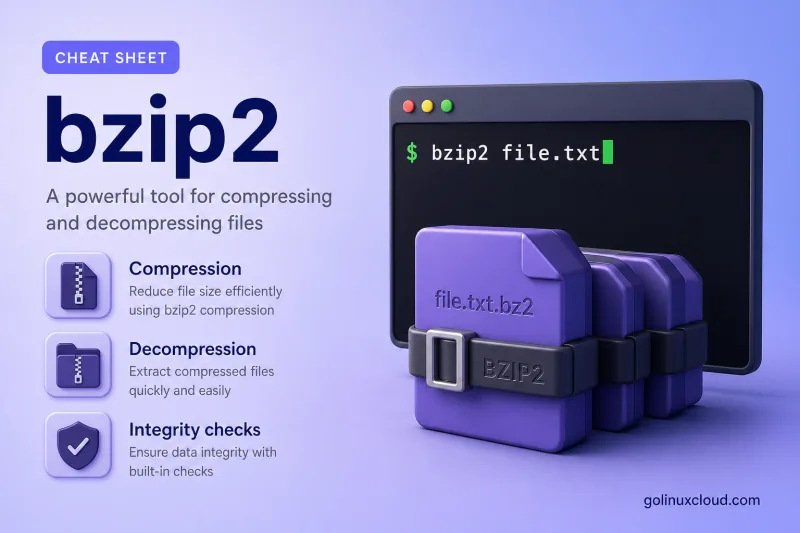
bzip2 — quick reference
Compression
Compress one or more files. Default action removes the original unless you pass -k.
| When to use | Command |
|---|---|
Compress a file (replaces original with .bz2) |
bzip2 file.txt |
| Compress and keep the original file | bzip2 -k file.txt |
Overwrite an existing .bz2 without prompting |
bzip2 -f file.txt |
| Compress several files in one invocation | bzip2 file1 file2 |
| Write compressed data to stdout (keep original on disk) | bzip2 -c file.txt > file.txt.bz2 |
Force compression even if invoked as bunzip2 |
bzip2 -z file.txt |
| Fastest block size (less compression) | bzip2 -1 file.txt |
| Best compression (slowest, largest blocks) | bzip2 -9 file.txt |
| Use less RAM on memory-constrained hosts | bzip2 -s file.txt |
Decompression
| When to use | Command |
|---|---|
Decompress and remove the .bz2 file |
bzip2 -d file.txt.bz2 |
Same as -d when called as bunzip2 |
bunzip2 file.txt.bz2 |
Decompress to stdout (original .bz2 stays) |
bzip2 -dc file.txt.bz2 |
Same stdout decompress as bzcat |
bzcat file.txt.bz2 |
Integrity and messaging
| When to use | Command |
|---|---|
| Test archive integrity without decompressing | bzip2 -t file.txt.bz2 |
| Print compression ratio and file names | bzip2 -v file.txt |
| Suppress non-critical messages | bzip2 -q file.txt |
Help and version
| When to use | Command |
|---|---|
| Show usage summary | bzip2 -h |
| Show version and license | bzip2 -V |
bzip2 — command syntax
bzip2 reads files or stdin and writes .bz2 output. Synopsis from bzip2 --help on Ubuntu 25.04 (bzip2 1.0.8):
bzip2 [flags and input files in any order]

  -d --decompress     force decompression
  -z --compress       force compression
  -k --keep           keep (don't delete) input files
  -f --force          overwrite existing output files
  -t --test           test compressed file integrity
  -c --stdout         output to standard out
  -q --quiet          suppress noncritical error messages
  -v --verbose        be verbose (a 2nd -v gives more)
  -s --small          use less memory (at most 2500k)
  -1 .. -9            set block size to 100k .. 900k
bzip2 compresses files only — not directory trees. Use tar to archive folders (tar cjf backup.tar.bz2 /path).
bzip2 — command examples
Essential Compress a file (original removed)
Default compression replaces file.txt with file.txt.bz2.
Run the command:
WORKDIR=/tmp/bzlab
mkdir -p "$WORKDIR" && cd "$WORKDIR"
echo "compress me please" > file.txt
bzip2 file.txt
ls -la
Sample output:
total 4
drwxr-xr-x  2 root root  60 Jul  1 18:06 .
drwxrwxrwt 17 root root 400 Jul  1 18:06 ..
-rw-r--r--  1 root root  56 Jul  1 18:06 file.txt.bz2
Only the .bz2 remains unless you used -k.
Essential Keep the source file with -k
Use -k when scripts or teammates still need the uncompressed copy.
Run the command:
WORKDIR=/tmp/bzlab
mkdir -p "$WORKDIR" && cd "$WORKDIR"
echo "compress me please" > file.txt
bzip2 -k file.txt
ls -la file.txt*
Sample output:
-rw-r--r-- 1 root root 19 Jul  1 18:06 file.txt
-rw-r--r-- 1 root root 56 Jul  1 18:06 file.txt.bz2
Both files coexist after compression.
Essential Verify a .bz2 without extracting
Run -t after transfers or before deleting the only copy of an archive.
Run the command:
WORKDIR=/tmp/bzlab
mkdir -p "$WORKDIR" && cd "$WORKDIR"
echo "compress me please" > file.txt
bzip2 -k file.txt
bzip2 -t file.txt.bz2
echo "exit code: $?"
Sample output:
exit code: 0A non-zero exit code means the archive is corrupt or truncated.
Common Read compressed data on stdout with -dc
Pipe decompressed bytes into another tool without writing an intermediate file.
Run the command:
WORKDIR=/tmp/bzlab
mkdir -p "$WORKDIR" && cd "$WORKDIR"
echo "compress me please" > file.txt
bzip2 -k file.txt
bzip2 -dc file.txt.bz2
Sample output:
compress me pleasebunzip2 -c and bzcat behave the same on this build.
Common Compress several files at once
Each input file becomes its own .bz2 — bzip2 does not bundle multiple files into one stream.
Run the command:
WORKDIR=/tmp/bzlab
mkdir -p "$WORKDIR" && cd "$WORKDIR"
echo "data" > f1.txt
echo "more" > f2.txt
bzip2 -k f1.txt f2.txt
ls *.bz2
Sample output:
f1.txt.bz2
f2.txt.bz2
For one archive of a directory, use tar cjf instead.
Common Trade speed for ratio with -1 and -9
Block sizes range from 100k (-1) to 900k (-9). Higher levels compress more but take longer.
Run the command:
WORKDIR=/tmp/bzlab
mkdir -p "$WORKDIR" && cd "$WORKDIR"
echo "compress me please" > orig.txt
bzip2 -1 -k -f orig.txt
bzip2 -9 -k -f orig.txt
ls -la orig.txt.bz2
Sample output:
-rw-r--r-- 1 root root 56 Jul 1 18:06 orig.txt.bz2On tiny files the ratio difference is negligible; -9 shines on larger text logs.
Advanced See compression statistics with -v
Verbose mode prints space saved — helpful when comparing levels on real data.
Run the command:
WORKDIR=/tmp/bzlab
mkdir -p "$WORKDIR" && cd "$WORKDIR"
echo "compress me please" > orig.txt
bzip2 -v -k -f orig.txt
Sample output:
orig.txt: 0.339:1, 23.579 bits/byte, -194.74% saved, 19 in, 56 out.Negative "saved" on very small files is normal — the .bz2 header can be larger than the payload.
Advanced Decompress with bunzip2
bunzip2 is the same binary with decompression as the default action.
Run the command:
WORKDIR=/tmp/bzlab
mkdir -p "$WORKDIR" && cd "$WORKDIR"
echo "compress me please" > file.txt
bzip2 -k file.txt
bunzip2 -c file.txt.bz2
Sample output:
compress me pleaseUse bzip2 -d in scripts when you want one command name for both directions.
bzip2 — when to use / when not
| Use bzip2 when | Use something else when |
|---|---|
You need smaller .bz2 files than gzip on text-heavy data |
Speed matters more than ratio — try gzip |
You are building tar.bz2 archives on Debian/Ubuntu workflows |
You need maximum compression and can wait — consider xz |
| You are compressing individual log or CSV files | You must compress a directory tree — use tar first |
| You want a well-supported format on older systems | You need random access inside the archive — zip or uncompressed tar |
bzip2 vs gzip
| bzip2 | gzip | |
|---|---|---|
| Typical ratio on text | Better (smaller .bz2) |
Faster, slightly larger .gz |
| Speed | Slower compress/decompress | Faster |
| Default level | Block size 6 (900k class) | Level 6 |
| Directories | No — files only | No — files only |
Both pair with tar for tar.bz2 and tar.gz archives.
Related commands
Compression and archiving tools often used beside bzip2.
| Command | One line |
|---|---|
| bzip2 | Block-sort file compressor (this page) |
| tar | Archive files and directories before compression |
| lbzip2 | Parallel bzip2 implementation |
Browse the full index in our Linux commands reference.
bzip2 — interview corner
What is bzip2 used for in Linux?
bzip2 compresses one file at a time using the Burrows–Wheeler transform and Huffman coding. The default action replaces file with file.bz2 and deletes the original unless you pass -k.
It does not archive directories — admins combine it with tar (tar cjf backup.tar.bz2 /data) for folder backups.
A strong answer is:
"bzip2 compresses individual files to .bz2 with good text ratios; I use -k to keep the original and tar for directory trees."
How does bzip2 compare to gzip?
bzip2 usually achieves better compression on text at the cost of CPU time. gzip compresses and decompresses faster with slightly larger output.
Choose bzip2 when disk or bandwidth is tight; choose gzip when throughput or low latency matters.
A strong answer is:
"bzip2 trades speed for smaller files; gzip is faster. For directories I tar first, then pick bzip2 or gzip on the archive."
How do you check whether a .bz2 file is valid?
Run bzip2 -t archive.bz2. Exit code 0 means the blocks decompress cleanly; non-zero indicates corruption. The test does not write an uncompressed file to disk.
A strong answer is:
"bzip2 -t verifies integrity without extracting — I run it after downloads or before deleting the only uncompressed copy."
How do you decompress to stdout without removing the .bz2 file?
Use bzip2 -dc file.bz2 or bzcat file.bz2. The -c / stdout mode writes decompressed bytes to the terminal or the next pipe stage while leaving file.bz2 on disk.
A strong answer is:
"bzip2 -dc or bzcat streams decompressed data to stdout — useful in pipelines like bzip2 -dc log.bz2 | grep ERROR."
What do bzip2 -1 through -9 control?
They set the compression block size from 100k (-1, --fast) up to 900k (-9, --best). Higher levels spend more CPU and memory for potentially smaller output.
A strong answer is:
"bzip2 -1 is fastest with smaller blocks; -9 uses 900k blocks for best ratio. I default to the standard level unless profiling shows a need to change."
Troubleshooting
| Symptom | Likely cause | Fix |
|---|---|---|
bzip2: Input file is a directory |
bzip2 only handles files | tar cjf archive.tar.bz2 directory/ |
Output file already exists |
.bz2 present without -f |
bzip2 -f or remove the old archive |
bzip2: Data integrity error |
Truncated or corrupt file | Re-download; verify with bzip2 -t |
| Compressed file larger than original | Payload too small for header overhead | Normal on tiny files; skip compression or use gzip |
Can't guess original name |
Wrong extension or stdin without -c |
Pass the full .bz2 path or use bzip2 -dc |