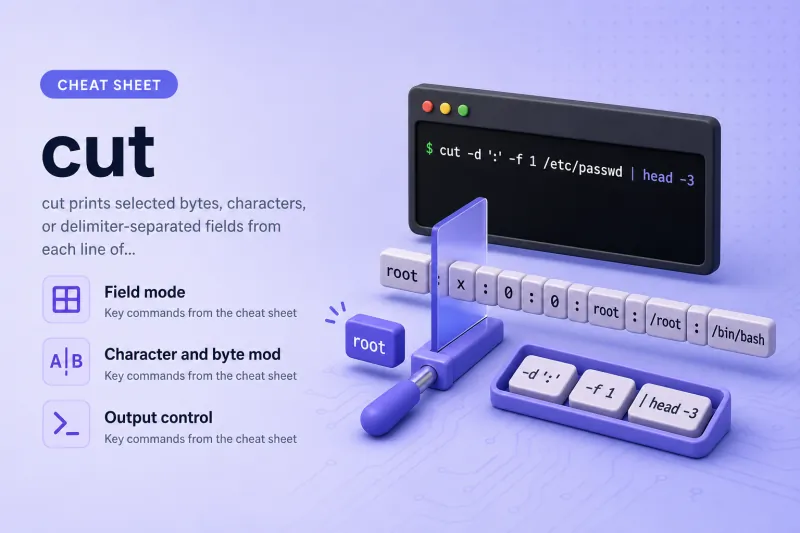
cut — quick reference
Field mode
Extract columns separated by a delimiter — default is tab; colon is common in /etc/passwd.
| When to use | Command |
|---|---|
| First field with default tab delimiter | cut -f 1 file |
| First field with colon delimiter | cut -d ':' -f 1 /etc/passwd |
| Multiple fields (non-contiguous) | cut -d ':' -f 1,3 /etc/passwd |
| Range of fields | cut -d ':' -f 1-3 /etc/passwd |
| From field N to end of line | cut -d ':' -f 3- /etc/passwd |
| Only lines that contain the delimiter | cut -d ':' -f 1 -s file |
Split on any run of spaces/tabs (uutils -w) |
cut -w -f 1,3 file |
Character and byte mode
Fixed-position extraction when data is not delimiter-separated.
| When to use | Command |
|---|---|
| Characters 1 through 5 on each line | cut -c 1-5 file |
| Bytes 1 through 10 on each line | cut -b 1-10 file |
| From character 5 to end | cut -c 5- file |
| From start through character 10 | cut -c -10 file |
| Non-contiguous character positions | cut -c 1-5,10-15 file |
Output control
| When to use | Command |
|---|---|
| Print everything except selected fields | cut --complement -d ':' -f 2 file |
| Replace output delimiter (e.g. tab → space) | cut -d ':' -f 1,3 --output-delimiter=' ' /etc/passwd |
| NUL-terminated records | cut -z -f 1 file |
Pipelines and metadata
| When to use | Command |
|---|---|
| Extract from command output | ps aux | cut -c 1-20 |
| Chain with grep | ps aux | grep root | cut -c 1-30 |
| Show built-in usage | cut --help |
| Show package version | cut --version |
cut — command syntax
Synopsis from cut --help on Ubuntu 25.04 (uutils cut 0.2.2):
cut OPTION... [FILE]...Each invocation must pick a mode (-b, -c, or -f) and a list of positions or fields. With no FILE, cut reads stdin. Delimiter for -f defaults to tab unless -d or -w is set.
cut — command examples
Essential Extract usernames from /etc/passwd
The classic field cut: colon-separated fields, keep field 1.
Run the command:
cut -d ':' -f 1 /etc/passwd | head -3Sample output:
root
daemon
bin
Field 1 is the login name. Field 3 is UID, field 6 is home directory — same delimiter throughout the file.
Essential Select several fields from one line
Comma-separated field numbers print in the order you list them.
Run the command:
cut -d ':' -f 1,3 /etc/passwd | head -2Sample output:
root:0
daemon:1
Here you get username and UID without the password placeholder in field 2.
Essential From field 3 to end of line
A trailing hyphen means "through the last field" — useful when trailing fields vary in count.
Run the command:
cut -d ':' -f 3- /etc/passwd | head -2Sample output:
0:0:root:/root:/bin/bash
1:1:daemon:/usr/sbin:/usr/sbin/nologin
Everything from UID onward is kept. Pair with --output-delimiter when you need spaces instead of colons in the result.
Common Invert selection with --complement
Print all fields except the ones you name — handy to drop a middle column.
Run the command:
cut --complement -d ':' -f 2 /etc/passwd | head -2Sample output:
root:0:0:root:/root:/bin/bash
daemon:1:1:daemon:/usr/sbin:/usr/sbin/nologin
Field 2 (the x password placeholder) is removed; other colons stay.
Common -s skips lines without the delimiter
By default, cut prints whole lines that lack the delimiter. -s suppresses them — useful on messy logs.
Run the command:
cut -d ':' -f 1 -s /etc/shadow | head -3Sample output (requires read access to /etc/shadow):
root
daemon
bin
Only lines containing : are printed. On files where some lines are free text, -s keeps output clean.
Common Change the separator in output
--output-delimiter replaces the field separator in the printed columns.
Run the command:
cut -d ':' -f 1,3 --output-delimiter=' ' /etc/passwd | head -2Sample output:
root 0
daemon 1
Downstream tools that dislike colons (or tabs) can consume space-separated values directly.
Common Fixed character positions with -c
When columns are defined by width, not delimiters, use character mode.
Run the command:
printf 'abcdef\nghijkl\n' > /tmp/cut.txt
cut -c 1-3 /tmp/cut.txt
Sample output:
abc
ghi
-b selects bytes (same result on ASCII); -c counts Unicode characters, which matters for multibyte text.
Common Trim wide command output in a pipeline
cut fits between filters when you only need the leftmost part of aligned output.
Run the command:
Find the blocking PID with ps aux piped to grep; the ps command explains BSD versus UNIX options and filtering command lines.
ps aux | head -3 | cut -c 1-20Sample output:
USER         PID %CP
root           1  0.
root           2  0.
For delimiter-separated command output (e.g. df), prefer -f with the right -d — or awk when spaces vary in width.
Advanced Whitespace-separated fields with -w (uutils)
On Ubuntu 25.04's uutils cut, -w treats any run of spaces or tabs as one separator — closer to how humans read columns.
Run the command:
printf 'one two three\n' | cut -w -f 1,3Sample output:
one threeOutput delimiter defaults to tab unless you set --output-delimiter. GNU coreutils on other distros may not ship -w — check cut --help on the target host.
cut — when to use / when not
| Use cut when | Use something else when |
|---|---|
|
cut vs awk
| cut | awk | |
|---|---|---|
| Learning curve | Small — one delimiter, field list | Larger — patterns and expressions |
| Delimiter | Single character (-d) or -w whitespace |
Any pattern in FS |
| Logic | No conditionals | Filters, math, keyed joins |
| Speed on huge files | Very fast, minimal | Fast, more flexible |
Use cut for simple column pulls; reach for awk when rules get conditional.
Related commands
| Command | One line |
|---|---|
| cut | Extract bytes, chars, or fields (this page) |
| grep | Filter lines before or after cutting |
Browse the full index in our Linux commands reference.
cut — interview corner
What is the cut command used for?
cut prints selected bytes (-b), characters (-c), or fields (-f) from each input line. It is built for simple column extraction in scripts.
cut -d ':' -f 1 /etc/passwdA strong answer is:
"cut extracts fixed positions or delimiter-separated fields from each line — I use it for passwd columns and quick pipeline trimming."
What is the default field delimiter in cut?
The default is tab. For colon files like /etc/passwd, set -d ':'.
Lines without the delimiter are printed whole unless you add -s (suppress).
A strong answer is:
"Tab by default; I set -d for colons or commas. -s drops lines that lack the delimiter."
When would you use awk instead of cut?
Use awk when delimiters are irregular (multiple spaces), you need conditions ($3 > 100), or you are matching patterns. cut wins when the format is stable and the task is "give me fields 1 and 3."
A strong answer is:
"awk for variable spacing, conditions, and patterns; cut for simple single-character delimiters and fixed field lists."
What does cut --complement do?
It inverts the field list — you get every field except the ones you named.
cut --complement -d ':' -f 2 /etc/passwddrops field 2 (the x password token) and keeps the rest.
A strong answer is:
"--complement prints all fields except those listed — useful to drop one column without renumbering the ones you want."
How do you specify a range of fields in cut?
Use N-M for inclusive range, N- from N to end, -M from start to M. Combine with commas: -f 1,3-5.
cut -d ':' -f 1-3 /etc/passwdA strong answer is:
"Ranges use hyphens — 1-3 or 3- for rest of line; commas combine multiple selections."
Troubleshooting
| Symptom | Likely cause | Fix |
|---|---|---|
| Whole lines printed when you expected one field | Line has no delimiter; -s not set |
Add -s or fix delimiter with -d |
Empty columns with -d ' ' |
Multiple spaces count as multiple delimiters (without -w) |
Use cut -w on uutils or switch to awk |
cut: you must specify a list of bytes, characters, or fields |
Missing -f, -c, or -b |
Add mode and list, e.g. -f 1 |
| Wrong characters on UTF-8 text | Byte vs character mode | Prefer -c for characters, -b for raw bytes |
--complement not recognized |
Very old coreutils | Upgrade or select fields positively without complement |