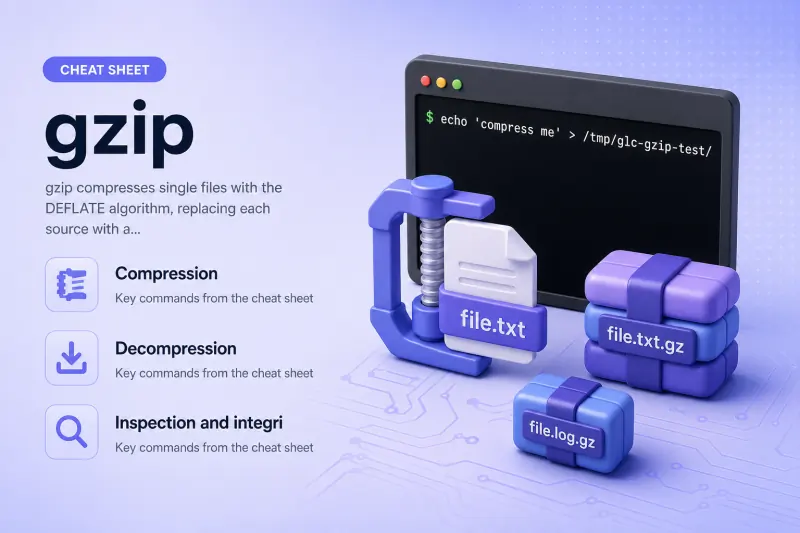
gzip — quick reference
Compression
Compress one or more files. By default each source file is removed after a .gz is written in the same directory.
| When to use | Command |
|---|---|
Compress a file (replaces original with .gz) |
gzip file.txt |
| Compress and keep the original file | gzip -k file.txt |
| Write compressed data to stdout (leave source on disk) | gzip -c file.txt > file.txt.gz |
Overwrite an existing .gz without prompting |
gzip -f file.txt |
| Fastest compression (less ratio) | gzip -1 file.txt |
| Best compression (slowest) | gzip -9 file.txt |
| Compress every file under a directory tree | gzip -r directory/ |
| Rsync-friendly compression (extra sync-friendly flush points) | gzip --rsyncable -c file.txt > file.txt.gz |
| Do not save original name/timestamp in the gzip header | gzip -n file.txt |
| Save original name and timestamp (default) | gzip -N file.txt |
Use a custom suffix instead of .gz |
gzip -S .gz_backup file.txt |
Decompression
gunzip and zcat are links to the same gzip binary — they select decompress mode by invocation name.
| When to use | Command |
|---|---|
Decompress in place (removes .gz) |
gzip -d file.txt.gz |
| Same as above | gunzip file.txt.gz |
Decompress to stdout (keep .gz on disk) |
gzip -dc file.txt.gz |
| Same as above | zcat file.txt.gz |
| Decompress from a pipe | zcat file.txt.gz | head |
Inspection and integrity
| When to use | Command |
|---|---|
| List compressed size, uncompressed size, and ratio | gzip -l file.txt.gz |
| Test integrity without decompressing | gzip -t file.txt.gz |
| Verbose compression statistics | gzip -v file.txt |
| Suppress warnings | gzip -q file.txt |
| Show brief usage | gzip --help |
| Show package version | gzip --version |
gzip — command syntax
Synopsis from gzip --help on Ubuntu 25.04 (gzip 1.13):
gzip [OPTION]... [FILE]...With no FILE, or when FILE is -, gzip reads standard input. By default compression replaces each input file with a .gz in the same directory. Decompression modes are selected with -d or by calling gunzip / zcat.
gzip — command examples
Essential Compress a file and replace the original
The default action compresses file.txt and leaves only file.txt.gz beside it — the usual pattern for log rotation.
Run the commands:
echo 'compress me' > /tmp/glc-gzip-test/sample.txt
gzip -v /tmp/glc-gzip-test/sample.txt
ls -la /tmp/glc-gzip-test/sample.txt*
Sample output:
/tmp/glc-gzip-test/sample.txt:	-16.7% -- replaced with /tmp/glc-gzip-test/sample.txt.gz
-rw-r--r-- 1 root root 43 Jul  1 19:06 /tmp/glc-gzip-test/sample.txt.gz
-v prints the compression ratio. The original plain file is gone unless you passed -k.
Essential Compress with -k and keep the source file
Use -k when you still need the uncompressed file on disk — common before uploading a .gz copy while keeping the live log.
Run the command:
echo 'compress me' > /tmp/glc-gzip-test/keepme.txt
gzip -k /tmp/glc-gzip-test/keepme.txt
ls -la /tmp/glc-gzip-test/keepme.txt*
Sample output:
-rw-r--r-- 1 root root 12 Jul  1 19:06 /tmp/glc-gzip-test/keepme.txt
-rw-r--r-- 1 root root 43 Jul  1 19:06 /tmp/glc-gzip-test/keepme.txt.gz
Both files remain. Decompress later with gunzip or read without extracting using zcat.
Essential Compress or decompress through stdout
-c writes to standard output and never removes the source — ideal for pipes and when you want a .gz in a different directory.
Compress to a new path:
gzip -c /tmp/glc-gzip-test/keepme.txt > /tmp/glc-gzip-test/stdout-copy.gzDecompress without touching the archive:
gzip -dc /tmp/glc-gzip-test/keepme.txt.gz
echo 'pipe test' | gzip | gunzip
Sample output:
compress me
pipe test
zcat behaves like gzip -dc for reading .gz files in pipelines.
Common Inspect a .gz file without fully decompressing
Before shipping archives or after a partial download, -l shows sizes and -t verifies the gzip wrapper and checksum.
Run the commands:
gzip -l /tmp/glc-gzip-test/keepme.txt.gz
gzip -t /tmp/glc-gzip-test/keepme.txt.gz && echo 'integrity OK'
Sample output:
compressed        uncompressed  ratio uncompressed_name
                 43                  12 -16.7% /tmp/glc-gzip-test/keepme.txt
integrity OK
A silent exit from gzip -t means the file is valid. Non-zero exit and a message mean the archive is truncated or corrupt.
Common Compress every file under a directory
-r walks a directory and gzips each regular file it finds — it does not create one tar-style archive; you get one .gz per file.
Run the commands:
mkdir -p /tmp/glc-gzip-test/sub
echo 'another' > /tmp/glc-gzip-test/sub/nested.txt
gzip -r /tmp/glc-gzip-test/sub
ls -la /tmp/glc-gzip-test/sub/
zcat /tmp/glc-gzip-test/sub/nested.txt.gz
Sample output:
total 4
drwxr-xr-x 2 root root  60 Jul  1 19:06 .
drwxr-xr-x 3 root root 140 Jul  1 19:06 ..
-rw-r--r-- 1 root root  39 Jul  1 19:06 nested.txt.gz
another
For a single downloadable bundle, use tar (tar czf archive.tar.gz dir/) instead of gzip -r.
Common Decompress and remove the .gz file
gunzip restores the uncompressed file and deletes the .gz by default — the mirror of plain gzip.
Run the commands:
cp /tmp/glc-gzip-test/keepme.txt /tmp/glc-gzip-test/restore.txt
gzip /tmp/glc-gzip-test/restore.txt
ls /tmp/glc-gzip-test/restore.txt.gz
gunzip /tmp/glc-gzip-test/restore.txt.gz
ls /tmp/glc-gzip-test/restore.txt
Sample output:
/tmp/glc-gzip-test/restore.txt.gz
/tmp/glc-gzip-test/restore.txt
Use gunzip -k or gzip -dk to keep the .gz after decompression.
Common Overwrite an existing output file
Without -f, gzip refuses to clobber an existing .gz or an uncompressed file that would be overwritten on decompress.
Run the command (plain file already exists):
gzip -f /tmp/glc-gzip-test/keepme.txtSample output:
(no message — exit 0; keepme.txt.gz refreshed)Verify:
ls -la /tmp/glc-gzip-test/keepme.txt*If you see already exists; not overwritten, add -f or remove the conflicting file first.
Advanced Detect a corrupt or non-gzip file
gzip -t is the quick integrity check. Feeding a plain text file renamed to .gz fails immediately.
Run the command:
echo 'not gzip data' > /tmp/glc-gzip-test/corrupt.gz
gzip -t /tmp/glc-gzip-test/corrupt.gz
Sample output:
gzip: /tmp/glc-gzip-test/corrupt.gz: not in gzip formatExit status is non-zero. Re-transfer the file or restore from backup; partial downloads and disk errors often produce this error.
Advanced Trade speed for ratio with -1 and -9
Levels -1 (fast) through -9 (best) tune compression effort. Default is -6. For repetitive logs the size difference is often modest.
Run the commands:
echo 'repeat repeat repeat repeat' > /tmp/glc-gzip-test/level.txt
gzip -1 -c /tmp/glc-gzip-test/level.txt | wc -c
gzip -9 -c /tmp/glc-gzip-test/level.txt | wc -c
Sample output (byte counts vary slightly by content):
45
45
On tiny files both levels can match. On large logs, -9 usually wins a few percent at the cost of CPU time — benchmark once on your data if batch compression runs for hours.
gzip — when to use / when not
| Use gzip when | Use something else when |
|---|---|
|
|
gzip vs bzip2 and xz
| gzip | bzip2 | xz | |
|---|---|---|---|
| Speed | Fastest of the three | Slower | Slowest (best ratio) |
| Ratio | Good on text | Better | Best |
| Typical extension | .gz |
.bz2 |
.xz |
| tar idiom | tar czf |
tar cjf |
tar cJf |
gzip remains the default for logs and tar.gz because almost every Linux system ships it and decompression is cheap.
Related commands
Nearby tools for archiving, stronger compression, and bundled directories.
| Command | One line |
|---|---|
| gzip | Single-file .gz compression (this page) |
| gunzip / zcat | Decompress .gz to disk or stdout (same binary) |
| tar | Bundle many files; add z for gzip |
| bzip2 | Higher ratio, .bz2 suffix |
| xz | Strongest common ratio, .xz suffix |
Browse the full index on the Linux commands cheat sheet.
gzip — interview corner
What does the gzip command do in Linux?
gzip compresses one file at a time using the DEFLATE algorithm. By default it deletes the original and leaves filename.gz in the same directory. It does not archive directory structure by itself — pair it with tar for archive.tar.gz.
Common companions on the same binary: gunzip (decompress in place), zcat (decompress to stdout).
A strong answer is:
"gzip compresses individual files to .gz, replacing the source by default. For folders I use tar czf; gunzip and zcat decompress."
How do you compress a file but keep the original?
Pass -k (keep):
gzip -k file.txtOr write to stdout and redirect so the source is never removed:
gzip -c file.txt > file.txt.gz-c is the usual pattern in pipelines; -k is simpler when both files should live in the same directory.
A strong answer is:
"I use gzip -k to keep the plain file, or gzip -c with redirection when the .gz should land elsewhere or feed a pipe."
What is the difference between zcat and gunzip?
Both invoke the gzip binary in decompress mode.
- gunzip writes the uncompressed file to disk and removes the
.gz(unless-k). - zcat (like
gzip -dc) writes to stdout and leaves the.gzuntouched — likecatfor compressed files.
zcat file.txt.gz | less
gunzip file.txt.gz    # creates file.txt, removes file.txt.gz
A strong answer is:
"gunzip materializes the plain file on disk; zcat streams decompressed bytes to stdout for pipes and viewers."
How do you verify a .gz file is not corrupted?
Run:
gzip -t file.txt.gzExit code 0 means the gzip container and CRC check passed. No output is normal. Use gzip -l when you also want compressed and uncompressed sizes.
A strong answer is:
"gzip -t validates integrity without unpacking; I use it after transfers and before deleting the only uncompressed copy."
Does gzip -r create one archive of a directory?
No. gzip -r compresses each file under a directory separately — you end up with many .gz files, not one bundle.
For one archive:
tar czf archive.tar.gz directory/A strong answer is:
"gzip -r gzips every file in a tree individually; for a single archive I use tar czf or zip."
Troubleshooting
| Symptom | Likely cause | Fix |
|---|---|---|
not in gzip format |
File is not gzip, truncated, or wrong extension | Re-download; verify with file foo.gz; test with gzip -t |
already exists; not overwritten |
Target file or .gz present |
gzip -f or remove the conflicting file |
| Original vanished after compress | Default replace behaviour | Use gzip -k or gzip -c next time |
unexpected end of file |
Truncated download or partial write | Re-transfer; check disk space during write |
gzip: stdin: not in gzip format |
Piped input is not gzip | Ensure upstream outputs gzip; use zcat only on .gz data |
Huge directory with gzip -r |
Many separate .gz files, hard to ship |
Use tar czf for one archive |
References
Further reading — man page and related compression guides.
- gzip(1) man page (Ubuntu noble)
- tar command cheat sheet —
tar czffor.tar.gzarchives - bzip2 command cheat sheet — higher ratio alternative
- xz command cheat sheet — strong compression for releases