
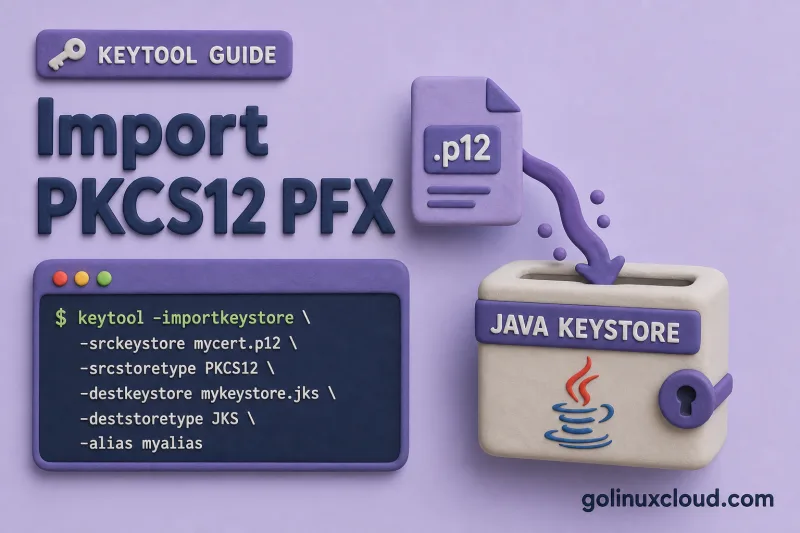
PKCS12 files (.p12, .pfx) are the standard way vendors deliver TLS identity bundles — private key plus certificate chain in one password-protected file. Java applications read them through keytool or directly via javax.net.ssl properties. Since OpenJDK 9, PKCS12 is also the default keystore format, so conversion to legacy JKS is often unnecessary.
This guide covers three paths: use the PKCS12 file as-is, import into another PKCS12 keystore, and convert into JKS for older tooling — with real keytool output from Ubuntu and OpenJDK 25.
Tested on: Ubuntu 26.04 LTS (Resolute); kernel 7.0.0-27-generic; OpenJDK 25.0.3.
Prerequisites
- OpenJDK 9 or newer (PKCS12 default). Install with Install keytool on Ubuntu.
- A
.p12or.pfxfile and its export password. - Write access to create or update keystore files.
If your files are separate PEM cert and key instead of PKCS12, see Import PEM cert and private key into Java keystore first.
PKCS12 as the native Java keystore format
JEP 229 made PKCS12 the default keystore type starting in Java 9. New keystores created without -storetype are PKCS12 — the same container vendors ship as .pfx.
Create a keystore without specifying -storetype and note the implicit default:
keytool -genkeypair -alias default-test -keyalg RSA -keysize 2048 \
  -keystore default-type.p12 -storepass changeit \
  -dname "CN=test" -validity 365
List the file and grep for the store type line:
keytool -list -v -keystore default-type.p12 -storepass changeit | grep "Keystore type"OpenJDK 9+ reports PKCS12 even though you never passed -storetype:
Keystore type: PKCS12That matters for imports: a vendor .pfx is already in the format modern Java expects.
Lab setup: sample PKCS12 file
Build a vendor-style PKCS12 bundle in /tmp/keytool-lab — private key, leaf certificate, and alias pem-right in one password-protected file.
Generate a self-signed cert and export it as PKCS12:
mkdir -p /tmp/keytool-lab && cd /tmp/keytool-lab

openssl req -x509 -newkey rsa:2048 \
  -keyout server.key -out server.crt \
  -days 365 -nodes -subj "/CN=lab.example.com"

openssl pkcs12 -export \
  -inkey server.key -in server.crt \
  -out server.p12 -name pem-right \
  -passout pass:changeit
server.p12 is the source PKCS12; password changeit; alias pem-right.
Method 1: Use PKCS12 directly (no import)
When the application accepts PKCS12 — Spring Boot server.ssl.key-store-type=PKCS12, Tomcat keystoreType="PKCS12" — copy the vendor file and point config at it. No -importkeystore step is required.
List the source file to confirm alias, entry type, and fingerprint before wiring server config:
keytool -list -keystore server.p12 -storetype PKCS12 -storepass changeitYou want PrivateKeyEntry on the alias your TLS config references:
Keystore type: PKCS12
Keystore provider: SUN

Your keystore contains 1 entry

pem-right, Jul 2, 2026, PrivateKeyEntry,
Certificate fingerprint (SHA-256): 18:4B:0F:4D:4F:63:F6:11:56:CC:BE:D4:D8:96:9A:23:6F:14:9A:31:47:97:87:5D:2F:78:EC:84:62:7D:B1:A0
No conversion step when the password and alias match your server configuration.
Method 2: Import PKCS12 into a new PKCS12 keystore
Use -importkeystore to copy entries when you need a different password, filename, or merged store. Source and destination can both be PKCS12.
Copy server.p12 into a new file merged.p12:
keytool -importkeystore \
  -srckeystore server.p12 -srcstoretype PKCS12 -srcstorepass changeit \
  -destkeystore merged.p12 -deststoretype PKCS12 -deststorepass changeit \
  -noprompt
One successful line per alias means the private key and certificate chain copied intact:
Importing keystore server.p12 to merged.p12...
Entry for alias pem-right successfully imported.
Import command completed:  1 entries successfully imported, 0 entries failed or cancelled
Confirm PrivateKeyEntry on the destination before cutover:
keytool -list -v -keystore merged.p12 -storepass changeitThe verbose listing should show the alias and entry type you expect:
Keystore type: PKCS12
Alias name: pem-right
Entry type: PrivateKeyEntry
Method 3: Import PKCS12 into JKS (legacy)
Some older configs still expect .jks. Import with an explicit destination type — only do this when the runtime hard-codes JKS.
Convert the lab PKCS12 file into JKS format:
keytool -importkeystore \
  -srckeystore server.p12 -srcstoretype PKCS12 -srcstorepass changeit \
  -destkeystore from-pkcs12.jks -deststoretype JKS -deststorepass changeit \
  -noprompt
The import succeeds; OpenJDK then warns that JKS is proprietary:
Importing keystore server.p12 to from-pkcs12.jks...
Entry for alias pem-right successfully imported.
Import command completed:  1 entries successfully imported, 0 entries failed or cancelled

Warning:
The JKS keystore uses a proprietary format. It is recommended to migrate to PKCS12 which is an industry standard format using "keytool -importkeystore -srckeystore from-pkcs12.jks -destkeystore from-pkcs12.jks -deststoretype pkcs12".
The warning is expected — OpenJDK recommends PKCS12 over proprietary JKS. For JKS ↔ PKCS12 conversions in both directions, see Convert JKS to PKCS12 and back.
Rename alias during import
If the vendor alias does not match your config, add -srcalias and -destalias on the same -importkeystore command instead of importing and renaming in two steps.
Import pem-right from the vendor file as tomcat in app.p12:
keytool -importkeystore \
  -srckeystore server.p12 -srcstoretype PKCS12 -srcstorepass changeit \
  -destkeystore app.p12 -deststoretype PKCS12 -deststorepass changeit \
  -srcalias pem-right -destalias tomcat \
  -noprompt
List app.p12 and confirm tomcat is a PrivateKeyEntry before updating server.ssl.key-alias or Tomcat keyAlias.
Wire the keystore into Java
| Runtime | Identity keystore | Truststore role |
|---|---|---|
| JVM flags | -Djavax.net.ssl.keyStore=merged.p12 + -Djavax.net.ssl.keyStoreType=PKCS12 |
-Djavax.net.ssl.trustStore=trust.p12 for JVM-level client/server trust |
| Spring Boot embedded server | server.ssl.key-store=merged.p12 + server.ssl.key-store-type=PKCS12 |
server.ssl.trust-store=trust.p12 only when the server must trust client certificates, such as mTLS |
| Tomcat | certificateKeystoreFile, certificateKeystorePassword, certificateKeystoreType="PKCS12" and optional certificateKeyAlias |
truststoreFile / truststoreType when Tomcat must verify client certificates |
For outbound HTTPS clients inside a Spring Boot app, do not assume server.ssl.trust-store configures RestTemplate, WebClient, or JDBC clients. Use JVM truststore flags, Spring Boot SSL bundles, or client-specific SSL configuration.
Identity files need PrivateKeyEntry. Trust files hold trustedCertEntry only — see Java keystore vs truststore.
Troubleshooting
| Symptom | Likely cause | Fix |
|---|---|---|
keystore password was incorrect |
Wrong export password | Confirm with openssl pkcs12 -in file.pfx -noout -passin pass:PASS |
Already exists / duplicate alias |
Destination already has that alias | Use -destalias or -delete the old entry first |
PrivateKeyEntry missing |
Source file is cert-only PKCS12 | Re-export from vendor with private key included |
| App still uses JKS | key-store-type not set |
Set PKCS12 in Spring Boot or keystoreType in Tomcat |
References
- keytool — Java SE 25 documentation
- JEP 229: Create PKCS12 Keystores by Default
- PKCS #12 — RFC 7292
- On-site: keytool cheat sheet, Convert JKS and PKCS12, Import PEM into keystore
Summary
PKCS12 and PFX are the same format for keytool. On OpenJDK 9+, you can list and use .p12 files directly with -storetype PKCS12. When you need a new file, different password, or JKS for legacy apps, keytool -importkeystore copies entries and reports Entry for alias … successfully imported. Always confirm PrivateKeyEntry with keytool -list -v before production cutover.
