
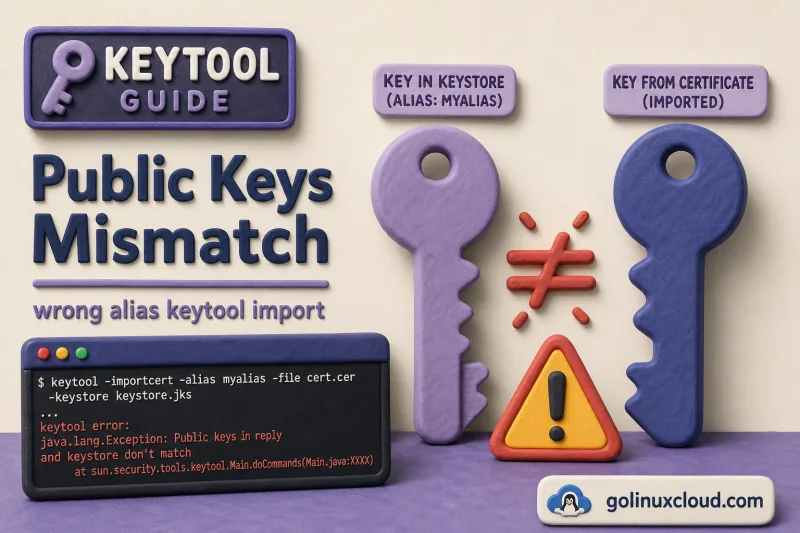
You run keytool -importcert after your CA signed the CSR, and keytool stops with Public keys in reply and keystore don't match. The certificate file is valid — the problem is almost always the alias: you are trying to install a certificate signed for one key pair onto a different key pair in the keystore.
This guide reproduces the error on Ubuntu with OpenJDK 25, explains why keytool compares public keys, and shows the correct import flow. For CSR generation and keystore basics, see the keytool cheatsheet and Install keytool on Ubuntu.
Tested on: Ubuntu 26.04 LTS; OpenJDK 25.0.3; kernel 7.0.0-27-generic.
What triggers the error
When you import a signed certificate reply onto an alias that already contains a PrivateKeyEntry, keytool checks that the certificate's public key matches the private key in the keystore. A mismatch produces:
keytool error: java.lang.Exception: Public keys in reply and keystore don't matchThe certificate file itself may be valid — keytool is rejecting the pairing between cert and alias. Typical causes:
| Cause | What happened |
|---|---|
| Wrong alias | CSR from alias-a, import into alias-b |
| Regenerated key pair | New -genkeypair on the alias without a fresh CSR |
| Wrong keystore file | Signed cert belongs to a CSR from a different .p12 / keystore file |
| Copy-paste from another host | Certificate was issued for another machine's key |
Reproduce the mismatch
The fastest way to see this error is to generate a CSR from one alias and import the signed reply into another. Create a lab keystore with two key pairs:
mkdir -p ~/keytool-mismatch-lab && cd ~/keytool-mismatch-lab
STOREPASS=changeit

keytool -genkeypair -alias alias-a -keyalg RSA -keysize 2048 -validity 365 \
  -keystore demo.p12 -storetype PKCS12 -storepass "$STOREPASS" \
  -dname "CN=Alias A, O=Keytool Lab, C=US" -noprompt

keytool -genkeypair -alias alias-b -keyalg RSA -keysize 2048 -validity 365 \
  -keystore demo.p12 -storetype PKCS12 -storepass "$STOREPASS" \
  -dname "CN=Alias B, O=Keytool Lab, C=US" -noprompt

keytool -certreq -alias alias-a -keystore demo.p12 -storetype PKCS12 -storepass "$STOREPASS" -file alias-a.csr
alias-a.csr contains the public key that must receive the signed reply later.
Sign the CSR with your CA (self-signed lab CA here):
openssl genrsa -out ca.key 4096
openssl req -new -x509 -days 3650 -key ca.key -out ca.crt \
  -subj "/CN=Lab CA/O=Keytool Lab/C=US"
openssl x509 -req -in alias-a.csr -CA ca.crt -CAkey ca.key -CAcreateserial \
  -out alias-a.crt -days 365
alias-a.crt is signed for alias-a's key — not for alias-b.
Confirm the signed certificate matches the keystore entry that generated the CSR:
keytool -list -rfc \
  -alias alias-a \
  -keystore demo.p12 \
  -storetype PKCS12 \
  -storepass "$STOREPASS" | openssl x509 -pubkey -noout | openssl sha256

openssl x509 -in alias-a.crt -pubkey -noout | openssl sha256SHA2-256(stdin)= eddaca2a22e9838b185acb63ac36e7eef39b054dca348d87b792f66cc00f7e61
SHA2-256(stdin)= eddaca2a22e9838b185acb63ac36e7eef39b054dca348d87b792f66cc00f7e61The hashes should match for alias-a. If you repeat the first command with -alias alias-b, it produces a different hash — that is why importing alias-a.crt onto alias-b fails.
Now deliberately import into the wrong alias:
keytool -importcert -alias alias-b -file alias-a.crt \
-keystore demo.p12 -storetype PKCS12 -storepass "$STOREPASS" -nopromptkeytool error: java.lang.Exception: Public keys in reply and keystore don't matchalias-a.crt was signed for alias-a's public key. alias-b holds a different key pair — keytool rejects the mismatch.
Fix: import on the correct alias
Import the signed certificate into the same alias that generated the CSR — the alias you passed to keytool -certreq:
keytool -importcert -alias alias-a -file alias-a.crt \
  -keystore demo.p12 -storetype PKCS12 -storepass "$STOREPASS" -noprompt
If keytool reports Failed to establish chain from reply, the signing CA is missing from the keystore. Import it first, then retry the leaf:
keytool -importcert -alias lab-ca -file ca.crt \
  -keystore demo.p12 -storetype PKCS12 -storepass "$STOREPASS" -noprompt

keytool -importcert -alias alias-a -file alias-a.crt \
-keystore demo.p12 -storetype PKCS12 -storepass "$STOREPASS" -nopromptCertificate reply was installed in keystoreThe private key on alias-a now pairs with the CA-signed certificate.
List the keystore to confirm entry types:
keytool -list -keystore demo.p12 -storetype PKCS12 -storepass "$STOREPASS"Keystore type: PKCS12
Keystore provider: SUN
Your keystore contains 3 entries
alias-a, Jul 2, 2026, PrivateKeyEntry,
alias-b, Jul 2, 2026, PrivateKeyEntry,
lab-ca, Jul 2, 2026, trustedCertEntry,alias-a is a PrivateKeyEntry with the signed chain; lab-ca is the trust anchor keytool needed to validate the reply.
When you need a fresh key pair on the wrong alias
A failed import does not write a partial certificate — the alias keeps its original self-signed key pair. Import the signed certificate into the exact alias that produced the CSR. Delete and recreate an alias only when you intentionally want to replace that key pair and generate a new CSR:
keytool -delete -alias alias-b -keystore demo.p12 -storetype PKCS12 -storepass "$STOREPASS" -noprompt
keytool -genkeypair -alias alias-b -keyalg RSA -keysize 2048 -validity 365 \
  -keystore demo.p12 -storetype PKCS12 -storepass "$STOREPASS" \
  -dname "CN=Alias B, O=Keytool Lab, C=US" -noprompt
keytool -certreq -alias alias-b -keystore demo.p12 -storetype PKCS12 -storepass "$STOREPASS" -file alias-b.csr
Each alias gets its own CSR and its own signed reply — never cross-import between aliases.
Distinguish from other keytool import errors
If the message is not exactly "public keys don't match", use this table to pick the right fix:
| Error | Meaning | Fix |
|---|---|---|
Public keys in reply and keystore don't match |
Cert does not match alias private key | Import on the CSR source alias |
Failed to establish chain from reply |
Issuer CA missing | Import root/intermediate CA first, then retry the leaf |
Certificate not imported, alias <name> already exists |
You are importing a cert as a new trusted entry, but alias already exists | Use a unique alias or delete the old trusted entry only if intentional |
Alias <name> does not exist |
You used the wrong alias or wrong keystore | Run keytool -list and use the alias that generated the CSR |
For TLS client trust issues after a successful import, see Fix Java PKIX path building failed.
References
- keytool documentation (Oracle)
- keytool cheatsheet
- Install keytool on Ubuntu
- Java keystore vs truststore
Summary
Public keys in reply and keystore don't match means the signed certificate belongs to a different key pair than the one stored under the target alias. Generate the CSR and import the reply on the same alias (keytool -certreq -alias NAME then keytool -importcert -alias NAME). Import the signing CA first if keytool cannot establish the chain. Never import a certificate signed for alias-a into alias-b.
