
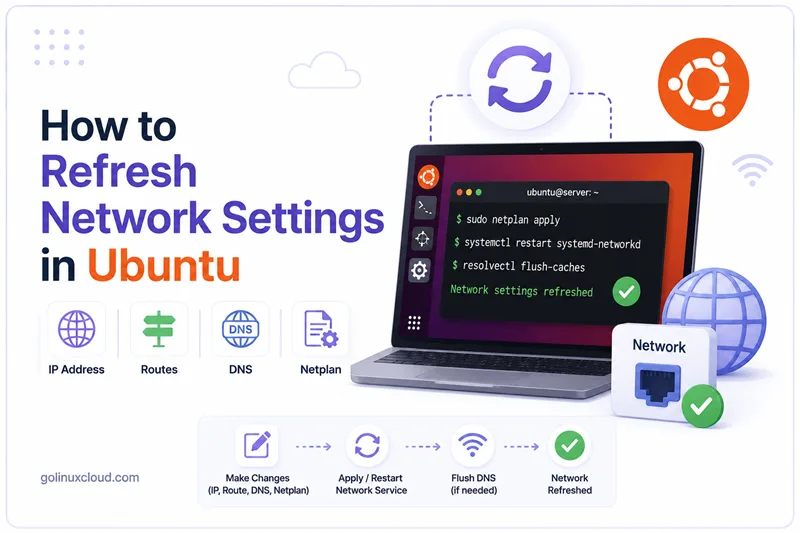
Refreshing the network in Ubuntu means applying a change without rebooting the system. The change may be a new static IP address, a DHCP lease refresh, a default route update, DNS server changes, a Netplan YAML edit, or a NetworkManager profile change.
The correct command depends on which networking stack owns the interface:
- Netplan is the Ubuntu configuration layer that reads YAML from
/etc/netplanand generates backend configuration. - NetworkManager is common on Ubuntu Desktop and many virtual machines.
- systemd-networkd is common on servers and cloud images.
- systemd-resolved commonly handles DNS resolution.
This guide shows how to identify your stack, apply changes safely, and verify IP address, route, DNS, and connectivity after the refresh. Commands that only inspect the system were tested on Ubuntu 25.04. Configuration examples were validated in a temporary Netplan root so the real network was not changed.
netplan try where possible, and do not close your current session until verification passes.
Quick Command Summary
| Task | Command |
|---|---|
| Show current Netplan config | netplan get all |
| Validate and generate Netplan backend config | sudo netplan generate |
| Safely test Netplan changes with rollback | sudo netplan try |
| Apply Netplan changes immediately | sudo netplan apply |
| Show NetworkManager state | nmcli general status |
| Reload NetworkManager profiles | sudo nmcli connection reload |
| Reapply NetworkManager settings to a device | sudo nmcli device reapply DEVICE |
| Bring a NetworkManager profile up | sudo nmcli connection up "CONNECTION" |
| Reload systemd-networkd config | sudo networkctl reload |
| Reconfigure one systemd-networkd interface | sudo networkctl reconfigure DEVICE |
| Show IP addresses | ip -br addr |
| Show routes | ip route show |
| Check selected route | ip route get 1.1.1.1 |
| Show DNS state | resolvectl status |
| Flush systemd-resolved DNS cache | sudo resolvectl flush-caches |
Downtime Expectations Before You Refresh
Not every network refresh has the same risk. Some commands only reload configuration files. Others disconnect and reconnect an interface, replace the active route, or restart a service that owns your SSH path.
| Action | Expected interruption | Notes |
|---|---|---|
ip -br addr, ip route show, resolvectl status, nmcli device status |
None | Read-only verification commands |
sudo netplan generate |
None | Generates backend config but does not apply it |
sudo netplan try |
Possible short interruption | Safer for remote systems because it can roll back |
sudo netplan apply |
Possible short interruption or SSH loss | Risk depends on whether IP, route, DNS, or renderer changes affect your active path |
sudo nmcli connection reload |
Usually none | Reloads profiles; does not necessarily reconnect devices |
sudo nmcli device reapply DEVICE |
Usually brief or none | Applies compatible changes to an active device; some IP changes may still require reconnect |
sudo nmcli connection up "CONNECTION" |
Brief interruption likely | Re-activates the profile and can replace IP, route, and DNS |
sudo systemctl restart NetworkManager |
Downtime likely | Restarts the manager and may reconnect all managed devices |
sudo networkctl reconfigure DEVICE |
Brief interruption possible | Reconfigures one networkd-managed link |
| Changing active IP/default route | SSH loss possible | Use a console, second SSH session, or netplan try |
For remote work, keep a second SSH session open and consider SSH keepalive settings. See keep alive SSH sessions in Linux and list active SSH connections in Linux. If a session is already stuck after a network change, see disconnect a hung SSH session.
1. Identify the Ubuntu Network Stack
Start by checking Netplan, NetworkManager, systemd-networkd, and systemd-resolved. Do not guess the refresh method.
Check available tools:
Before installing, confirm the running release with check Ubuntu version so mirror and PPA steps match your system.
command -v netplan nmcli networkctl resolvectl ip systemctlTested output:
/usr/sbin/netplan
/usr/bin/nmcli
/usr/bin/networkctl
/usr/bin/resolvectl
/usr/sbin/ip
/usr/bin/systemctl
Show the current Netplan configuration:
netplan get allTested output:
network:
  version: 2
  renderer: NetworkManager
This host uses Netplan with the NetworkManager renderer. Your output may show renderer: networkd, specific ethernets, bonds, bridges, vlans, addresses, routes, and nameservers.
Check the active services:
Confirm the unit state with systemctl status or is-active; the systemctl command shows exit codes and recent journal lines in one view.
systemctl is-active NetworkManager systemd-networkd systemd-resolvedTested output:
active
inactive
active
This means NetworkManager and systemd-resolved are active, while systemd-networkd is inactive.
List NetworkManager devices:
nmcli device statusTested output:
DEVICE           TYPE      STATE                   CONNECTION
enp0s3           ethernet  connected               Wired connection 1
enp0s8           ethernet  connected               Wired connection 2
br-bf2c2e38fb2f  bridge    connected (externally)  br-bf2c2e38fb2f
docker0          bridge    connected (externally)  docker0
lo               loopback  connected (externally)  lo
vetha397d91      ethernet  unmanaged               --
vethb7272d6      ethernet  unmanaged               --
vethedb19e1      ethernet  unmanaged               --
For a deeper NetworkManager command reference, see nmcli command examples in Linux. If you are looking for the old /etc/network/interfaces file on Ubuntu, see /etc/network/interfaces missing in Ubuntu.
2. Verify Current IP Address, Route, and DNS Before Changing Anything
Capture the current state before applying a network change. This gives you a known-good reference if the refresh does not behave as expected.
Check addresses:
ip -br addrTested output:
lo               UNKNOWN        127.0.0.1/8 ::1/128
enp0s3           UP             10.0.2.15/24 fd17:625c:f037:2:d7f4:75f9:11fb:c9ea/64 fd17:625c:f037:2:47cd:a9b:4753:d453/64 fe80::c00d:937:f87f:3199/64
enp0s8           UP             192.168.0.4/24 fe80::52ec:eee9:c847:26ad/64
docker0          DOWN           172.17.0.1/16 fe80::9c49:3cff:fe03:b165/64
br-bf2c2e38fb2f  UP             172.18.0.1/16 fc00:f853:ccd:e793::1/64 fe80::bc69:49ff:fe98:c96b/64
Check routes:
ip route showTested output:
default via 10.0.2.2 dev enp0s3 proto dhcp src 10.0.2.15 metric 100
default via 192.168.0.1 dev enp0s8 proto dhcp src 192.168.0.4 metric 101
10.0.2.0/24 dev enp0s3 proto kernel scope link src 10.0.2.15 metric 100
172.17.0.0/16 dev docker0 proto kernel scope link src 172.17.0.1 linkdown
172.18.0.0/16 dev br-bf2c2e38fb2f proto kernel scope link src 172.18.0.1
192.168.0.0/24 dev enp0s8 proto kernel scope link src 192.168.0.4 metric 101
Check which route will be used for an external destination:
ip route get 1.1.1.1Tested output:
1.1.1.1 via 10.0.2.2 dev enp0s3 src 10.0.2.15 uid 0
    cache
Check DNS:
resolvectl status --no-pagerTested output:
Global
         Protocols: -LLMNR -mDNS -DNSOverTLS DNSSEC=no/unsupported
  resolv.conf mode: stub

Link 2 (enp0s3)
    Current Scopes: DNS
         Protocols: +DefaultRoute -LLMNR -mDNS -DNSOverTLS DNSSEC=no/unsupported
Current DNS Server: 192.168.0.1
       DNS Servers: 192.168.0.1 fd17:625c:f037:2::3
        DNS Domain: nsn-intra.net
     Default Route: yes
For route troubleshooting, see ip route. For connectivity checks after the refresh, see test SSH connection commands, traceroute, and fix SSH no route to host.
3. Safely Refresh Netplan Changes
Use this method when you changed a file under /etc/netplan/*.yaml.
A typical static IP, route, and DNS example looks like this:
network:
  version: 2
  renderer: NetworkManager
  ethernets:
    enp0s3:
      addresses:
        - 192.168.10.50/24
      routes:
        - to: default
          via: 192.168.10.1
      nameservers:
        addresses:
          - 1.1.1.1
          - 8.8.8.8
Set restrictive permissions on Netplan YAML files:
sudo chmod 600 /etc/netplan/*.yamlGenerate backend configuration first:
sudo netplan generateThen use netplan try on remote systems:
sudo netplan trynetplan try applies the change and asks you to confirm. If you lose access and do not confirm, it rolls back automatically. After the configuration is proven safe, apply it directly when needed:
sudo netplan applyThe static IP YAML above was validated in a temporary Netplan root with netplan generate --root-dir, without changing the real network:
netplan generate --root-dir /tmp/glc-netplan-test
sed -n '1,120p' /tmp/glc-netplan-test/run/NetworkManager/system-connections/netplan-enp0s3.nmconnection
Tested output:
[connection]
id=netplan-enp0s3
type=ethernet
interface-name=enp0s3

[ethernet]
wake-on-lan=0

[ipv4]
method=manual
address1=192.168.10.50/24
dns=1.1.1.1;8.8.8.8;
route1=0.0.0.0/0,192.168.10.1

[ipv6]
method=ignore
Use netplan apply for normal maintenance windows. Use netplan try when there is any chance of losing remote access.
4. Refresh NetworkManager Changes with nmcli
Use this method when netplan get all shows renderer: NetworkManager, or when nmcli device status shows that NetworkManager owns the interface.
Check active connections:
nmcli connection show --activeTested output:
NAME                UUID                                  TYPE      DEVICE
Wired connection 1  7e910526-ceca-3dc3-8105-1083417c1c5a  ethernet  enp0s3
Wired connection 2  e7ee9d60-4ee0-3680-9a27-622ac22010f6  ethernet  enp0s8
br-bf2c2e38fb2f     063db4cb-d58d-4921-9840-5ab4bc401735  bridge    br-bf2c2e38fb2f
docker0             b9606a78-fe1d-4863-8052-fcf637fc8a20  bridge    docker0
lo                  b3f27411-c8cb-4201-bb61-c143666bcb3f  loopback  lo
If you edited NetworkManager connection files directly, reload connection profiles:
sudo nmcli connection reloadIf you changed an active connection profile with nmcli connection modify, reapply the profile to the running device:
sudo nmcli device reapply enp0s3This is the best first command for many NetworkManager changes because it asks NetworkManager to apply the updated profile to the active device. However, it does not guarantee a new DHCP lease or a visible IP address change in every case. If the profile still keeps the same DHCP lease, or if the change cannot be applied in place, reconnect the profile:
sudo nmcli connection up "Wired connection 1"For a stronger DHCP refresh, bring the connection down and back up. Do this only from console access or a safe maintenance window if the interface carries your SSH session:
sudo nmcli connection down "Wired connection 1"
sudo nmcli connection up "Wired connection 1"
Examples of persistent NetworkManager changes:
sudo nmcli connection modify "Wired connection 1" ipv4.addresses 192.168.10.50/24
sudo nmcli connection modify "Wired connection 1" ipv4.gateway 192.168.10.1
sudo nmcli connection modify "Wired connection 1" ipv4.dns "1.1.1.1 8.8.8.8"
sudo nmcli connection modify "Wired connection 1" ipv4.method manual
sudo nmcli device reapply enp0s3
Avoid restarting NetworkManager as the first step on a remote server. Restarting the service can briefly drop all NetworkManager-managed links, and it still may not be the cleanest way to request a new IP address:
sudo systemctl restart NetworkManagerUse that only when connection reload, device reapply, or reconnecting the specific profile does not refresh the setting. If you are configuring bridge profiles with NetworkManager, see create and configure a network bridge using nmcli.
5. Refresh systemd-networkd Changes
Use this method when Netplan uses renderer: networkd, or when systemd-networkd owns the interface.
Check networkd state:
networkctl list --no-pagerTested output from a host where systemd-networkd was not managing links:
systemd-networkd is not running, output might be incomplete.
IDX LINK            TYPE     OPERATIONAL SETUP
  1 lo              loopback -           unmanaged
  2 enp0s3          ether    -           unmanaged
  3 enp0s8          ether    -           unmanaged
  4 docker0         bridge   -           unmanaged
  5 br-bf2c2e38fb2f bridge   -           unmanaged
After editing .network files directly, reload networkd configuration:
sudo networkctl reloadReconfigure one interface:
sudo networkctl reconfigure enp0s3If reload and reconfigure are not enough, restart networkd during a maintenance window:
sudo systemctl restart systemd-networkdA DHCP Netplan example for networkd looks like this:
network:
  version: 2
  renderer: networkd
  ethernets:
    enp0s3:
      dhcp4: true
      dhcp6: false
This YAML was validated in a temporary Netplan root:
netplan generate --root-dir /tmp/glc-netplan-test
sed -n '1,120p' /tmp/glc-netplan-test/run/systemd/network/10-netplan-enp0s3.network
Tested output:
[Match]
Name=enp0s3

[Network]
DHCP=ipv4
LinkLocalAddressing=ipv6

[DHCP]
RouteMetric=100
UseMTU=true
6. Refresh DNS in Ubuntu
If the network route is correct but names do not resolve, refresh DNS separately.
Inspect DNS state:
resolvectl status --no-pagerFlush the systemd-resolved cache:
sudo resolvectl flush-cachesRestart the resolver only when needed:
sudo systemctl restart systemd-resolvedTest a DNS query:
resolvectl query golinuxcloud.comTested output:
golinuxcloud.com: 104.26.14.68                              -- link: enp0s3
                  104.26.15.68                              -- link: enp0s3
                  172.67.71.128                             -- link: enp0s3
                  2606:4700:20::681a:e44                    -- link: enp0s3
                  2606:4700:20::681a:f44                    -- link: enp0s3
                  2606:4700:20::ac43:4780                   -- link: enp0s3

-- Information acquired via protocol DNS in 319.0ms.
-- Data is authenticated: no; Data was acquired via local or encrypted transport: no
-- Data from: network
If you changed DNS in Netplan, run sudo netplan try or sudo netplan apply. If you changed DNS in NetworkManager, run sudo nmcli device reapply DEVICE or bring the connection up again.
7. Refresh DHCP Lease Without Reboot
For NetworkManager-managed interfaces, the usual refresh is:
sudo nmcli device reapply enp0s3If the DHCP lease does not refresh, reconnect the profile:
sudo nmcli connection down "Wired connection 1"
sudo nmcli connection up "Wired connection 1"
Be careful with connection down over SSH because it can disconnect you immediately.
For systemd-networkd-managed interfaces, use:
sudo networkctl renew enp0s3If your system uses dhclient, you may also see older commands like this:
sudo dhclient -r enp0s3
sudo dhclient enp0s3
On the tested Ubuntu host, dhclient was not installed, while NetworkManager was active. Prefer the tool that owns your interface.
8. Refresh Routes and Temporary IP Changes
Temporary route and address changes made with the ip command affect the running kernel state only. They do not persist after reboot unless you also update Netplan, NetworkManager, or networkd configuration.
Examples:
sudo ip route replace default via 192.168.10.1 dev enp0s3
sudo ip route replace 10.50.0.0/16 via 192.168.10.254 dev enp0s3
sudo ip addr add 192.168.10.60/24 dev enp0s3
sudo ip addr del 192.168.10.60/24 dev enp0s3
After changing routes, verify the selected path:
ip route get 1.1.1.1For persistent route syntax and troubleshooting, see ip route.
9. Cloud-init and Ubuntu Cloud Images
On cloud images, network files may be generated by cloud-init. Check cloud-init state:
cloud-init status --longTested output:
status: disabled
extended_status: disabled
boot_status_code: disabled-by-marker-file
detail: Cloud-init disabled by /etc/cloud/cloud-init.disabled
errors: []
recoverable_errors: {}
If cloud-init manages networking on your server, manual Netplan edits may be overwritten on reboot or instance reconfiguration. In that case, update the cloud-init datasource or user-data/network-config instead of only editing generated YAML. For related Ubuntu automation, see customize cloud-init autoinstall user-data on Ubuntu.
10. Post-Refresh Verification Checklist
After any refresh, verify the network in this order:
Send a bounded ICMP echo test with ping -c; the ping command covers count, interval, and interpreting packet loss.
ip -br addr
ip route show
ip route get 1.1.1.1
resolvectl status --no-pager
resolvectl query golinuxcloud.com
ping -c 2 1.1.1.1
Connectivity test output:
PING 1.1.1.1 (1.1.1.1) 56(84) bytes of data.
64 bytes from 1.1.1.1: icmp_seq=1 ttl=255 time=9.51 ms
64 bytes from 1.1.1.1: icmp_seq=2 ttl=255 time=8.49 ms

--- 1.1.1.1 ping statistics ---
2 packets transmitted, 2 received, 0% packet loss, time 1002ms
rtt min/avg/max/mdev = 8.491/8.998/9.506/0.507 ms
If the server has a service listening on a specific port after the change, verify open ports with check open ports in Linux and confirm reachability with test port connectivity in Linux. For traffic-level troubleshooting, see Linux network traffic monitoring tools. If the change is IPv6-related, see disable IPv6 on Ubuntu for Ubuntu-specific IPv6 behavior.
Which Refresh Method Should You Use?
| Situation | Use this command first |
|---|---|
Edited /etc/netplan/*.yaml |
sudo netplan try or sudo netplan apply |
| Changed NetworkManager profile | sudo nmcli device reapply DEVICE |
| Edited NetworkManager connection files | sudo nmcli connection reload |
Changed systemd-networkd .network file |
sudo networkctl reload then sudo networkctl reconfigure DEVICE |
| DNS cache or resolver problem | sudo resolvectl flush-caches |
| Need DHCP renewal with NetworkManager | sudo nmcli device reapply DEVICE or reconnect the profile |
| Need DHCP renewal with networkd | sudo networkctl renew DEVICE |
| Temporary route change | sudo ip route replace ... then persist it in Netplan or NetworkManager |
| Unsure what changed | Verify with ip -br addr, ip route show, resolvectl status, and service status |
Frequently Asked Questions
1. What is the safest way to apply network changes on a remote Ubuntu server?
2. Which command refreshes Netplan changes in Ubuntu?
3. How do I refresh NetworkManager changes without rebooting Ubuntu?
4. How do I refresh systemd-networkd changes in Ubuntu?
5. How do I refresh DNS settings in Ubuntu?
6. Do I need to reboot Ubuntu after changing IP address or route?
7. Will restarting NetworkManager refresh the IP address in Ubuntu?
8. Will refreshing network settings cause downtime?
Summary
To refresh network settings in Ubuntu, first identify whether the interface is managed by Netplan with NetworkManager, Netplan with systemd-networkd, or direct NetworkManager profiles. Use netplan try or netplan apply for Netplan YAML, nmcli device reapply for NetworkManager, networkctl reload and networkctl reconfigure for systemd-networkd, and resolvectl flush-caches for DNS cache refresh.
Do not reboot as the first fix. Apply the smallest safe refresh command, then verify IP address, routes, DNS, and connectivity before closing your remote session.
