
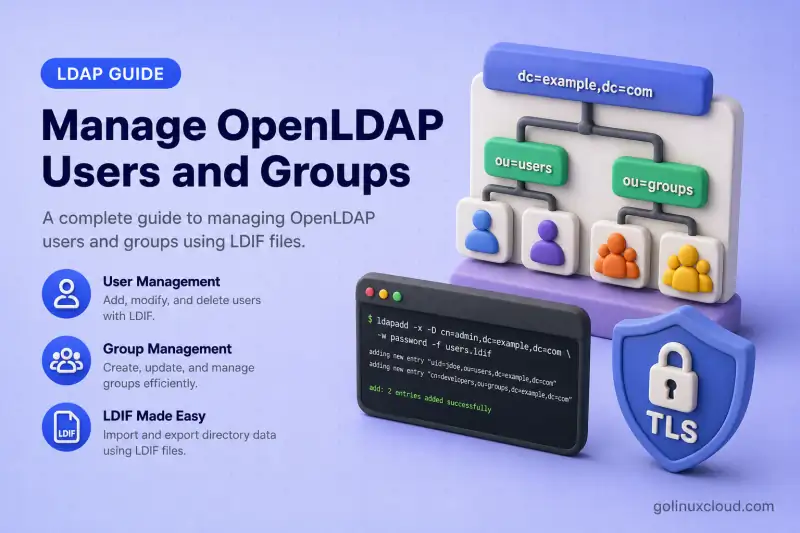
This guide explains how to manage OpenLDAP users and groups using LDIF and the standard OpenLDAP command-line tools. If DN, objectClass, or memberUid terms are new, read LDAP and OpenLDAP basics first.
You will learn how to:
- Add POSIX users and groups
- Search for directory entries
- Modify user attributes
- Add and remove group members
- Change a user's primary group
- Rename users and groups
- Move users between organizational units
- Change or reset LDAP passwords
- Verify changes through LDAP and SSSD
- Apply bulk LDIF safely
- Delete users and groups safely
The procedure applies to OpenLDAP 2.6 deployments across the RHEL family, including Red Hat Enterprise Linux, Rocky Linux, AlmaLinux, Oracle Linux, and CentOS Stream.
Tested on: Rocky Linux 10.2 with OpenLDAP 2.6 from EPEL.
The lab uses:
| Setting | Value |
|---|---|
| OpenLDAP server | ldap-server.example.com |
| OpenLDAP client | ldap-client.example.com |
| Base DN | dc=example,dc=com |
| Users OU | ou=people,dc=example,dc=com |
| Groups OU | ou=groups,dc=example,dc=com |
| Administrator DN | cn=admin,dc=example,dc=com |
| LDAP transport | StartTLS on port 389 |
| User schema | inetOrgPerson and posixAccount |
| Group schema | posixGroup with memberUid |
Complete these lessons first:
- Install and Configure OpenLDAP on the RHEL Family
- Secure OpenLDAP with TLS
- OpenLDAP cn=config and MDB Explained
-ZZ. Do not send administrator or user passwords over an unencrypted LDAP connection.
Understand OpenLDAP POSIX Users and Groups
Your directory suffix holds person and group entries under organizational units. After the install lesson you should already have ou=people and ou=groups beneath the base DN:
dc=example,dc=com
├── ou=people
└── ou=groups
The remaining sections add users and groups beneath these existing organizational units.
A Linux login account in OpenLDAP combines person and POSIX object classes:
| Object class | Purpose |
|---|---|
top |
Base object class every entry needs |
inetOrgPerson |
Name, surname, email, and other person attributes |
posixAccount |
UID, GID, home directory, and login shell |
Groups for NSS clients use posixGroup:
| Object class | Purpose |
|---|---|
top |
Base object class |
posixGroup |
Numeric GID and RFC2307 group members |
These attributes appear on almost every account you manage:
| Attribute | Example | Purpose |
|---|---|---|
uid |
jdoe |
Login name and user RDN |
uidNumber |
10001 |
Numeric Linux UID |
gidNumber |
10001 |
Numeric primary group |
cn |
John Doe |
Common name |
sn |
Doe |
Required surname |
homeDirectory |
/home/jdoe |
User home path |
loginShell |
/bin/bash |
Login shell |
mail |
[email protected] |
Email address |
Group entries use:
| Attribute | Example | Purpose |
|---|---|---|
cn |
developers |
Group name and RDN |
gidNumber |
10001 |
Numeric Linux GID |
memberUid |
jdoe |
RFC2307 supplementary member |
Primary group versus supplementary membership
The user's gidNumber names the primary POSIX group—the one id prints first and the one new files inherit unless you change it:
User entry:
gidNumber: 10001
A posixGroup entry can list supplementary members with memberUid:
Group entry:
memberUid: jdoe
A matching gidNumber does not automatically create a memberUid value, and adding memberUid does not change the user's primary gidNumber. Plan both deliberately when you design SSSD client lookups.
RFC2307 and RFC2307bis
This guide stays on RFC2307 throughout the main examples:
ldap_schema = rfc2307
group membership attribute = memberUid
group member value = username
RFC2307bis is the common alternative:
ldap_schema = rfc2307bis
group membership attribute = member
group member value = complete user DN
SSSD documents memberUid as the RFC2307 membership model and DN-valued member as the major RFC2307bis difference. Pick one model for the directory and match it on every client—do not mix both in the same examples without a defined design. When you choose DN-valued member on groupOfNames, configure reverse memberOf in Configure OpenLDAP memberOf and referential integrity overlays.
Prepare the Directory and Allocate UID/GID Numbers
Before you add an account, confirm the organizational units from the install lesson are present. Directory lookups in this chapter use the ldapsearch command; filter and base-DN flags must match what you configure in Apache or SSSD later.
ldapsearch -x -ZZ -H ldap://ldap-server.example.com -D "cn=admin,dc=example,dc=com" -W -b "dc=example,dc=com" -LLL "(|(ou=people)(ou=groups))" dn ouSample output:
dn: ou=people,dc=example,dc=com
ou: people

dn: ou=groups,dc=example,dc=com
ou: groups
Both OUs are in place, so new users and groups have a valid parent entry.
Search for a conflicting username before ldapadd. Search the full suffix so a match is not missed when accounts live outside ou=people:
ldapsearch -x -ZZ -H ldap://ldap-server.example.com -D "cn=admin,dc=example,dc=com" -W -b "dc=example,dc=com" -LLL "(&(objectClass=posixAccount)(uid=jdoe))" dn uid uidNumberAn empty result means the name is free. A hit means you must pick another uid or modify the existing entry instead.
Check whether the UID number is already assigned anywhere under the suffix:
ldapsearch -x -ZZ -H ldap://ldap-server.example.com -D "cn=admin,dc=example,dc=com" -W -b "dc=example,dc=com" -LLL "(&(objectClass=posixAccount)(uidNumber=10001))" dn uid uidNumberSample output when UID 10001 is taken:
dn: uid=jdoe,ou=people,dc=example,dc=com
uid: jdoe
uidNumber: 10001
Repeat the same idea for groups—search by cn and by gidNumber before you create a new posixGroup.
Document an allocation policy so operators do not collide with system accounts or bulk-migrated users:
| Range | Suggested use |
|---|---|
Below 1000 |
System and service accounts; avoid for normal LDAP users |
10000–19999 |
Normal directory users |
20000–29999 |
Application or service identities |
| Separate documented range | Shared or role-based groups |
The exact ranges are an organizational decision. The hard requirement is uniqueness across local /etc/passwd, LDAP, containers, and any other identity source visible to the same clients.
To see the highest UID currently stored for any POSIX account under the suffix:
ldapsearch -x -ZZ -H ldap://ldap-server.example.com -D "cn=admin,dc=example,dc=com" -W -b "dc=example,dc=com" -LLL "(&(objectClass=posixAccount)(uidNumber=*))" uidNumber | awk '/^uidNumber:/ {print $2}' | sort -n | tail -1Use the result as a hint, not an automatic allocator—your ID-management policy may reserve gaps or block ranges outright.
Add an OpenLDAP Group and User
Create the primary group before the user when gidNumber on the account should reference that group.
Add a POSIX group
Create add-developers-group.ldif:
dn: cn=developers,ou=groups,dc=example,dc=com
objectClass: top
objectClass: posixGroup
cn: developers
gidNumber: 10001
description: Application development team
Import the group with ldapadd:
ldapadd -x -ZZ -H ldap://ldap-server.example.com -D "cn=admin,dc=example,dc=com" -W -f add-developers-group.ldifSample output:
adding new entry "cn=developers,ou=groups,dc=example,dc=com"Confirm the group entry:
ldapsearch -x -ZZ -H ldap://ldap-server.example.com -b "ou=groups,dc=example,dc=com" -LLL "(cn=developers)" dn cn gidNumber memberUidSample output:
dn: cn=developers,ou=groups,dc=example,dc=com
cn: developers
gidNumber: 10001
Add a POSIX user
Create add-jdoe-user.ldif without a password attribute:
dn: uid=jdoe,ou=people,dc=example,dc=com
objectClass: top
objectClass: inetOrgPerson
objectClass: posixAccount
cn: John Doe
sn: Doe
givenName: John
uid: jdoe
uidNumber: 10001
gidNumber: 10001
homeDirectory: /home/jdoe
loginShell: /bin/bash
mail: [email protected]
description: Application developer
Add the entry:
ldapadd -x -ZZ -H ldap://ldap-server.example.com -D "cn=admin,dc=example,dc=com" -W -f add-jdoe-user.ldifSample output:
adding new entry "uid=jdoe,ou=people,dc=example,dc=com"Set the initial password in a separate step so the secret never lands in the LDIF file:
ldappasswd -x -ZZ -H ldap://ldap-server.example.com -D "cn=admin,dc=example,dc=com" -W -S "uid=jdoe,ou=people,dc=example,dc=com"The -S flag prompts for the new password interactively, which keeps it out of shell history and process arguments.
Verify the user attributes:
ldapsearch -x -ZZ -H ldap://ldap-server.example.com -b "ou=people,dc=example,dc=com" -LLL "(uid=jdoe)" dn objectClass cn sn uid uidNumber gidNumber homeDirectory loginShell mailSample output:
dn: uid=jdoe,ou=people,dc=example,dc=com
objectClass: top
objectClass: inetOrgPerson
objectClass: posixAccount
cn: John Doe
sn: Doe
uid: jdoe
uidNumber: 10001
gidNumber: 10001
homeDirectory: /home/jdoe
loginShell: /bin/bash
mail: [email protected]
Confirm the user can bind:
ldapwhoami -x -ZZ -H ldap://ldap-server.example.com -D "uid=jdoe,ou=people,dc=example,dc=com" -WSample output:
dn:uid=jdoe,ou=people,dc=example,dc=comThe bind succeeded—the directory recognizes the account and password.
Search OpenLDAP Users and Groups
Every ldapsearch call combines a search base, optional scope, a filter, and the attributes you want back.
| Component | Example |
|---|---|
| Search base | ou=people,dc=example,dc=com |
| Scope | Base, one level, or subtree (default) |
| Filter | (uid=jdoe) |
| Requested attributes | uid uidNumber gidNumber |
List all users
Search the complete suffix when you need every POSIX account, including entries moved to another OU such as ou=contractors:
ldapsearch -x -ZZ -H ldap://ldap-server.example.com -b "dc=example,dc=com" -LLL "(objectClass=posixAccount)" dn uid cn uidNumber gidNumberSample output:
dn: uid=jdoe,ou=people,dc=example,dc=com
cn: John Doe
uid: jdoe
uidNumber: 10001
gidNumber: 10001
Search by username
ldapsearch -x -ZZ -H ldap://ldap-server.example.com -b "ou=people,dc=example,dc=com" -LLL "(uid=jdoe)" dn cn mail homeDirectory loginShellSearch by UID number
ldapsearch -x -ZZ -H ldap://ldap-server.example.com -b "ou=people,dc=example,dc=com" -LLL "(uidNumber=10001)" dn uid cnSearch by partial name
ldapsearch -x -ZZ -H ldap://ldap-server.example.com -b "ou=people,dc=example,dc=com" -LLL "(cn=*Doe*)" dn uid cn mailList all POSIX groups
ldapsearch -x -ZZ -H ldap://ldap-server.example.com -b "ou=groups,dc=example,dc=com" -LLL "(objectClass=posixGroup)" dn cn gidNumber memberUidFind groups containing a user
ldapsearch -x -ZZ -H ldap://ldap-server.example.com -b "ou=groups,dc=example,dc=com" -LLL "(memberUid=jdoe)" dn cn gidNumberAt this point the result is empty. jdoe uses developers as the primary group through the user's gidNumber, but the group does not yet contain a memberUid: jdoe value. After you add supplementary membership in a later step, this filter returns only groups that list the username in memberUid.
Find users with a specific primary GID
ldapsearch -x -ZZ -H ldap://ldap-server.example.com -b "dc=example,dc=com" -LLL "(&(objectClass=posixAccount)(gidNumber=10001))" dn uid cnSample output:
dn: uid=jdoe,ou=people,dc=example,dc=com
cn: John Doe
uid: jdoe
(memberUid=jdoe) answers which groups list the username. (gidNumber=10001) answers which users use 10001 as their primary group. Those are different questions.
Modify Users and Group Membership
LDIF modifications use changetype: modify with one or more operations:
| Operation | Purpose |
|---|---|
add |
Add a new attribute value |
replace |
Replace every current value of an attribute |
delete |
Remove an attribute or one exact value |
Separate operations on the same entry with a hyphen on its own line:
dn: TARGET_DN
changetype: modify
replace: attribute
attribute: value
-
add: anotherAttribute
anotherAttribute: value
Modify user attributes
Before assigning a login shell, confirm that the path exists on every client where the LDAP account can log in. Use /bin/bash instead when Zsh is not installed.
On each relevant client:
test -x /bin/zsh && grep -Fx '/bin/zsh' /etc/shellsWhen either check fails, do not assign /bin/zsh until the shell is installed and approved on that client. On a default Rocky Linux 10 host without the zsh package, the command produces no output and exits with a non-zero status—the path is missing and /etc/shells does not list it.
OpenLDAP still accepts loginShell: /bin/zsh when you run ldapmodify; the directory stores the value even if the shell is absent on LDAP clients. Interactive login can fail later when PAM or SSH tries to start a missing shell.
Create modify-jdoe.ldif:
dn: uid=jdoe,ou=people,dc=example,dc=com
changetype: modify
replace: loginShell
loginShell: /bin/zsh
-
replace: mail
mail: [email protected]
-
add: telephoneNumber
telephoneNumber: +1 555 0100
Apply the change with ldapmodify:
ldapmodify -x -ZZ -H ldap://ldap-server.example.com -D "cn=admin,dc=example,dc=com" -W -f modify-jdoe.ldifSample output:
modifying entry "uid=jdoe,ou=people,dc=example,dc=com"Read back only the attributes you changed:
ldapsearch -x -ZZ -H ldap://ldap-server.example.com -b "ou=people,dc=example,dc=com" -LLL "(uid=jdoe)" loginShell mail telephoneNumberSample output:
loginShell: /bin/zsh
mail: [email protected]
telephoneNumber: +1 555 0100
Delete one user attribute
Supply the exact value when the attribute is multi-valued:
cat > delete-jdoe-telephone.ldif <<'EOF'
dn: uid=jdoe,ou=people,dc=example,dc=com
changetype: modify
delete: telephoneNumber
telephoneNumber: +1 555 0100
EOFldapmodify -x -ZZ -H ldap://ldap-server.example.com -D "cn=admin,dc=example,dc=com" -W -f delete-jdoe-telephone.ldifSample output:
modifying entry "uid=jdoe,ou=people,dc=example,dc=com"Confirm the attribute is gone:
ldapsearch -x -ZZ -H ldap://ldap-server.example.com -b "uid=jdoe,ou=people,dc=example,dc=com" -s base -LLL telephoneNumber dnSample output:
dn: uid=jdoe,ou=people,dc=example,dc=comThe deletion succeeded when the entry is returned without a telephoneNumber: line.
Add a user to a supplementary group
Create the supplementary group first when it does not exist:
cat > add-operations-group.ldif <<'EOF'
dn: cn=operations,ou=groups,dc=example,dc=com
objectClass: top
objectClass: posixGroup
cn: operations
gidNumber: 10002
description: Operations team
EOFldapadd -x -ZZ -H ldap://ldap-server.example.com -D "cn=admin,dc=example,dc=com" -W -f add-operations-group.ldifSample output:
adding new entry "cn=operations,ou=groups,dc=example,dc=com"Create the membership change file:
cat > add-jdoe-to-operations.ldif <<'EOF'
dn: cn=operations,ou=groups,dc=example,dc=com
changetype: modify
add: memberUid
memberUid: jdoe
EOF
Apply the membership change:
ldapmodify -x -ZZ -H ldap://ldap-server.example.com -D "cn=admin,dc=example,dc=com" -W -f add-jdoe-to-operations.ldifVerify the group now lists the username:
ldapsearch -x -ZZ -H ldap://ldap-server.example.com -b "ou=groups,dc=example,dc=com" -LLL "(memberUid=jdoe)" dn cn memberUidSample output:
dn: cn=operations,ou=groups,dc=example,dc=com
cn: operations
memberUid: jdoe
The next two subsections demonstrate independent administrative operations. The continuing lab used later in the rename and SSSD verification sections keeps jdoe in the operations supplementary group and retains primary GID 10001 for developers. Apply these examples only when you intend to change that state.
Remove a supplementary membership
cat > remove-jdoe-from-operations.ldif <<'EOF'
dn: cn=operations,ou=groups,dc=example,dc=com
changetype: modify
delete: memberUid
memberUid: jdoe
EOFldapmodify -x -ZZ -H ldap://ldap-server.example.com -D "cn=admin,dc=example,dc=com" -W -f remove-jdoe-from-operations.ldifVerify the membership is gone:
ldapsearch -x -ZZ -H ldap://ldap-server.example.com -b "ou=groups,dc=example,dc=com" -LLL "(memberUid=jdoe)" dn cn memberUidAn empty result confirms jdoe no longer appears in any group's memberUid values.
Change the user's primary group
Confirm the target GID exists:
ldapsearch -x -ZZ -H ldap://ldap-server.example.com -b "ou=groups,dc=example,dc=com" -LLL "(gidNumber=10002)" dn cn gidNumbercat > change-jdoe-primary-group.ldif <<'EOF'
dn: uid=jdoe,ou=people,dc=example,dc=com
changetype: modify
replace: gidNumber
gidNumber: 10002
EOFldapmodify -x -ZZ -H ldap://ldap-server.example.com -D "cn=admin,dc=example,dc=com" -W -f change-jdoe-primary-group.ldifChanging gidNumber does not add or remove memberUid values anywhere—you update those separately when supplementary membership should change too. If you applied this example during the continuous walkthrough, restore gidNumber: 10001 before the rename section.
Rename or Move an OpenLDAP User or Group
The rename, move, password, client-verification, bulk-operation, and deletion steps below continue one lab account through the guide. Substitute each command's DN with the entry's current location whenever you adapt the examples to your own directory.
Use ldapmodrdn for RDN or superior changes. Ordinary ldapmodify cannot rename an entry's DN.
The -r flag removes the old RDN attribute value after the rename. Without -r, the previous value remains on the entry as an additional attribute.
Rename a user
Rename uid=jdoe to uid=john.doe:
ldapmodrdn -x -ZZ -H ldap://ldap-server.example.com -D "cn=admin,dc=example,dc=com" -W -r "uid=jdoe,ou=people,dc=example,dc=com" "uid=john.doe"Confirm only the new RDN remains:
ldapsearch -x -ZZ -H ldap://ldap-server.example.com -b "ou=people,dc=example,dc=com" -LLL "(|(uid=jdoe)(uid=john.doe))" dn uid cnSample output:
dn: uid=john.doe,ou=people,dc=example,dc=com
cn: John Doe
uid: john.doe
Update RFC2307 group memberships after renaming
Renaming a user does not rewrite memberUid strings in group entries.
Find stale references:
ldapsearch -x -ZZ -H ldap://ldap-server.example.com -b "ou=groups,dc=example,dc=com" -LLL "(memberUid=jdoe)" dn cn memberUidUpdate each affected group:
cat > rename-jdoe-group-membership.ldif <<'EOF'
dn: cn=operations,ou=groups,dc=example,dc=com
changetype: modify
delete: memberUid
memberUid: jdoe
-
add: memberUid
memberUid: john.doe
EOFldapmodify -x -ZZ -H ldap://ldap-server.example.com -D "cn=admin,dc=example,dc=com" -W -f rename-jdoe-group-membership.ldifVerify no stale username remains:
ldapsearch -x -ZZ -H ldap://ldap-server.example.com -b "ou=groups,dc=example,dc=com" -LLL "(|(memberUid=jdoe)(memberUid=john.doe))" dn cn memberUidSample output before the group rename:
dn: cn=operations,ou=groups,dc=example,dc=com
cn: operations
memberUid: john.doe
Only john.doe should appear—jdoe must not remain after the membership update.
Renaming uid changes the LDAP login attribute and DN, but it does not automatically change homeDirectory, rename an existing home directory on clients, or update file paths. Modify homeDirectory and handle filesystem changes separately when your naming policy requires them.
Also review sudo rules, SSH keys, automount maps, application role mappings, and automation that still mention the old uid or DN.
Move a user to another OU
Create the target OU when it does not exist—ldapmodrdn -s fails with No such object (32) when the superior entry is missing:
cat > add-contractors-ou.ldif <<'EOF'
dn: ou=contractors,dc=example,dc=com
objectClass: top
objectClass: organizationalUnit
ou: contractors
EOFldapadd -x -ZZ -H ldap://ldap-server.example.com -D "cn=admin,dc=example,dc=com" -W -f add-contractors-ou.ldifBefore moving an account outside ou=people, confirm that the SSSD user search base includes the target OU. A client configured with ldap_user_search_base = ou=people,dc=example,dc=com will no longer find a user moved to ou=contractors.
SSSD searches only the configured ldap_search_base or ldap_user_search_base. A full-suffix subtree base includes both OUs, while an ou=people base does not.
Check the client setting:
sudo grep -E '^[[:space:]]*(ldap_search_base|ldap_user_search_base)[[:space:]]*=' /etc/sssd/sssd.confA full-suffix configuration can discover both locations:
ldap_search_base = dc=example,dc=comAfter changing an SSSD search base:
sudo systemctl restart sssdsudo sss_cache -EKeep detailed SSSD configuration in the OpenLDAP client with SSSD lesson.
Move the entry under the new superior:
ldapmodrdn -x -ZZ -H ldap://ldap-server.example.com -D "cn=admin,dc=example,dc=com" -W -s "ou=contractors,dc=example,dc=com" "uid=john.doe,ou=people,dc=example,dc=com" "uid=john.doe"DN-valued references—RFC2307bis member attributes, ACL targets, or application settings—may still need manual updates after a move.
ldapmodrdn -r removes the old RDN value, while -s moves the entry beneath a new superior; neither operation updates unrelated attributes or application references automatically. After this step the user DN is uid=john.doe,ou=contractors,dc=example,dc=com.
Rename a group
ldapmodrdn -x -ZZ -H ldap://ldap-server.example.com -D "cn=admin,dc=example,dc=com" -W -r "cn=operations,ou=groups,dc=example,dc=com" "cn=platform-operations"After a group rename, review SSSD access filters, sudo policies, file ownership expectations, and scripts that still use the old cn value.
Change or Reset an OpenLDAP User Password
ldappasswd sends the password through the LDAP Password Modify extended operation (RFC 3062), allowing slapd to apply its configured password hashing. When the password-policy overlay and an applicable policy are enabled, the server can also enforce configured password requirements. ACLs and the authorization identity still determine whether the change is allowed.
Administrator resets another user's password
ldappasswd -x -ZZ -H ldap://ldap-server.example.com -D "cn=admin,dc=example,dc=com" -W -S "uid=john.doe,ou=contractors,dc=example,dc=com"The tool prompts for the administrator password, then twice for the new user password.
Verify the user can bind with the new secret:
ldapwhoami -x -ZZ -H ldap://ldap-server.example.com -D "uid=john.doe,ou=contractors,dc=example,dc=com" -WUser changes their own password
ldappasswd -x -ZZ -H ldap://ldap-server.example.com -D "uid=john.doe,ou=contractors,dc=example,dc=com" -W -S "uid=john.doe,ou=contractors,dc=example,dc=com"That requires an ACL allowing self-service password changes. Configure userPassword and self-service rules in OpenLDAP ACL Configuration with Practical Examples. Server-side expiration, lockout, and pwdReset behavior belong in the password-policy lesson for this series—not in this operational guide.
Avoid passwords in command history
Do not publish commands such as:
ldappasswd -s PlainTextPassword
ldapmodify ... userPassword: PlainTextPassword
For automation, read secrets from a protected file or vault and avoid logging the command input.
Verify Changes from an SSSD Client
ldapsearch proves the directory holds the new data. NSS and SSSD on a client prove Linux utilities see the same identity.
When you need an immediate read after a change on a host that already runs SSSD against this directory, clear the cache:
sudo sss_cache -EAfter the rename and group rename in this walkthrough, look up the passwd entry by the new login name:
getent passwd john.doeSample output:
john.doe:*:10001:10001:John Doe:/home/jdoe:/bin/zshThe home path still reflects the original homeDirectory value until you change it separately. The shell comes from the earlier loginShell change to /bin/zsh.
Check UID, primary GID, and supplementary groups:
id john.doeSample output:
uid=10001(john.doe) gid=10001(developers) groups=10001(developers),10002(platform-operations)Resolve a group by name:
getent group developersSample output:
developers:*:10001:The user still has developers as the primary group through gidNumber, even though memberUid is empty on the group entry. With RFC2307, supplementary group membership is stored in the multi-valued memberUid attribute. SSSD distinguishes this from the primary group selected through the account's gidNumber.
Confirm the renamed supplementary group:
getent group platform-operationsSample output:
platform-operations:*:10002:john.doeldapsearch validates the directory. getent and id validate NSS and SSSD. An SSH login exercises the full authentication path. This page does not repeat SSSD installation or sssd.conf tuning—that stays in the client lesson.
Perform Bulk Operations
Add multiple entries
Place complete entries in one LDIF file separated by blank lines:
dn: cn=group1,ou=groups,dc=example,dc=com
objectClass: top
objectClass: posixGroup
cn: group1
gidNumber: 11001

dn: cn=group2,ou=groups,dc=example,dc=com
objectClass: top
objectClass: posixGroup
cn: group2
gidNumber: 11002
Dry-run the file without applying changes:
ldapadd -n -v -x -ZZ -H ldap://ldap-server.example.com -D "cn=admin,dc=example,dc=com" -W -f bulk-groups.ldif-n -v checks the command construction and LDIF parsing and displays the proposed operations. It does not submit them to the server, so it cannot detect server-side schema, ACL, uniqueness, or existing-entry failures. Validate risky batches against a test directory or snapshot before production.
Apply the batch:
ldapadd -x -ZZ -H ldap://ldap-server.example.com -D "cn=admin,dc=example,dc=com" -W -f bulk-groups.ldifUse -c only when partial success is acceptable—it continues after errors and can leave only part of the batch applied. Always review the output and search for every DN you expected.
Apply multiple modifications
Put one changetype: modify record per target DN, separated by blank lines. Validate with:
ldapmodify -n -v -x -ZZ -H ldap://ldap-server.example.com -D "cn=admin,dc=example,dc=com" -W -f bulk-modifications.ldifAs with ldapadd -n, this pass only exercises client-side parsing—it does not prove the server will accept the modifications.
Recommended operational checklist
For each production change:
1. Search for the current entry
2. Check UID/GID and group references
3. Save the original LDIF
4. Review the change file
5. Test with -n and -v for LDIF syntax (not server acceptance)
6. Apply one logical change
7. Search the entry again
8. Verify from an SSSD client
9. Preserve the change record
Delete OpenLDAP Users and Groups Safely
Deletion is the final lifecycle step in this walkthrough. Run the client checks in the previous section before you remove the lab account.
Start every deletion with a reference check so you do not orphan memberships or leave applications pointing at a missing DN.
Check user references
Search RFC2307 membership:
ldapsearch -x -ZZ -H ldap://ldap-server.example.com -D "cn=admin,dc=example,dc=com" -W -b "ou=groups,dc=example,dc=com" -LLL "(memberUid=john.doe)" dn cn memberUidSearch DN-valued references when your deployment uses them:
ldapsearch -x -ZZ -H ldap://ldap-server.example.com -D "cn=admin,dc=example,dc=com" -W -b "dc=example,dc=com" -LLL "(member=uid=john.doe,ou=contractors,dc=example,dc=com)" dn memberRemove supplementary memberUid values before you delete the user entry. In this lab the group has already been renamed to platform-operations:
cat > remove-john-doe-from-platform-operations.ldif <<'EOF'
dn: cn=platform-operations,ou=groups,dc=example,dc=com
changetype: modify
delete: memberUid
memberUid: john.doe
EOFldapmodify -x -ZZ -H ldap://ldap-server.example.com -D "cn=admin,dc=example,dc=com" -W -f remove-john-doe-from-platform-operations.ldifConfirm no RFC2307 group still references the user:
ldapsearch -x -ZZ -H ldap://ldap-server.example.com -D "cn=admin,dc=example,dc=com" -W -b "ou=groups,dc=example,dc=com" -LLL "(memberUid=john.doe)" dn cn memberUidProceed with ldapdelete only when that search is empty.
Delete a user
ldapdelete -x -ZZ -H ldap://ldap-server.example.com -D "cn=admin,dc=example,dc=com" -W "uid=john.doe,ou=contractors,dc=example,dc=com"Confirm the entry is gone:
ldapsearch -x -ZZ -H ldap://ldap-server.example.com -b "ou=contractors,dc=example,dc=com" -LLL "(uid=john.doe)" dnAn empty result means the delete succeeded.
Check before deleting a group
Find users whose primary GID matches the group anywhere under the suffix:
ldapsearch -x -ZZ -H ldap://ldap-server.example.com -D "cn=admin,dc=example,dc=com" -W -b "dc=example,dc=com" -LLL "(&(objectClass=posixAccount)(gidNumber=10002))" dn uid gidNumberReassign every affected user's gidNumber before you remove a primary group.
Delete a group
ldapdelete -x -ZZ -H ldap://ldap-server.example.com -D "cn=admin,dc=example,dc=com" -W "cn=platform-operations,ou=groups,dc=example,dc=com"ldapdelete -r for routine user or group removal. Recursive delete removes the selected entry and every descendant without individual confirmation and can erase a large subtree.
Troubleshoot OpenLDAP User and Group Management
| Error or symptom | Likely cause | Recommended check |
|---|---|---|
Already exists (68) |
The entry DN already exists | Search the exact DN before adding |
No such object (32) |
Parent OU or target DN does not exist | Verify the base and parent entries |
Invalid credentials (49) |
Wrong bind DN or password | Test with ldapwhoami |
Object class violation (65) |
Required attribute is absent or attribute is not allowed | Check object-class requirements |
Invalid syntax (21) |
Attribute value does not match its schema syntax | Check numeric and DN attributes |
Type or value exists (20) |
The exact attribute value is already present | Query current values before add |
Constraint violation (19) |
Unique or schema constraint was violated | Search UID, GID, mail, or other unique values |
Naming violation (64) |
New RDN is incompatible with the entry | Ensure the RDN attribute exists and is valid |
Not allowed on non-leaf (66) |
Entry still has child entries | Search one level below the target |
| Password reset fails | ACL, TLS, or password-policy restriction | Use ldappasswd -ZZ and inspect server logs |
| User rename succeeds but group access is lost | Old memberUid or DN references remain |
Search and update every group reference |
id shows no supplementary groups |
SSSD schema does not match group membership model | Compare RFC2307 versus RFC2307bis settings |
| LDAP shows new data but client shows old data | SSSD cache is stale | Run sss_cache -E and repeat the lookup |
| User exists but login fails | Identity lookup and password authentication are separate | Test ldapwhoami, getent, id, PAM, and SSH in order |
| Deleted group still appears | SSSD or application cache is stale | Clear the applicable cache and retest |
Confirm your bind identity when ACL errors are suspected:
ldapwhoami -x -ZZ -H ldap://ldap-server.example.com -D "cn=admin,dc=example,dc=com" -WShows the DN slapd accepted for the bind. Use this when Error 49 or 50 appears on add or modify.
Read recent server messages:
sudo journalctl -u slapd -n 100 --no-pagerLook for object-class, constraint, and ACL messages around the failed ldapadd or ldapmodify.
On a client host, inspect SSSD:
sudo journalctl -u sssd -n 100 --no-pagerCheck when LDAP data changed but getent or id still shows old values.
sudo sssctl user-checks -a acct -s sshd john.doeSeparates directory identity from SSH account authorization when the user exists in LDAP but login fails.
References
- OpenLDAP 2.6 Administrator's Guide
- ldapadd(1)
- ldapmodify(1)
- ldapsearch(1)
- ldapmodrdn(1)
- ldapdelete(1)
- ldappasswd(1)
- RFC 3062 — LDAP Password Modify Extended Operation
- RFC 2307 — An Approach for Using LDAP as a Network Information Service
- SSSD LDAP provider documentation
Summary
You can now:
- Plan unique UID and GID values before every add
- Create POSIX groups and users with
ldapadd, then set passwords withldappasswd -S - Search users and groups with practical LDAP filters
- Modify attributes with
add,replace, anddelete - Manage primary
gidNumberand supplementarymemberUidmembership separately - Rename or move entries with
ldapmodrdnand fix RFC2307 references afterward - Confirm directory and client views with
ldapsearch,getent, andid - Dry-run bulk LDIF with
-n -vfor parsing, then apply on a test directory before production - Delete users and groups only after reference checks
