
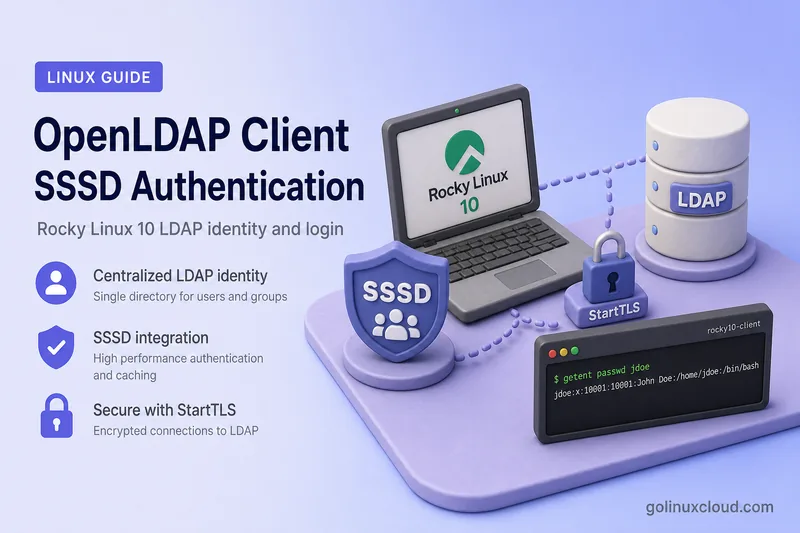
This walkthrough wires LDAP login on a separate RHEL-family client through SSSD—getent and id for NSS lookup, password checks through PAM, StartTLS to OpenLDAP, the lab CA in the system trust store, and a home directory created on first login. You will set up sssd.conf, /etc/openldap/ldap.conf, authselect with with-mkhomedir, and confirm an LDAP user can SSH in, not only run ldapsearch.
Part of the OpenLDAP tutorial series.
Complete these lessons first:
- Install and Configure OpenLDAP on the RHEL Family
- Secure OpenLDAP with TLS
- Manage OpenLDAP users and groups with LDIF
Tested on: Rocky Linux 10.2;
ldap-server.example.comat192.168.56.108;ldap-client.example.comat192.168.56.109; SSSD 2.12.0; OpenLDAP 2.6.10 client utilities.
What This Guide Configures
The finished client stack looks like this:
RHEL-family client
    │
    ├── NSS → SSSD → LDAP identity lookup
    ├── PAM → SSSD → LDAP password authentication
    └── oddjobd → creates /home/jdoe after first login

SSSD
    │
└── StartTLS → OpenLDAP server:389| Component | Configuration |
|---|---|
| Client OS | RHEL-family 9 or 10 |
| Identity and authentication daemon | SSSD |
| PAM/NSS configuration | authselect |
| LDAP transport | StartTLS on port 389 |
| Certificate validation | Required (ldap_tls_reqcert = hard) |
| LDAP server | ldap-server.example.com |
| Search base | dc=example,dc=com |
| User OU | ou=people,dc=example,dc=com |
| Group OU | ou=groups,dc=example,dc=com |
| Test user | jdoe |
| Home-directory creation | oddjob-mkhomedir |
| Related topic | Owned elsewhere |
|---|---|
| Server install, suffix, schemas, DIT | Install and configure OpenLDAP on RHEL-based Linux |
Server certificates and olcTLS* |
Configure OpenLDAP TLS on RHEL-based Linux |
| LDAP sudo rules, automount, SSH keys in LDAP | Store Linux sudo rules in OpenLDAP with SSSD for sudo; NFS home directories with autofs for automount maps |
Prerequisites and Lab Environment
The server should already expose POSIX entries under ou=people and ou=groups, ship the lab CA on the client, resolve ldap-server.example.com from /etc/hosts or DNS, and accept StartTLS on port 389. If DN, suffix, or schema terms are unclear, read LDAP and OpenLDAP basics first.
| Setting | Value |
|---|---|
| LDAP server hostname | ldap-server.example.com (ldap-server) |
| LDAP server IP | 192.168.56.108 (host-only adapter) |
| Client hostname | ldap-client.example.com (ldap-client) |
| Client IP | 192.168.56.109 (host-only adapter) |
| Base DN | dc=example,dc=com |
| Test user DN | uid=jdoe,ou=people,dc=example,dc=com |
| Test group DN | cn=developers,ou=groups,dc=example,dc=com |
| CA file | example-ldap-ca.crt |
Set the client hostname with hostnamectl and map both lab hosts on the host-only adapter in /etc/hosts on the client—not on the NAT interface:
sudo hostnamectl set-hostname ldap-client.example.com192.168.56.108 ldap-server.example.com ldap-server
192.168.56.109 ldap-client.example.com ldap-clientConfirm the client FQDN before you install packages:
hostname -fSample output:
ldap-client.example.comVerify the client can resolve the LDAP server hostname:
getent hosts ldap-server.example.comSample output:
192.168.56.108 ldap-server.example.com ldap-serverCheck that port 389 is reachable. Install nmap-ncat when nc is not already available:
command -v nc >/dev/null || sudo dnf install -y nmap-ncatnc -vz ldap-server.example.com 389Sample output:
Ncat: Connected to 192.168.56.108:389.LDAP password authentication is not Kerberos, so you do not need sub-second clock sync. Grossly wrong system time can still break TLS certificate validation—check with timedatectl:
timedatectlSample output:
Local time: Tue 2026-07-14 06:58:44 IST
           Universal time: Tue 2026-07-14 01:28:44 UTC
                Time zone: Asia/Kolkata (IST, +0530)
System clock synchronized: no
              NTP service: active
Install SSSD and OpenLDAP Client Packages
Install the client stack with sudo and dnf. This guide uses SSSD and authselect—not legacy authconfig, nslcd, or pam_ldap.
sudo dnf install -y \
  openldap-clients \
  openssl \
  sssd \
  sssd-ldap \
  sssd-tools \
  authselect \
  oddjob \
  oddjob-mkhomedir
Confirm the expected packages are present with rpm -q; the rpm command covers -qa and other RPM queries on this host:
rpm -q \
  openldap-clients \
  openssl \
  sssd \
  sssd-ldap \
  sssd-tools \
  authselect \
  oddjob-mkhomedir
Sample output:
openldap-clients-2.6.10-1.el10.x86_64
openssl-3.5.5-4.el10_2.x86_64
sssd-2.12.0-3.el10_2.x86_64
sssd-ldap-2.12.0-3.el10_2.x86_64
sssd-tools-2.12.0-3.el10_2.x86_64
authselect-1.5.2-1.el10.x86_64
oddjob-mkhomedir-0.34.7-14.el10.x86_64
Do not install openldap-servers on the client—that package belongs on the directory server host.
Install the OpenLDAP CA Certificate
Copy only the public CA certificate from the LDAP server with scp over SSH; the ssh command covers secure copy and remote login options. Run this on the client:
scp [email protected]:/etc/openldap/certs/example-ldap-ca.crt /tmp/Place the CA in a stable path under /etc/openldap/certs/. Both ldap.conf and sssd.conf in this guide point at that file for StartTLS validation. Use install so ownership and permissions are set in one step—mode 0644 keeps the public certificate world-readable; only the CA certificate belongs here, not server or CA private keys.
sudo install -o root -g root -m 0644 /tmp/example-ldap-ca.crt /etc/openldap/certs/example-ldap-ca.crtThe openldap-clients package normally creates /etc/openldap/certs/. Create it first with sudo install -d -m 0755 /etc/openldap/certs when the directory is missing.
Inspect the certificate dates and subject:
openssl x509 -in /etc/openldap/certs/example-ldap-ca.crt -noout -subject -issuer -datesSample output:
subject=CN=Example Lab LDAP CA, O=Example Organization
issuer=CN=Example Lab LDAP CA, O=Example Organization
notBefore=Jul 13 16:57:49 2026 GMT
notAfter=Jul 10 16:57:49 2036 GMT
Test StartTLS and CA trust with OpenSSL before you configure SSSD. If this step fails, SSSD will not fix a broken CA path, SAN mismatch, or DNS problem:
openssl s_client \
  -starttls ldap \
  -connect ldap-server.example.com:389 \
  -servername ldap-server.example.com \
  -CAfile /etc/openldap/certs/example-ldap-ca.crt \
  -verify_return_error
After confirming Verify return code: 0 (ok), press Ctrl+C to close openssl s_client.
Sample output:
Verify return code: 0 (ok)Do not use TLS_REQCERT never in ldap.conf or ldap_tls_reqcert = never in SSSD. RHEL-family systems expect strict validation—hard and demand are equivalent strict modes.
Configure the LDAP Command-Line Client
Edit /etc/openldap/ldap.conf for command-line LDAP tools. This file affects ldapsearch, ldapwhoami, ldapadd, and ldapmodify; it does not replace /etc/sssd/sssd.conf.
URI ldap://ldap-server.example.com/
BASE dc=example,dc=com

TLS_CACERT /etc/openldap/certs/example-ldap-ca.crt
TLS_REQCERT demand
TLS_REQCERT demand matches the strict validation SSSD uses later with ldap_tls_reqcert = hard. Pass -ZZ on ldapsearch so the client negotiates StartTLS before LDAP traffic leaves the host—the same transport model as ldap_id_use_start_tls = true in sssd.conf.
Test that StartTLS works and read the server root DSE:
ldapsearch -x -ZZ -H ldap://ldap-server.example.com -b "" -s base -LLL namingContexts supportedLDAPVersionSample output:
dn:
namingContexts: dc=example,dc=com
supportedLDAPVersion: 3
Search for the test user under the people OU:
ldapsearch -x -ZZ \
  -H ldap://ldap-server.example.com \
  -b "ou=people,dc=example,dc=com" \
  -LLL "(uid=jdoe)" \
  dn uid uidNumber gidNumber homeDirectory loginShell
Sample output:
dn: uid=jdoe,ou=people,dc=example,dc=com
uid: jdoe
uidNumber: 10001
gidNumber: 10001
homeDirectory: /home/jdoe
loginShell: /bin/bash
If anonymous searches are blocked by server ACLs, repeat the search with a dedicated read-only service account that has search access through olcAccess. Do not use cn=admin,dc=example,dc=com as the permanent SSSD search identity. Create the account and matching rules in OpenLDAP ACL Configuration with Practical Examples.
Configure SSSD for OpenLDAP
SSSD reads /etc/sssd/sssd.conf separately from ldap.conf. The CA path appears in both files because command-line LDAP tools and SSSD do not share one configuration file.
Create /etc/sssd/sssd.conf for anonymous identity searches when server ACLs allow them:
[sssd]
services = nss, pam
domains = example.com

[domain/example.com]
id_provider = ldap
auth_provider = ldap
chpass_provider = ldap
access_provider = permit

ldap_uri = ldap://ldap-server.example.com
ldap_search_base = dc=example,dc=com
ldap_user_search_base = ou=people,dc=example,dc=com
ldap_group_search_base = ou=groups,dc=example,dc=com

ldap_schema = rfc2307

ldap_id_use_start_tls = true
ldap_tls_cacert = /etc/openldap/certs/example-ldap-ca.crt
ldap_tls_reqcert = hard

cache_credentials = true
enumerate = false

use_fully_qualified_names = false
fallback_homedir = /home/%u
default_shell = /bin/bash

[pam]
offline_credentials_expiration = 3access_provider = permit is suitable for this initial lab because it allows every LDAP user that can resolve and authenticate. For production clients, replace it with an explicit allow-list such as access_provider = simple and simple_allow_groups, or with an appropriate LDAP access policy.
Current SSSD releases on RHEL 10 reject config_file_version in the [sssd] section during sssctl config-check. Omit that legacy option.
The [pam] section sets how long cached authentication remains valid when LDAP is unavailable. offline_credentials_expiration = 3 permits cached authentication for three days after the user's last successful online login. The value is measured in days. SSSD stores a password hash for offline use, not the plaintext password. Choose a value that matches your availability and security requirements.
| Setting | Purpose |
|---|---|
id_provider = ldap |
Reads user and group identity from LDAP |
auth_provider = ldap |
Validates LDAP user passwords |
chpass_provider = ldap |
Allows password-change requests through LDAP; not required merely to look up or authenticate a user |
access_provider = permit |
Allows any successfully resolved LDAP user (lab only—see warning above) |
ldap_id_use_start_tls = true |
Requires StartTLS for identity traffic on ldap:// |
ldap_tls_reqcert = hard |
Rejects invalid or untrusted server certificates |
ldap_schema = rfc2307 |
Matches posixAccount, posixGroup, and memberUid from the install guide |
cache_credentials = true |
Caches credentials after successful online login |
enumerate = false |
Avoids downloading the entire directory |
fallback_homedir |
Supplies a home path when LDAP omits homeDirectory |
Password changes also require suitable server ACLs and password-policy configuration. Remove chpass_provider = ldap when this client should authenticate users but must not initiate LDAP password changes.
Short names such as jdoe are convenient in this single-domain lab because use_fully_qualified_names = false. Before using that setting in production, confirm that LDAP usernames and groups do not conflict with local accounts. Keep fully qualified names such as [email protected] when multiple identity domains may contain the same short name.
Alternative when anonymous searches are blocked
Add these lines inside [domain/example.com] when ACLs require a bind DN for reads:
ldap_default_bind_dn = uid=sssd-reader,ou=service-accounts,dc=example,dc=com
ldap_default_authtok_type = password
ldap_default_authtok = REPLACE_WITH_READER_PASSWORD
The bind account needs read-only access to identity attributes. It must not be an OpenLDAP administrator. Protect /etc/sssd/sssd.conf because the password is stored in plain text. User password authentication still occurs as each individual user.
Create the service account and matching olcAccess rules on the server in OpenLDAP ACL Configuration with Practical Examples—not on this client page.
LDAPS alternative
To use LDAPS instead of StartTLS, change the URI and disable StartTLS:
ldap_uri = ldaps://ldap-server.example.com
ldap_id_use_start_tls = false
Do not combine ldaps:// with ldap_id_use_start_tls = true.
Enable SSSD Authentication with authselect
SSSD refuses to use a world-readable configuration file. Set ownership with chown and permissions before validation and startup—use mode 600 even when no bind password is stored in the file.
sudo chown root:root /etc/sssd/sssd.confsudo chmod 600 /etc/sssd/sssd.confsudo restorecon -v /etc/sssd/sssd.confrestorecon applies the SELinux file context the sssd service expects on its configuration path.
Validate the configuration file before enabling services:
sudo sssctl config-checkSample output:
Issues identified by validators: 0A non-zero issue count means SSSD may refuse to start or behave unpredictably—fix the reported options before continuing.
Inspect the current authentication profile:
authselect currentSample output on a fresh system:
Profile ID: local
Enabled features: None
Select the SSSD profile with automatic home-directory creation. with-mkhomedir wires PAM to oddjobd so the first successful login can create /home/username; SSSD alone does not create home directories. Save an authselect backup first:
sudo authselect select sssd with-mkhomedir \
  --backup=before-openldap-client
If authselect reports unexpected manual changes and requests --force, inspect the existing PAM and NSS configuration before proceeding. Do not add --force blindly. authselect supports named backups and can restore them with authselect backup-restore; --force overwrites non-authselect configuration.
Sample output:
Profile "sssd" was selected.Confirm the profile and generated files are consistent:
authselect currentSample output:
Profile ID: sssd
Enabled features:
- with-mkhomedirauthselect checkSample output:
Current configuration is valid.authselect manages PAM and NSS snippets. Do not manually append sss entries to /etc/nsswitch.conf or edit generated system-auth files by hand on RHEL-family systems.
Enable and start SSSD and oddjobd with systemctl:
sudo systemctl enable --now sssd oddjobdCheck that both units are active:
sudo systemctl status sssd oddjobd --no-pagerThe Active: active (running) lines for sssd.service and oddjobd.service confirm the identity stack is up.
Verify LDAP User Lookup and Login
Work through these checks in order. Each layer isolates a different failure mode.
Verify the SSSD domain
List configured SSSD domains:
sudo sssctl domain-listSample output:
example.comCheck online status and discovered LDAP servers:
sudo sssctl domain-status example.comSample output:
Online status: Online

Active servers:
LDAP: ldap-server.example.com

Discovered LDAP servers:
- ldap-server.example.com
Verify NSS identity lookup
A successful ldapsearch does not prove NSS is configured. getent and id exercise the SSSD path:
getent passwd jdoeSample output:
jdoe:*:10001:10001:John Doe:/home/jdoe:/bin/bashid jdoeSample output:
uid=10001(jdoe) gid=10001(developers) groups=10001(developers)getent group developersSample output:
developers:*:10001:jdoeVerify PAM authorization
Evaluate account checks for the default PAM stack:
sudo sssctl user-checks jdoeSample output:
pam_acct_mgmt: SuccessFor SSH-specific account checks:
sudo sssctl user-checks -a acct -s sshd jdoeSample output:
pam_acct_mgmt: Successsssctl user-checks is useful when id works but interactive login fails.
Test the actual password
Do not use sudo su - jdoe as your primary password test. Root can switch users without validating the LDAP password.
This SSH test assumes sshd uses PAM and accepts at least one password-capable authentication method. A hardened key-only SSH configuration can reject the test even when SSSD and LDAP are working correctly:
sudo sshd -T | grep -E \
  '^(usepam|passwordauthentication|kbdinteractiveauthentication)'
Sample output:
usepam yes
passwordauthentication yes
kbdinteractiveauthentication no
usepam must be enabled. At least one password-capable SSH authentication method must also be available for this password test. Do not enable password authentication globally without considering your security policy—the check above only clarifies the assumption behind the SSH login test.
From another terminal or a second lab host (for example the LDAP server), test SSH with the LDAP user's password:
Keep your existing root session open until this succeeds.
Verify the home directory
After the first successful authenticated login, confirm the home path and directory exist:
getent passwd jdoels -ld /home/jdoeSample output:
drwx------. 2 jdoe developers 4096 Jul 14 06:59 /home/jdoewith-mkhomedir configures PAM to call oddjobd, which creates the home directory during the first authenticated login—not during getent or id.
Restrict Which LDAP Users Can Log In
The basic configuration uses access_provider = permit, which allows every LDAP user SSSD can resolve and authenticate.
To allow only members of one POSIX group, switch to the simple access provider:
access_provider = simple
simple_allow_groups = developers
Restart SSSD and clear cached entries so the new access rule is not masked by an older permit decision:
sudo systemctl restart sssd
sudo sss_cache -E
Re-run the SSH account check:
sudo sssctl user-checks -a acct -s sshd jdoeThis is client-side login authorization—not OpenLDAP olcAccess configuration. Complex LDAP filters, host-based rules, and sudo policies belong in separate lessons.
Troubleshoot OpenLDAP and SSSD Authentication
| Symptom | Likely layer | What to check |
|---|---|---|
ldapsearch -ZZ fails |
DNS, network, TLS, or CA trust | getent hosts, nc, openssl s_client -starttls ldap |
ldapsearch works but id jdoe fails |
SSSD identity configuration | sssctl config-check, domain status, /var/log/sssd/ |
id jdoe works but password login fails |
PAM or LDAP authentication | authselect current, sssctl user-checks, journalctl -u sshd, /var/log/secure |
id jdoe and sssctl user-checks succeed but SSH never prompts for a password |
SSH authentication policy | sshd -T, UsePAM, password/keyboard-interactive policy, journalctl -u sshd |
su - jdoe works but SSH login fails |
Root bypassed password auth or SSH PAM failing | Test SSH with the LDAP password; inspect SSH logs |
| Could not start TLS encryption | StartTLS unsupported, wrong URI, or server TLS problem | openssl s_client -starttls ldap |
| Certificate hostname mismatch | Client URI absent from certificate SAN | Connect using the SAN hostname or reissue the certificate |
Works only with ldap_tls_reqcert = never |
Broken CA trust or certificate identity | Fix CA and SAN; do not disable verification |
| SSSD refuses to start | Syntax, ownership, or permissions | sssctl config-check, chmod 600, journalctl -u sssd |
| User appears but groups are missing | RFC2307 schema or membership mismatch | ldap_schema, posixGroup, gidNumber, memberUid |
| Home directory missing | with-mkhomedir or oddjobd inactive |
authselect current, systemctl status oddjobd |
| Stale LDAP values visible | SSSD cache | sss_cache -E and repeat the lookup |
| Offline login fails | No cached credentials or expired cache | Confirm cache_credentials = true, offline_credentials_expiration, and one successful online login first |
Essential diagnostic commands—start with journalctl on the sssd, oddjobd, and sshd units, then read /var/log/secure:
sudo journalctl -u sssd -n 100 --no-pagerRecent SSSD identity and authentication errors appear here when getent or login fails.
sudo journalctl -u oddjobd -n 50 --no-pagerCheck this when LDAP lookup works but the home directory is not created.
sudo journalctl -u sshd -n 100 --no-pagerUse after id jdoe succeeds to see whether SSH rejected the password or PAM phase.
sudo tail -n 100 /var/log/securePAM and session messages on RHEL-family systems when the journal alone is not enough.
sudo sssctl config-checkCatches syntax, ownership, and permission problems that stop SSSD from starting.
sudo sssctl domain-status example.comShows offline state and the last successful LDAP contact for the domain.
sudo sssctl user-checks -a acct -s sshd jdoeSeparates identity lookup from account authorization for SSH.
sudo grep -RiE 'error|failed|offline|tls|certificate' /var/log/sssd/Quick scan for TLS, offline, and certificate errors in SSSD component logs.
sudo sss_cache -EExpire stale NSS entries after LDAP user or group changes.
On minimal systems the journal may be the primary log source; keep journalctl and /var/log/secure in the troubleshooting path.
Do not leave debug_level = 9 in production sssd.conf. Add it temporarily only while diagnosing a problem, then remove it—verbose SSSD logs grow quickly and may contain sensitive data.
References
- Configure SSSD to use LDAP with TLS on RHEL 10 — packages, authselect, TLS trust, SSSD configuration, and verification
- SSSD LDAP quick start — LDAP provider, StartTLS, and optional bind-account configuration
- authselect(8) — profile selection, backups, and validation
- sssctl(8) — configuration check and user troubleshooting
- ldap.conf(5) — client TLS defaults for OpenLDAP utilities
- OpenLDAP 2.6 Administrator's Guide — protocol and directory concepts
Summary
On ldap-client.example.com, you installed SSSD and OpenLDAP client packages, copied the lab CA from ldap-server.example.com, verified StartTLS with OpenSSL and ldapsearch, configured /etc/openldap/ldap.conf and /etc/sssd/sssd.conf, enabled the SSSD authselect profile with with-mkhomedir, and validated identity lookup with getent, id, and sssctl before confirming SSH login and /home/jdoe creation for the LDAP user.
