
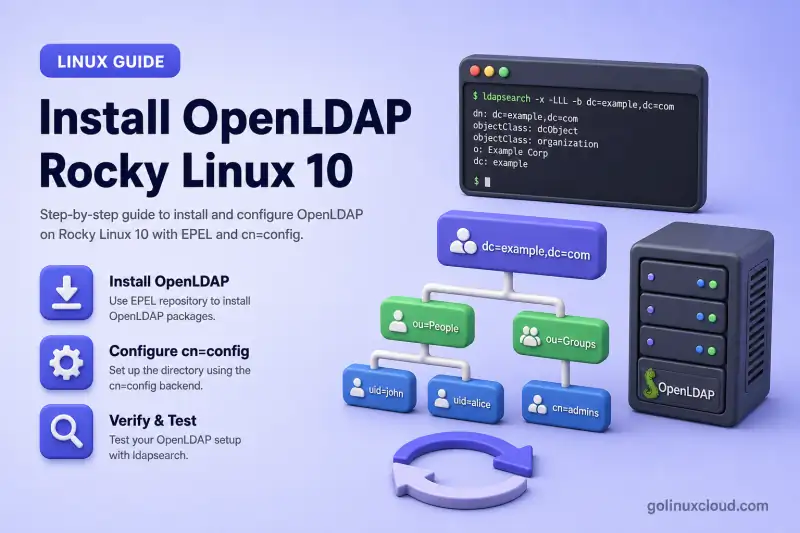
This walkthrough installs OpenLDAP 2.6 on RHEL-based Linux, configures the MDB backend through cn=config, and builds a small directory you can query locally and from another lab host. The commands below were run on the primary test host listed under Tested on, with real terminal output kept so you can compare your host.
This is the server-installation lesson in the OpenLDAP tutorial series.
Complete these lessons first:
- LDAP and OpenLDAP basics — if DN, suffix, or schema terms are new
- OpenLDAP vs 389 Directory Server — if you are still choosing between OpenLDAP and 389 DS on enterprise Linux
Repository names, vendor support boundaries, and distribution-specific package notes are in RHEL-Family Compatibility and Support Notes.
Tested on: Rocky Linux 10.2; OpenLDAP 2.6.10 from EPEL; SELinux Enforcing.
RHEL-Family Compatibility and Support Notes
This lesson targets RHEL-family 9 and 10 systems running OpenLDAP 2.6—RHEL, Rocky Linux, AlmaLinux, Oracle Linux, and CentOS Stream.
What stays the same
cn=configconfiguration throughldapmodify- LDIF structure, schema loading, and verification workflow
What differs by distribution
- commands to enable the repository that provides
openldap-servers - exact OpenLDAP RPM build from the matching EPEL or developer-EPEL branch
Package source
- base repositories ship OpenLDAP client libraries and command-line tools
openldap-servers(slapd) is not in those base repositories—you obtain it from EPEL or a distribution-specific developer EPEL mirror
RHEL and vendor support
- Red Hat deprecated
openldap-serversin RHEL 7.4 and removed it from RHEL 8 and 9. - On RHEL, installing
slapdfrom EPEL creates a community-maintained deployment—not a Red Hat-supported directory service. - Organizations that need centralized Linux identity management should evaluate Red Hat Identity Management.
- Organizations that need a supported general-purpose LDAP directory should evaluate Red Hat Directory Server.
Before applying on another host
- verify the enabled repositories on your distribution
- confirm the installed OpenLDAP version and package NEVRA
- inspect the
slapdsystemd unit
Red Hat documents the RHEL 7.4 deprecation and confirms removal of openldap-servers from RHEL 8 and 9.
Target Server Configuration
When you finish the lab run, the server should look like this:
| Component | Value |
|---|---|
| OpenLDAP server | slapd 2.6 from EPEL on an EL9 or EL10 system |
| Configuration style | Dynamic cn=config (LDAP-managed, not hand-edited slapd.d files) |
| Data backend | MDB (LMDB) |
| Base DN | dc=example,dc=com |
| Administrator bind DN | cn=admin,dc=example,dc=com |
| Organizational units | ou=people, ou=groups |
| Remote access | Port 389 open in firewalld for lab testing |
That is a working lab directory, but not a hardened one. Before production use, plan for:
- TLS on port 389 (StartTLS) or port 636 (LDAPS)—credentials and LDAP traffic stay plain until then
- explicit
olcAccessACL rules on the MDB database—the install leaves the default policy in place until you follow OpenLDAP ACL Configuration with Practical Examples - backup, monitoring, and replication in later lessons
Lab Environment and Naming Plan
The layout below was used on the lab VM so hostname, IP, and DIT names stayed aligned across LDIF files. Match the values on your host, or keep the same pattern with your own names.
| Setting | Value |
|---|---|
| Operating system | RHEL-family 9 or 10 |
| Primary test host | Rocky Linux 10.2 |
| LDAP hostname | ldap-server.example.com (ldap-server) |
| LDAP server IP | 192.168.56.108 (host-only adapter) |
| Base DN | dc=example,dc=com |
| Administrator DN | cn=admin,dc=example,dc=com |
| Users OU | ou=people,dc=example,dc=com |
| Groups OU | ou=groups,dc=example,dc=com |
| SELinux | Enforcing |
| LDAP port | 389/TCP |
Plain LDAP can work by IP address, but a stable FQDN matters once TLS and remote clients enter the picture. Set the hostname early so later lessons stay consistent.
The lab uses a host-only virtual network (192.168.56.0/24 here). Put LDAP hostnames on the host-only adapter address—not the NAT interface (for example 10.0.2.15).
Set the LDAP server hostname with hostnamectl so later TLS and client lessons stay consistent:
sudo hostnamectl set-hostname ldap-server.example.comAdd these lines to /etc/hosts on the LDAP server:
192.168.56.108 ldap-server.example.com ldap-server
192.168.56.109 ldap-client.example.com ldap-client
Adjust the address if your lab network differs. Then confirm the FQDN, name resolution, and SELinux mode:
hostname -fSample output:
ldap-server.example.comgetent hosts ldap-server.example.comSample output:
192.168.56.108 ldap-server.example.com ldap-servergetenforceSample output:
EnforcingInstall OpenLDAP Server on RHEL-Based Linux
Enable the repository appropriate to your distribution (table below), then install openldap-servers.
The EPEL openldap-servers package can require an exact version of the OpenLDAP libraries supplied by the corresponding Enterprise Linux branch. When EPEL moves ahead of the base packages on a minor release, dnf can fail with an exact-version dependency.
When that happens:
- do not force-install mismatched RPMs
- wait until EPEL and the base repositories target the same Enterprise Linux branch
- update the system and retry
Enable the appropriate package repository
EPEL carries openldap-servers for EL9 and EL10, but the commands to enable it differ by distribution:
| Distribution | Repository preparation |
|---|---|
| RHEL 9/10 | Enable the matching CodeReady Builder repository and follow the official EPEL instructions for the installed major/minor release |
| Rocky Linux 9/10 | Enable CRB when required and install the matching epel-release package |
| AlmaLinux 9/10 | Enable CRB when required and install the matching epel-release package |
| CentOS Stream 9 | Install epel-release and epel-next-release |
| CentOS Stream 10 | Install the matching EPEL 10 release package; do not present EPEL Next as a standard requirement |
| Oracle Linux 9/10 | Enable ol9_developer_EPEL or ol10_developer_EPEL |
Oracle officially lists both ol9_developer_EPEL and ol10_developer_EPEL as mirrors of selected EPEL packages.
For EPEL enablement, see Install EPEL on RHEL, Rocky Linux, AlmaLinux, CentOS Stream, and Oracle Linux. Use that guide for the exact repository commands on your distribution.
After EPEL or the equivalent repository is enabled on your host, refresh metadata and install the server packages. Package installs use sudo and dnf on this lab host:
sudo dnf upgrade --refresh -ysudo dnf install -y openldap openldap-clients openldap-serversConfirm the installed package NEVRAs with rpm -q; the rpm command covers -qa, -qf, and version checks on RPM-based hosts. Build numbers differ between EL9, EL10, distribution releases, and EPEL branches—the sample output below is from the primary test host:
rpm -q openldap openldap-clients openldap-serversSample output:
openldap-2.6.10-1.el10.x86_64
openldap-clients-2.6.10-1.el10.x86_64
openldap-servers-2.6.10-1.el10_2.x86_64dnf repolist --enabledConfirm that the appropriate EPEL, EPEL-derived, or Oracle developer EPEL repository for your distribution is enabled. The Fedora package index lists different OpenLDAP server builds for EPEL 9, EPEL 10.2, and EPEL 10.3, so do not assume one build number applies to every system.
On the primary test host, the enabled repository included:
epel Extra Packages for Enterprise Linux 10 - x86_64slapd -VV 2>&1 | headSample output:
@(#) $OpenLDAP: slapd 2.6.10 (Jan 28 2026 00:00:00) $
	openldap
The el10_2 suffix on openldap-servers shows the package came from the Enterprise Linux 10.2 EPEL branch on the test host.
Start slapd and Inspect cn=config
Enable and start slapd with systemctl, then confirm port 389 is listening:
sudo systemctl enable --now slapdsudo systemctl status slapd --no-pagerSample output:
● slapd.service - OpenLDAP Server Daemon
     Loaded: loaded (/usr/lib/systemd/system/slapd.service; enabled; preset: disabled)
     Active: active (running) since Mon 2026-07-13 21:50:50 IST; 262ms ago
       Docs: man:slapd
             man:slapd-config
             man:slapd-mdb
    Process: 17006 ExecStartPre=/usr/libexec/openldap/check-config.sh (code=exited, status=0/SUCCESS)
    Process: 17038 ExecStart=/usr/sbin/slapd -u ldap -h ldap:/// ldaps:/// ldapi:/// (code=exited, status=0/SUCCESS)
   Main PID: 17046 (slapd)
On the primary test host, the packaged unit started slapd with LDAP, LDAPS, and local LDAPI listener URLs. Check your own ExecStart line because listener defaults can differ between package builds or local systemd overrides. At this stage only plain LDAP and the local LDAPI socket are in use. Seeing ldaps:/// in the unit file does not mean certificate-based TLS is ready yet.
List listeners on port 389 with ss:
sudo ss -ltnp 'sport = :389'Sample output:
State  Recv-Q Send-Q Local Address:Port Peer Address:PortProcess
LISTEN 0      2048         0.0.0.0:389       0.0.0.0:*    users:(("slapd",pid=17046,fd=7))
LISTEN 0      2048            [::]:389          [::]:*    users:(("slapd",pid=17046,fd=8))
If slapd fails to start, inspect the unit log with journalctl first:
sudo journalctl -u slapd -n 30 --no-pagerThe EPEL package initializes the dynamic slapd.d tree under /etc/openldap/slapd.d/. Make configuration changes through the cn=config database with LDAP tools such as ldapmodify instead of editing files under slapd.d/ while slapd is running. Upstream still documents slapd.conf, although it is deprecated in favor of cn=config—see the OpenLDAP 2.6 Administrator's Guide.
Discover the MDB database DN dynamically
Hard-coding olcDatabase={2}mdb,cn=config is a common mistake. Database index numbers differ between installations and often produce ldap_modify: No such object (32).
Query the running server for the MDB backend:
sudo ldapsearch -Q -LLL -Y EXTERNAL -H ldapi:/// -b cn=config '(objectClass=olcMdbConfig)' dn olcSuffix olcDbDirectorySample output:
dn: olcDatabase={2}mdb,cn=config
olcDbDirectory: /var/lib/ldap
olcSuffix: dc=my-domain,dc=com
Store the returned DN in a shell variable for the LDIF work in the next section:
MDB_DN=$(sudo ldapsearch -Q -LLL -Y EXTERNAL -H ldapi:/// -b cn=config '(objectClass=olcMdbConfig)' dn | awk '/^dn: / {sub(/^dn: /, ""); print; exit}')if [[ -z "$MDB_DN" ]]; then echo "No MDB database was found under cn=config." >&2; exit 1; fiprintf 'MDB database DN: %s\n' "$MDB_DN"Sample output:
MDB database DN: olcDatabase={2}mdb,cn=configOpenLDAP assigns numeric prefixes to maintain ordering, so do not assume database or schema indices are identical across hosts.
Configure the MDB Directory Database
olcSuffix or olcRootDN on an existing directory does not automatically rename or migrate entries. Export the database and plan a proper migration before changing an active suffix.
MDB is OpenLDAP's primary storage backend. It uses LMDB and replaced the older BDB and HDB backends removed from OpenLDAP 2.5.
Generate the administrator password
olcRootDN is the database superuser for binds against your suffix. It does not need to exist as an entry inside the directory tree—a detail that often trips up new administrators.
Generate a password hash with:
sudo slappasswdEnter and confirm a strong password, then copy the {SSHA} hash into configure-mdb.ldif using the discovered $MDB_DN:
umask 077The restrictive umask creates the LDIF with owner-only permissions because it contains a password hash.
cat > configure-mdb.ldif <<EOF
dn: $MDB_DN
changetype: modify
replace: olcSuffix
olcSuffix: dc=example,dc=com
-
replace: olcRootDN
olcRootDN: cn=admin,dc=example,dc=com
-
replace: olcRootPW
olcRootPW: {SSHA}REPLACE_WITH_GENERATED_HASH
EOF
The shell expands $MDB_DN while creating the file, so the LDIF targets the MDB database discovered on the server instead of assuming a fixed numeric index.
These MDB settings serve different roles:
olcSuffix— directory subtree served by this databaseolcRootDN— administrative identity that can manage that subtreeolcRootPW— hashed password for that administrator
They affect the data database and are separate from the local SASL EXTERNAL identity used to manage cn=config. The olcRootDN does not need a matching entry under the suffix.
Apply the change over the local LDAPI socket as root. cn=config modifications use SASL EXTERNAL on ldapi:///—not the administrator simple bind used later for directory data:
sudo ldapmodify -Q -Y EXTERNAL -H ldapi:/// -f configure-mdb.ldifSample output:
modifying entry "olcDatabase={2}mdb,cn=config"Verify the suffix, root DN, and data directory immediately:
sudo ldapsearch -Q -LLL -Y EXTERNAL -H ldapi:/// -b "$MDB_DN" -s base olcSuffix olcRootDN olcDbDirectorySample output:
dn: olcDatabase={2}mdb,cn=config
olcDbDirectory: /var/lib/ldap
olcSuffix: dc=example,dc=com
olcRootDN: cn=admin,dc=example,dc=com
At that point slapd knew which subtree it would serve and which DN could bootstrap the directory.
Load Schemas and Create the Base DIT
The default core schema does not define Linux-style user entries. Load these additional schemas before adding POSIX users:
cosine— commonly used mail and networking attributesnis—posixAccountandposixGroupobject classesinetorgperson— person-oriented attributes for user entries
Check what is already loaded:
sudo ldapsearch -Q -LLL -Y EXTERNAL -H ldapi:/// -b cn=schema,cn=config dnOn the primary test host only the core schema was loaded at first. Check your server before loading more because package defaults can differ:
dn: cn=schema,cn=config

dn: cn={0}core,cn=schema,cn=config
Load the remaining standard schemas one at a time:
sudo ldapadd -Q -Y EXTERNAL -H ldapi:/// -f /etc/openldap/schema/cosine.ldifSample output:
adding new entry "cn=cosine,cn=schema,cn=config"sudo ldapadd -Q -Y EXTERNAL -H ldapi:/// -f /etc/openldap/schema/nis.ldifSample output:
adding new entry "cn=nis,cn=schema,cn=config"sudo ldapadd -Q -Y EXTERNAL -H ldapi:/// -f /etc/openldap/schema/inetorgperson.ldifSample output:
adding new entry "cn=inetorgperson,cn=schema,cn=config"If a schema is already loaded, ldapadd returns Already exists (68). Skip files that are already present.
| Schema file | Purpose |
|---|---|
core |
Loaded by the package; base LDAP object classes |
cosine |
Commonly used mail and networking attributes |
inetorgperson |
Person-oriented attributes for user entries |
nis |
POSIX account and group object classes |
For schema theory on attributes and object classes, return to the LDAP and OpenLDAP basics lesson linked in the introduction.
Create the base entry and organizational units
The parent dc=example,dc=com entry has to exist before ou=people and ou=groups can be added. Keep the tree shallow for the lab and put accounts and groups in separate OUs.
Combine the domain root and both OUs in one base-dit.ldif file:
dn: dc=example,dc=com
objectClass: top
objectClass: dcObject
objectClass: organization
o: Example Organization
dc: example

dn: ou=people,dc=example,dc=com
objectClass: top
objectClass: organizationalUnit
ou: people

dn: ou=groups,dc=example,dc=com
objectClass: top
objectClass: organizationalUnit
ou: groups
Add the entries with a simple bind to the administrator DN. Data under the suffix uses olcRootDN and the password hash stored in olcRootPW—a different path from the LDAPI socket used for cn=config changes:
ldapadd -x -H ldap://localhost -D "cn=admin,dc=example,dc=com" -W -f base-dit.ldifSample output:
adding new entry "dc=example,dc=com"

adding new entry "ou=people,dc=example,dc=com"

adding new entry "ou=groups,dc=example,dc=com"
Confirm the tree:
ldapsearch -x -H ldap://localhost -D "cn=admin,dc=example,dc=com" -W -b "dc=example,dc=com" -LLL dn objectClassSample output:
dn: dc=example,dc=com
objectClass: top
objectClass: dcObject
objectClass: organization

dn: ou=people,dc=example,dc=com
objectClass: top
objectClass: organizationalUnit

dn: ou=groups,dc=example,dc=com
objectClass: top
objectClass: organizationalUnit
Open the Firewall and Verify the Server
Open the standard LDAP service for remote lab tests with firewalld firewall-cmd. This lesson needs only port 389; LDAPS and StartTLS belong in the TLS lesson:
sudo firewall-cmd --permanent --add-service=ldapsudo firewall-cmd --reloadConfirm the LDAP service is allowed:
sudo firewall-cmd --query-service=ldapSample output:
yesLocal verification sequence
Run these checks on the LDAP server in order:
- read the Root DSE to confirm the advertised naming context
- confirm the administrator password with
ldapwhoami - query the organizational units to confirm the data database and schemas accept the DIT skeleton
- run
slaptestto validate that the on-disk configuration parses cleanly - review
journalctlfor bind or schema errors if any earlier step failed
Add POSIX users and groups in Manage OpenLDAP users and groups with LDIF after TLS is in place.
Read the Root DSE:
ldapsearch -x -H ldap://localhost -b "" -s base -LLL namingContexts supportedLDAPVersionSample output:
dn:
namingContexts: dc=example,dc=com
supportedLDAPVersion: 3
Confirm the administrator password works:
ldapwhoami -x -H ldap://localhost -D "cn=admin,dc=example,dc=com" -WSample output:
dn:cn=admin,dc=example,dc=comQuery the organizational units to confirm the data database accepts the DIT skeleton:
ldapsearch -x -H ldap://localhost -D "cn=admin,dc=example,dc=com" -W -b "dc=example,dc=com" -LLL "(|(ou=people)(ou=groups))" dn ou objectClassSample output:
dn: ou=people,dc=example,dc=com
objectClass: top
objectClass: organizationalUnit
ou: people

dn: ou=groups,dc=example,dc=com
objectClass: top
objectClass: organizationalUnit
ou: groups
Both OUs are present under the suffix—the directory is ready for user and group entries in the management lesson.
Run slaptest to validate that the on-disk configuration parses cleanly as the ldap service user. It checks configuration syntax and file readability—it does not prove network listeners or live directory data are correct:
sudo slaptest -uSample output:
config file testing succeededsudo journalctl -u slapd --since "10 minutes ago" --no-pagerReview the journal for bind or schema errors if any earlier step failed.
Remote connectivity test
From the LDAP client host (ldap-client.example.com in this lab), query the Root DSE by hostname. The query is anonymous and sends no password—safe for a plain ldap:// check. Add the host-only ldap-server.example.com entry to that host's /etc/hosts file first. A minimal client may not include ldapsearch yet:
sudo dnf install -y openldap-clientsldapsearch -x -H ldap://ldap-server.example.com -b "" -s base -LLL namingContexts supportedLDAPVersionSample output:
dn:
namingContexts: dc=example,dc=com
supportedLDAPVersion: 3
Running this from a second machine verifies:
- hostname resolution on the client
- TCP port 389 reachability
- the firewall rule on the LDAP server
- the external LDAP listener
Do not perform a remote administrator simple bind until TLS is configured.
Troubleshoot OpenLDAP Installation on RHEL-Based Linux
| Error or symptom | Likely cause | Fix |
|---|---|---|
No match for argument: openldap-servers |
EPEL is not enabled or metadata is stale | Run dnf repolist --enabled and verify the repository appropriate to your distribution, then sudo dnf clean metadata && sudo dnf makecache and enable the correct EPEL or developer EPEL repository |
nothing provides openldap = ... |
EPEL package branch and installed Enterprise Linux base packages are temporarily out of sync | Compare installed and available versions (see commands below); update the operating system to the matching Enterprise Linux minor release when available, or wait for the repositories to synchronize |
ldap_bind: Invalid credentials (49) during -x -D ... -W |
Incorrect administrator DN, password, or olcRootPW hash |
Confirm olcRootDN, reset olcRootPW through LDAPI if necessary, and retry with the correct bind DN |
ldap_modify: Insufficient access (50) with SASL EXTERNAL |
Command was not run as root, the LDAPI socket was not used, or EXTERNAL authorization does not map to the configuration administrator | Run the command with sudo, -Y EXTERNAL, and -H ldapi:/// |
ldap_modify: No such object (32) while modifying cn=config |
Wrong hardcoded MDB configuration DN | Discover the MDB DN dynamically with ldapsearch against cn=config |
ldap_search: No such object (32) while searching the data tree |
The requested base DN has not been created or is misspelled | Confirm olcSuffix, then create or correct the base DIT entry |
ldap_add: Already exists (68) when loading schema |
Schema is already loaded | Search cn=schema,cn=config first and skip loaded files |
| Port 389 is not listening | slapd failed to start or listener configuration is wrong |
Check systemctl status slapd, ss -ltnp 'sport = :389', and journalctl -u slapd |
When a package-version mismatch appears, compare what your distribution and EPEL currently offer:
cat /etc/os-releaseIdentifies the distribution name and version string shown in repository metadata.
rpm -E '%{rhel}'Prints the Enterprise Linux major release number used by EPEL package branches.
dnf --showduplicates list openldap openldap-clients openldap-serversLists installed and available OpenLDAP package versions when dnf install reports a dependency conflict.
dnf repolist --enabledConfirms EPEL or the developer EPEL repository is enabled before retrying the install.
On the primary test host the output looked like this:
# cat /etc/os-release
NAME="Rocky Linux"
VERSION="10.2 (Red Quartz)"
ID="rocky"
ID_LIKE="rhel centos fedora"
# rpm -E '%{rhel}'
10
# dnf --showduplicates list openldap openldap-clients openldap-servers
Installed Packages
openldap.x86_64          2.6.10-1.el10       @anaconda
openldap-clients.x86_64  2.6.10-1.el10       @baseos
openldap-servers.x86_64  2.6.10-1.el10_2     @epel
Available Packages
openldap-servers.x86_64  2.6.10-1.el10_2     epel
# dnf repolist --enabled
repo id    repo name
epel       Extra Packages for Enterprise Linux 10 - x86_64
Do not use --allowerasing, download unrelated RPMs manually, or force the package with rpm --nodeps. Update the operating system when the matching Enterprise Linux minor release becomes available, or wait for the repositories to synchronize.
These errors can show up temporarily when an EPEL branch publishes a build that needs base-library versions your enabled repositories do not yet ship. SSSD login failures and LDAPS certificate errors belong in the client and TLS lessons—not here.
Next Steps
Later lessons in the OpenLDAP series cover:
- OpenLDAP cn=config and MDB explained with ldapmodify — discover numbered database DNs and change server settings safely
- Configure OpenLDAP TLS on RHEL-based Linux — StartTLS, LDAPS, and encrypted password binds
- Manage OpenLDAP users and groups with LDIF — add, modify, rename, reset passwords, and delete POSIX accounts
- Configure OpenLDAP client with SSSD on RHEL-based Linux
- OpenLDAP backup and restore — recurring
slapcatbackups, retention, and disaster recovery - Migrate OpenLDAP to a new server and migrate Linux users into LDAP
- OpenLDAP master-slave replication for availability
- OpenLDAP indexing and performance — map real search filters to
olcDbIndex
References
- OpenLDAP 2.6 Administrator's Guide — official configuration reference
- OpenLDAP 2.6 quick start — upstream install overview
- RFC 4511 — LDAP protocol
- Fedora EPEL documentation — enabling and using EPEL on Enterprise Linux
- openldap-servers in Fedora Packages — OpenLDAP server builds available through EPEL
Summary
This walkthrough installed OpenLDAP 2.6 on a RHEL-family system and left:
- the live MDB database DN discovered dynamically
- suffix and administrator credentials configured through
cn=config - required schemas loaded and the base DIT created
- local and remote LDAP searches verified
The procedure was validated on Rocky Linux 10.2. Configure TLS, access-control rules, backup, and client integration before using the directory in production.
