
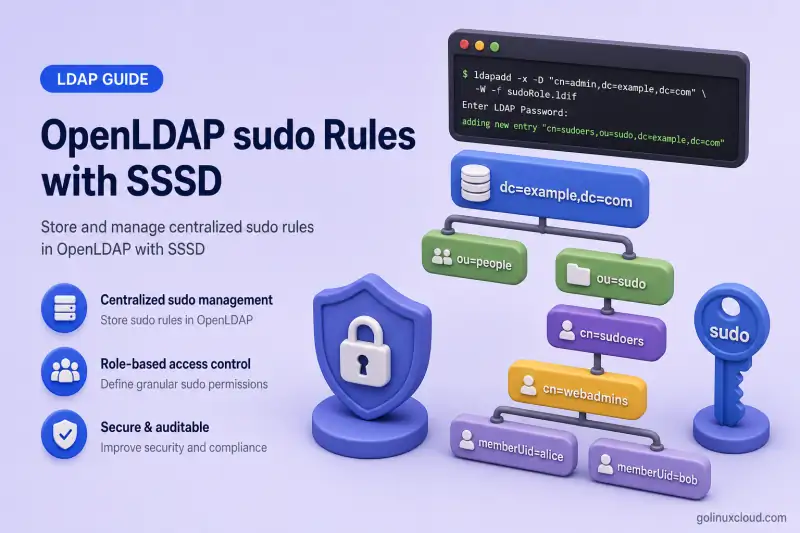
This guide configures centralized Linux sudo policies in OpenLDAP and SSSD clients across the RHEL family to retrieve and apply them.
You will learn how to:
- Load and verify the LDAP sudo schema
- Create a dedicated sudo-rule container
- Understand
sudoRoleattributes - Create user, group, command, and host-specific rules
- Configure SSSD as the LDAP sudo provider
- Configure the
sudoersNSS source - Verify rules with
sudo -l - Understand SSSD sudo caching
- Modify and remove centralized rules safely
- Troubleshoot missing or stale sudo policies
The procedure applies to the RHEL family:
- Red Hat Enterprise Linux
- Rocky Linux
- AlmaLinux
- Oracle Linux
- CentOS Stream
Tested on: Rocky Linux 10.2 with OpenLDAP 2.6.10 and the installed SSSD 2.12.0 RPM build shown below.
Confirm the installed package builds on your client:
rpm -q \
  sssd \
  sssd-common \
  sssd-tools \
  sudo \
  authselect
Sample output from the lab client:
sssd-2.12.0-3.el10_2.x86_64
sssd-common-2.12.0-3.el10_2.x86_64
sssd-tools-2.12.0-3.el10_2.x86_64
sudo-1.9.17-4.p2.el10_2.x86_64
authselect-1.5.2-1.el10.x86_64
The lab uses:
| Setting | Value |
|---|---|
| OpenLDAP server | ldap-server.example.com |
| SSSD client | ldap-client.example.com |
| Directory suffix | dc=example,dc=com |
| Users OU | ou=people,dc=example,dc=com |
| Groups OU | ou=groups,dc=example,dc=com |
| Sudo rules OU | ou=sudoers,dc=example,dc=com |
| SSSD bind account | uid=sssd-reader,ou=service-accounts,dc=example,dc=com |
| LDAP transport | StartTLS |
| Test user | jdoe |
| Test group | linux-admins |
RHEL Family Compatibility
| Distribution | Scope of this guide | Important note |
|---|---|---|
| Red Hat Enterprise Linux | SSSD, sudo, NSS, and authselect client configuration | OpenLDAP server package availability depends on the selected repository |
| Rocky Linux | Full tested workflow | Tested on Rocky Linux 10.2 |
| AlmaLinux | Same RHEL-family client workflow | Confirm the packaged sudo schema path dynamically |
| Oracle Linux | Same SSSD and authselect workflow | Oracle Linux also supports the with-sudo authselect feature |
| CentOS Stream | Same RHEL-family workflow | Package versions may lead the corresponding RHEL release |
The configuration files, SSSD provider options, sudo LDAP schema, and sudoRole entries are shared across these distributions. Package versions and documentation paths can differ, so this guide discovers packaged schema files with rpm -ql instead of assuming one fixed path.
Complete these guides first:
- Configure an OpenLDAP client with SSSD
- Manage OpenLDAP users and groups
- OpenLDAP ACL configuration with practical examples
- Configure OpenLDAP TLS on the RHEL family
This article owns sudo schema, sudoRole design, SSSD sudo provider configuration, NSS integration, and rule verification. User identity, PAM, and SSH client setup stay in OpenLDAP client authentication with SSSD. ACL design for the sudo subtree stays in OpenLDAP ACL examples.
Understand OpenLDAP sudo Rules and SSSD
Use this section when you need the policy path before you create entries or edit sssd.conf. sudo does not query OpenLDAP directly in this design.
User runs sudo
      |
      v
/etc/nsswitch.conf
sudoers: files sss
      |
      +-- Local /etc/sudoers rules
      |
      `-- SSSD sudo responder
                |
                +-- Cached sudo rules
                |
                `-- OpenLDAP
                    ou=sudoers,dc=example,dc=com
Do not configure sudo-ldap, /etc/sudo-ldap.conf, or a separate LDAP sudo plugin on the client. SSSD is the policy client because it provides centralized lookups, caching, server failover, and offline access to previously cached rules.
| Component | Purpose |
|---|---|
sudoRole |
LDAP object class representing one sudo policy |
sudoUser |
User or group to which the rule applies |
sudoHost |
Host on which the rule applies |
sudoCommand |
Command that may or may not be executed |
sudoRunAsUser |
User identity under which the command runs |
sudoRunAsGroup |
Group identity under which the command runs |
sudoOption |
Rule-specific sudo option |
sudoOrder |
Relative order of matching rules |
| SSSD sudo responder | Supplies cached LDAP rules to sudo |
sudoers: files sss |
Defines local and SSSD policy sources |
A valid sudoRole used by sudo must include at least one sudoUser, one sudoHost, and one sudoCommand, even though the LDAP schema itself marks only cn as structurally mandatory.
Common sudoUser forms:
| Value | Meaning |
|---|---|
jdoe |
One user |
%linux-admins |
Members of a Unix group |
#10001 |
User with numeric UID 10001 |
ALL |
Every user |
Common sudoHost forms:
ldap-client
ldap-client.example.com
192.168.56.109
192.168.56.0/24
ALL
SSSD host filtering considers values such as ALL, the short hostname, FQDN, IP address, networks, and supported netgroups. Prefer exact users, groups, hosts, commands, and RunAs identities over ALL.
Verify and Load the sudo LDAP Schema
Use this section on the OpenLDAP server before you create sudoRole entries. The directory must already understand the sudo object class and attributes.
Check whether the sudo schema is already loaded:
sudo ldapsearch -Q -LLL -o ldif-wrap=no -Y EXTERNAL -H ldapi:/// -b cn=schema,cn=config '(&(objectClass=olcSchemaConfig)(olcObjectClasses=*sudoRole*))' dn olcObjectClasses olcAttributeTypesWhen the search returns cn={N}sudoschema,cn=schema,cn=config with the sudoRole object class and sudo attributes, skip the import step.
Sample output on the lab server after the schema is loaded:
dn: cn={4}sudoschema,cn=schema,cn=config
olcObjectClasses: {0}( 1.3.6.1.4.1.15953.9.2.1 NAME 'sudoRole' SUP top STRUCTURAL ...
Find the OLC schema file supplied by the installed sudo package:
rpm -ql sudo | grep -Ei 'schema.*openldap|sudo.*schema|sudo.*ldif'Sample output on Rocky Linux 10.2:
/usr/share/doc/sudo/schema.OpenLDAP
/usr/share/doc/sudo/schema.olcSudo
The upstream sudo project provides both traditional schema.OpenLDAP and dynamic-configuration schema.olcSudo formats. Use the OLC file for cn=config servers. Discover the packaged path instead of hard-coding one distribution-specific location:
SUDO_SCHEMA=$(rpm -ql sudo | awk '/\/schema\.olcSudo$/ {print; exit}')Stop when the packaged OLC schema cannot be found:
if [[ -z "$SUDO_SCHEMA" ]]; then
    echo "The sudo package does not provide schema.olcSudo" >&2
    exit 1
fi
Print the discovered path:
printf 'sudo OLC schema: %s\n' "$SUDO_SCHEMA"Sample output on Rocky Linux 10.2:
sudo OLC schema: /usr/share/doc/sudo/schema.olcSudoBack up cn=config before loading a schema:
sudo install -d -m 0700 /root/openldap-sudo-backupsudo slapcat -F /etc/openldap/slapd.d -n 0 -l /root/openldap-sudo-backup/cn-config-before-sudo-schema.ldifImport the discovered OLC schema when the verification search returned nothing:
sudo ldapadd -Q -Y EXTERNAL -H ldapi:/// -f "$SUDO_SCHEMA"A successful import prints adding new entry "cn=sudoschema,cn=config".
Validate the offline configuration:
sudo slaptest -F /etc/openldap/slapd.d -uA successful check prints config file testing succeeded.
Create the sudoers Container and Access Rules
Use this section on the OpenLDAP server after the sudo schema is available. The SSSD reader must be able to search and read ou=sudoers, and directory administrators need write access to maintain rules.
Create add-sudoers-ou.ldif:
dn: ou=sudoers,dc=example,dc=com
objectClass: top
objectClass: organizationalUnit
ou: sudoers
description: Centralized Linux sudo policies
Add the container with the data-database administrator:
ldapadd -x -ZZ -H ldap://ldap-server.example.com -D "cn=admin,dc=example,dc=com" -W -f add-sudoers-ou.ldifVerify the new OU with the data-database administrator:
ldapsearch -x -ZZ -H ldap://ldap-server.example.com -D "cn=admin,dc=example,dc=com" -W -b "ou=sudoers,dc=example,dc=com" -s base -LLL dn ou descriptionSample output:
dn: ou=sudoers,dc=example,dc=com
ou: sudoers
description: Centralized Linux sudo policies
The SSSD service account needs search and read access to the sudo subtree. Only trusted directory administrators should have write access to ou=sudoers. Normal users and service accounts must not be able to create or modify sudoRole entries anywhere in the directory. Place a narrow reader rule before broader deny rules, as shown in OpenLDAP ACL examples.
Recommended ACL direction:
to dn.subtree="ou=sudoers,dc=example,dc=com"
    by dn.exact="uid=sssd-reader,ou=service-accounts,dc=example,dc=com" read
    by group.exact="cn=directory-admins,ou=groups,dc=example,dc=com" write
    by * none
If identity lookups already use uid=sssd-reader, ensure that account can read the user and group subtrees SSSD needs before any broad by * none rule denies the search. A service account with pwdReset: TRUE can bind successfully but still be blocked from LDAP searches until the reset flag is cleared.
Test the service account against the sudo container:
ldapsearch -x -ZZ -H ldap://ldap-server.example.com -D "uid=sssd-reader,ou=service-accounts,dc=example,dc=com" -W -b "ou=sudoers,dc=example,dc=com" -LLL "(objectClass=sudoRole)" cn sudoUser sudoHost sudoCommandAn empty successful result is valid before the first rule is created. Error 49 indicates invalid service credentials. Error 50 indicates insufficient ACL permission — see Fix OpenLDAP insufficient access Error 50.
Create Practical sudoRole Entries
Use this section after ou=sudoers exists. Build rules from the narrowest useful permission first: one user, one command, one host.
Allow one user to run one command
Confirm the executable path on the client before you store the rule:
command -v systemctlSample output:
/usr/bin/systemctlCreate jdoe-httpd-status.ldif:
dn: cn=jdoe-httpd-status,ou=sudoers,dc=example,dc=com
objectClass: top
objectClass: sudoRole
cn: jdoe-httpd-status
sudoUser: jdoe
sudoHost: ldap-client.example.com
sudoRunAsUser: root
sudoCommand: /usr/bin/systemctl --no-pager status httpd
sudoOrder: 100
description: Allow jdoe to view the httpd service status
Add and verify the entry:
ldapadd -x -ZZ -H ldap://ldap-server.example.com -D "cn=admin,dc=example,dc=com" -W -f jdoe-httpd-status.ldifldapsearch -x -ZZ -H ldap://ldap-server.example.com -D "cn=admin,dc=example,dc=com" -W -b "cn=jdoe-httpd-status,ou=sudoers,dc=example,dc=com" -s base -LLL cn sudoUser sudoHost sudoCommand sudoOrderAllow a group to manage one service
Confirm SSSD resolves the group before you rely on a %group rule:
getent group linux-adminsSample output on the lab client:
linux-admins:*:10010:jdoeCreate linux-admins-httpd.ldif:
dn: cn=linux-admins-httpd,ou=sudoers,dc=example,dc=com
objectClass: top
objectClass: sudoRole
cn: linux-admins-httpd
sudoUser: %linux-admins
sudoHost: ldap-client.example.com
sudoRunAsUser: root
sudoCommand: /usr/bin/systemctl --no-pager status httpd
sudoCommand: /usr/bin/systemctl start httpd
sudoCommand: /usr/bin/systemctl stop httpd
sudoCommand: /usr/bin/systemctl restart httpd
sudoOrder: 200
description: Allow linux-admins to manage httpd on ldap-client
When SSSD is configured to require fully qualified names, use the exact group-name form returned by id jdoe rather than assuming %linux-admins.
A command with arguments is narrower than the executable alone:
/usr/bin/systemctl restart httpdis more restrictive than:
/usr/bin/systemctlFor read operations that invoke a pager, include --no-pager in the allowed command. Use /usr/bin/systemctl --no-pager status httpd and /usr/bin/journalctl --no-pager -u httpd rather than the unpaged forms. start, stop, and restart do not need --no-pager.
Grant full administration to a restricted group
Use this pattern only for a tightly controlled administrative role:
dn: cn=linux-full-admins,ou=sudoers,dc=example,dc=com
objectClass: top
objectClass: sudoRole
cn: linux-full-admins
sudoUser: %linux-full-admins
sudoHost: ldap-client.example.com
sudoRunAsUser: ALL
sudoRunAsGroup: ALL
sudoCommand: ALL
sudoOrder: 500
description: Full sudo access on ldap-client
Do not combine broad ALL access with passwordless execution by default.
Configure passwordless sudo cautiously
Add this attribute only when a narrow workflow justifies it:
sudoOption: !authenticateUse !authenticate only for a narrow command, a narrow user or group, a specific host, and an operationally justified workflow.
Configure a Time-Limited sudo Rule
SSSD does not evaluate sudoNotBefore and sudoNotAfter unless timed-rule evaluation is enabled.
Add this to /etc/sssd/sssd.conf:
[sudo]
sudo_timed = true
Restart SSSD:
sudo systemctl restart sssdA rule can then include UTC generalized-time values:
sudoNotBefore: 20260715090000Z
sudoNotAfter: 20260715170000Z
Verify the rule before, during, and after the configured validity window:
sudo -l -U jdoeKeep system clocks synchronized because sudo evaluates the validity period against the client time.
SSSD documents sudo_timed as the switch controlling evaluation of sudoNotBefore and sudoNotAfter, and its default is disabled.
Configure SSSD sudo Rules on RHEL Family Clients
Use this section on ldap-client.example.com after LDAP rules exist and the reader account can search ou=sudoers. The client should already resolve LDAP users through SSSD from OpenLDAP client authentication with SSSD.
Explicitly set ldap_sudo_search_base to the dedicated, ACL-protected sudo subtree and install the latest SSSD security updates.
CVE-2026-14474 affects configurations where the LDAP sudo search base is not explicitly restricted and SSSD can search a broader LDAP directory for sudoRole entries. Restricting the search base reduces exposure, but it does not replace installing the fixed SSSD package supplied by your distribution.
Install the latest SSSD security updates from your distribution. On RHEL-family clients, use dnf to refresh metadata before the targeted upgrade:
sudo dnf upgrade --refresh -y 'sssd*'Merge these sudo-specific values into the existing tested SSSD configuration from the client guide. Append sudo to the existing [sssd] services value. Do not remove responders that are already configured, such as ssh, ifp, or pac.
Example when additional responders are already enabled:
[sssd]
# Existing:
# services = nss, pam, ssh

# After enabling the sudo responder:
services = nss, pam, ssh, sudo
domains = example.com
On the lab client, only nss and pam were configured before this guide, so the final value remains:
[sssd]
services = nss, pam, sudo
domains = example.com

[domain/example.com]
sudo_provider = ldap
ldap_sudo_search_base = ou=sudoers,dc=example,dc=com
Do not replace working id_provider, auth_provider, access_provider, search-base, bind-account, or TLS settings from OpenLDAP client authentication with SSSD. This article owns sudo integration, not the complete authentication or login-access design.
The lab client already uses these identity and transport settings:
ldap_uri = ldap://ldap-server.example.com
ldap_search_base = dc=example,dc=com
ldap_user_search_base = ou=people,dc=example,dc=com
ldap_group_search_base = ou=groups,dc=example,dc=com

ldap_default_bind_dn = uid=sssd-reader,ou=service-accounts,dc=example,dc=com
ldap_default_authtok_type = password
ldap_default_authtok = REPLACE_WITH_READER_PASSWORD

ldap_id_use_start_tls = true
ldap_tls_cacert = /etc/openldap/certs/example-ldap-ca.crt
ldap_tls_reqcert = hard
Protect /etc/sssd/sssd.conf because the reader password is stored in plain text.
This guide uses explicit responder activation by appending sudo to the services list, which works consistently across the targeted RHEL-family clients. Do not use the state of sssd-sudo.socket as the verification test for this configuration. SSSD prevents the same responder from being managed simultaneously through both services and socket activation.
Validate file ownership and syntax:
sudo chown root:root /etc/sssd/sssd.confsudo chmod 0600 /etc/sssd/sssd.confsudo sssctl config-checkSample output:
Issues identified by validators: 0On modern RHEL-family systems, authselect may manage /etc/nsswitch.conf. Check the active profile first:
authselect currentSample output on the lab client before enabling with-sudo:
Profile ID: sssd
Enabled features:
- with-mkhomedir
Enable the with-sudo feature while retaining the current profile:
sudo authselect enable-feature with-sudoVerify the sudoers NSS source:
grep '^sudoers:' /etc/nsswitch.confSample output:
sudoers: files sssIf the active custom profile does not support with-sudo, update that custom profile or manage the sudoers entry according to your existing authselect policy. Avoid editing an authselect-managed file without understanding whether a later profile update will overwrite it.
sudoers: files sss keeps local sudoers available and then evaluates SSSD-provided rules. Do not assume that every local rule overrides a conflicting LDAP rule. Use a distinct local break-glass account and avoid creating centralized rules that target that identity.
Restart SSSD after you change sssd.conf:
sudo systemctl restart sssdsudo systemctl is-active sssdSample output:
activeConfirm the sudo responder process is running:
pgrep -a sssd_sudoSample output on the lab client:
4175 /usr/libexec/sssd/sssd_sudo --logger=filesThe authoritative functional test is sudo -l -U jdoe; the sudo command covers listing effective rules for another user when you troubleshoot from root.
Verify OpenLDAP sudo Rules on the Client
Use this section after SSSD restarts successfully. Confirm identity resolution first, then sudo policy.
Verify user and group identity
getent passwd jdoeSample output:
jdoe:*:10001:10001:John Doe:/home/jdoe:/bin/bashid jdoeSample output:
uid=10001(jdoe) gid=10001(developers) groups=10001(developers),10010(linux-admins)A group-based rule will not match unless id jdoe lists the expected LDAP group.
Verify the LDAP rule directly
Query the rules the reader account can see:
ldapsearch -x -ZZ -H ldap://ldap-server.example.com -D "uid=sssd-reader,ou=service-accounts,dc=example,dc=com" -W -b "ou=sudoers,dc=example,dc=com" -LLL "(|(sudoUser=jdoe)(sudoUser=%linux-admins)(sudoUser=ALL))" cn sudoUser sudoHost sudoRunAsUser sudoCommand sudoOption sudoOrderSample output:
dn: cn=jdoe-httpd-status,ou=sudoers,dc=example,dc=com
cn: jdoe-httpd-status
sudoUser: jdoe
sudoHost: ldap-client.example.com
sudoCommand: /usr/bin/systemctl --no-pager status httpd
sudoOrder: 100

dn: cn=linux-admins-httpd,ou=sudoers,dc=example,dc=com
cn: linux-admins-httpd
sudoUser: %linux-admins
sudoHost: ldap-client.example.com
sudoCommand: /usr/bin/systemctl --no-pager status httpd
sudoCommand: /usr/bin/systemctl start httpd
sudoCommand: /usr/bin/systemctl stop httpd
sudoCommand: /usr/bin/systemctl restart httpd
sudoOrder: 200
List rules as the user
sudo -l -U jdoeSample output on the lab client:
User jdoe may run the following commands on ldap-client:
    (root) /usr/bin/systemctl --no-pager status httpd
    (root) /usr/bin/systemctl --no-pager status httpd, /usr/bin/systemctl start httpd, /usr/bin/systemctl stop httpd, /usr/bin/systemctl restart httpd
The user-specific rule and the %linux-admins rule both match when jdoe is a member of linux-admins.
Test host matching
Confirm the names SSSD and sudo see on the client:
hostname -fSample output:
ldap-client.example.comUse the matching short hostname or FQDN in sudoHost. A rule written for ldap-client.example.com will not match a client whose FQDN differs.
Test an expected denial
sudo -l -U jdoe should not list commands outside the LDAP rules. On the lab client, sudo /usr/bin/systemctl restart sshd remains denied unless another rule explicitly permits it.
Modify, Remove, and Cache sudo Rules Safely
Use this section when you need to change an existing centralized rule without leaving stale policy on clients.
Add another command
dn: cn=linux-admins-httpd,ou=sudoers,dc=example,dc=com
changetype: modify
add: sudoCommand
sudoCommand: /usr/bin/journalctl --no-pager -u httpd
Remove one command
dn: cn=linux-admins-httpd,ou=sudoers,dc=example,dc=com
changetype: modify
delete: sudoCommand
sudoCommand: /usr/bin/systemctl stop httpd
Change the target host
dn: cn=linux-admins-httpd,ou=sudoers,dc=example,dc=com
changetype: modify
replace: sudoHost
sudoHost: web01.example.com
Delete a rule
ldapdelete -x -ZZ -H ldap://ldap-server.example.com -D "cn=admin,dc=example,dc=com" -W "cn=linux-admins-httpd,ou=sudoers,dc=example,dc=com"SSSD maintains rule refreshes when sudo is invoked, smart refreshes for new and changed rules, and periodic full refreshes that remove deleted rules.
For immediate lab testing after a change:
- Confirm the LDAP entry with
ldapsearch. - Invalidate the relevant cached sudo rule or all cached sudo rules.
- Run
sudo -lagain to trigger retrieval. - Review
sssd_sudo.logand the domain log if the rule remains stale. - Restart SSSD only when configuration or process state changed.
Restarting SSSD does not itself invalidate the persistent sudo-rule cache. Invalidate cached rules explicitly:
sudo sss_cache -RThen request policy again:
sudo -l -U jdoeFor one cached rule, where supported:
sudo sss_cache -r linux-admins-httpdDo not delete /var/lib/sss/db/ as the first cache-recovery step.
Optional tuning when you have a measured freshness requirement:
ldap_sudo_smart_refresh_interval = VALUE
ldap_sudo_full_refresh_interval = VALUE
ldap_sudo_random_offset = VALUE
Keep the defaults unless your environment needs a different refresh cadence.
Apply sudo Security and Operational Practices
- Keep
sudoers: files ssswith a separate local break-glass account. - Use exact executable paths from
command -v. - Include arguments when only one command form is intended.
- Prefer group rules over duplicate user rules.
- Use exact hostnames rather than
ALL. - Use
sudoRunAsUser: rootinstead ofALLwhere appropriate. - Avoid broad
sudoCommand: ALL. - Avoid
sudoOption: !authenticateunless operationally required. - Review every allowed program for shell escapes, editors, pagers, plugin loading and arbitrary file execution. Disable pagers explicitly for elevated
systemctlandjournalctlrules. - Protect the sudo-rule subtree through ACLs and keep
ldap_sudo_search_baserestricted. - Use StartTLS for SSSD LDAP connections.
- Back up sudo rules with the other MDB directory data.
- Record an owner, reason, and ticket in
description. - Use consistent
sudoOrderranges. - Test both permitted and denied commands.
- Review cached offline-policy behavior.
Example ordering convention:
| Range | Purpose |
|---|---|
100–199 |
Individual command rules |
200–299 |
Team or application rules |
500–599 |
Administrative roles |
900+ |
Emergency or exceptional rules |
This is an organizational convention, not a protocol requirement.
Troubleshoot OpenLDAP sudo and SSSD
| Symptom | Likely cause | Recommended check |
|---|---|---|
| User is not allowed to run sudo | No matching cached rule | Run sudo -l and inspect SSSD logs |
getent cannot find the user |
SSSD identity setup is broken | Fix identity lookup first |
| Group rule does not match | User is not resolved as a group member | Run id USER |
%linux-admins does not match although id jdoe shows group membership |
SSSD uses fully qualified user or group names | Check use_fully_qualified_names and use the exact group-name format returned by id jdoe in sudoUser |
| SSSD reader returns Error 49 | Wrong bind DN or password | Test with ldapwhoami |
| SSSD reader returns Error 50 | ACL blocks the sudo subtree | Test the exact LDAP search |
| Reader binds but cannot search | pwdReset: TRUE on the service account |
Clear the reset flag or change the password correctly |
| Rule exists but is not downloaded | Wrong or missing ldap_sudo_search_base |
Confirm ldap_sudo_search_base points to the dedicated sudo subtree, test that base with the SSSD reader, and update the installed SSSD packages |
Rule works with sudoHost: ALL only |
Hostname or FQDN mismatch | Compare hostname and hostname -f |
| Rule permits another command form | sudoCommand path or arguments are too broad |
Use the exact executable and arguments |
sudo -l shows only local rules |
sss missing from sudoers: |
Check /etc/nsswitch.conf |
| No SSSD sudo log appears | Sudo responder disabled in sssd.conf |
Confirm services = ... sudo |
| Deleted rule remains active | Cached copy has not been fully refreshed | Run sudo sss_cache -R, then sudo -l |
| New rule does not appear immediately | Smart refresh has not retrieved it | Run sudo sss_cache -R or wait for refresh |
| Passwordless option does not work | Rule is not matched or another rule takes precedence | Inspect sudoOrder and sudo -l |
| Command is denied despite being listed | Runtime arguments differ | Compare the complete command line |
| Rule matches wrong hosts | sudoHost uses ALL, wildcard, network, or broad value |
Restrict the host value |
| Sudo works offline unexpectedly | SSSD is using a cached rule | Review offline-policy requirements |
Enable temporary SSSD sudo logging
Add these lines temporarily to /etc/sssd/sssd.conf:
[sudo]
debug_level = 0x3ff0

[domain/example.com]
debug_level = 0x3ff0
Restart SSSD and reproduce one sudo -l request.
Review the responder and domain logs:
sudo journalctl -u sssd -n 200 --no-pagerRecent SSSD unit messages around the sudo -l attempt show responder startup and LDAP provider errors.
sudo grep -iE 'sudo|sudorule|ldap|offline|error' /var/log/sssd/sssd_sudo.log /var/log/sssd/sssd_example.com.logThe sudo responder log shows whether rules were returned from the SSSD cache. The domain log shows whether SSSD retrieved them from LDAP.
Restore the normal debug level after troubleshooting.
References
- sudoers.ldap(5)
- sssd-sudo(5)
- sssd-ldap(5)
- sssd.conf(5)
- sudoers(5)
- sudo(8)
- Red Hat CVE-2026-14474 — SSSD LDAP sudo provider
Summary
You learned how to load and verify the sudo LDAP schema, create an ou=sudoers policy container with mandatory ACL controls, understand sudoRole attributes, build least-privilege rules for one user and one LDAP group, configure SSSD as the LDAP sudo provider with an explicit ldap_sudo_search_base, enable with-sudo through authselect, verify policies with sudo -l, invalidate cached rules with sss_cache, and troubleshoot missing or stale sudo policy without using the legacy sudo-ldap client path.
