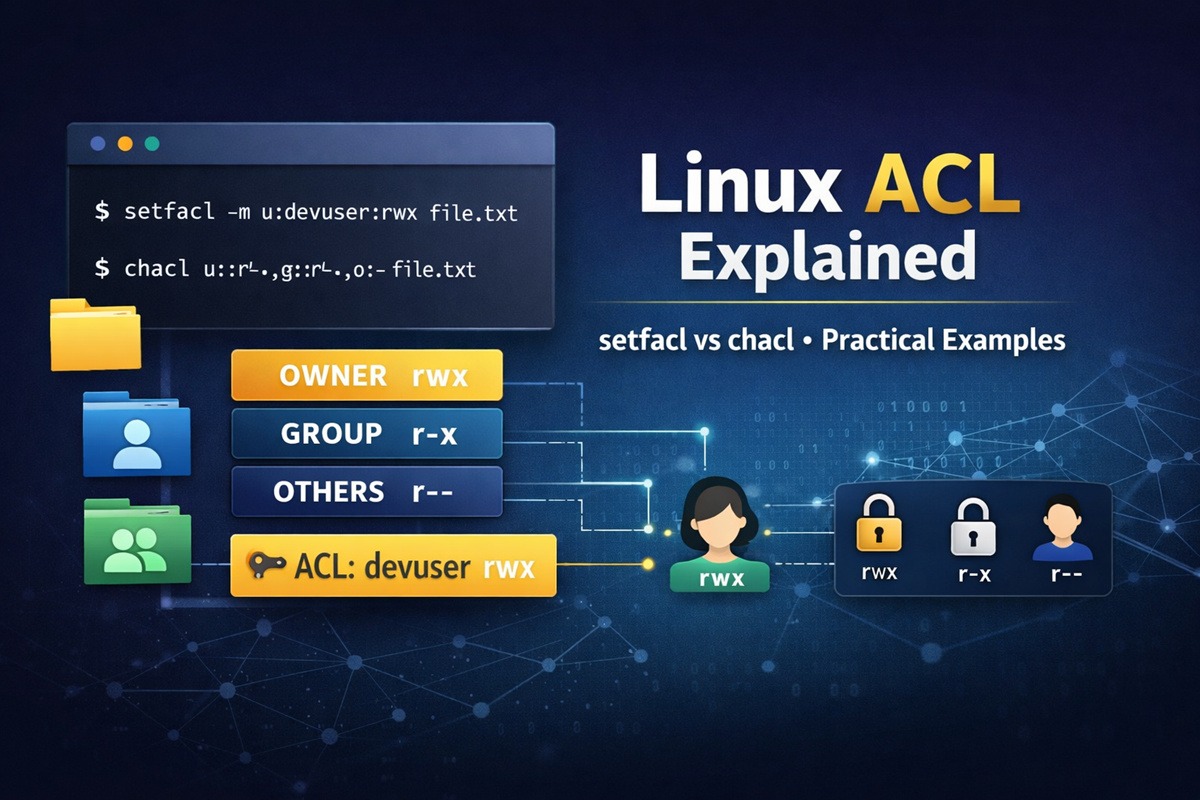
Tested on Ubuntu 20.04 / 22.04 / 24.04, Debian 11 / 12, and RHEL/CentOS 7–9
Introduction: Why Linux ACLs Exist
Linux file permissions are traditionally controlled using chmod and
chown. This model works well for simple scenarios where access can be
expressed using three classes: owner, group, and others.
However, this approach becomes restrictive when:
- Multiple users need different permissions on the same file
- Ownership or group membership cannot be changed
- Shared directories require predictable permission inheritance
Access Control Lists (ACLs) were introduced to address these limitations. ACLs extend the traditional permission model by allowing explicit permissions for individual users and groups, without modifying ownership or relying on workarounds.
This guide explains ACLs as a complete permission system, helping
you understand when ACLs are necessary, how they work internally, and
which tools (getfacl, setfacl, chacl) should be used in different
situations.
chmod vs chown vs ACL – Which One Should You Use?
Linux provides multiple tools to manage file permissions. Each tool solves a different problem, and choosing the right one prevents permission misconfigurations.
| Feature / Use Case | chmod | chown | ACL |
|---|---|---|---|
| Changes file permissions (r/w/x) | ✅ Yes | ❌ No | ✅ Yes |
| Changes file ownership | ❌ No | ✅ Yes | ❌ No |
| Supports per-user permissions | ❌ No | ❌ No | ✅ Yes |
| Supports multiple groups | ❌ No | ❌ No | ✅ Yes |
| Default permission inheritance | ❌ No | ❌ No | ✅ Yes |
| Fine-grained access control | ❌ No | ❌ No | ✅ Yes |
| Commonly used | ✅ Very common | ✅ Common | ⚠️ Advanced |
| Risk of misconfiguration | ⚠️ Medium | ⚠️ Low | ⚠️ High (if misused) |
| Best for simple systems | ✅ Yes | ✅ Yes | ❌ No |
| Best for shared directories | ❌ No | ❌ No | ✅ Yes |
When to use chmod
Use chmod when:
- Permissions can be expressed using owner, group, and others
- The access model is simple and static
- You want predictable and portable permission behavior
When to use chown
Use chown when:
- Files or directories belong to the wrong user or group
- Access issues are caused by incorrect ownership
- Permission bits are correct but access is still denied
When to use ACLs
Use ACLs when:
- Multiple users require different permissions
- You cannot change ownership or group membership
- Shared directories need controlled inheritance
chmodandchownare too restrictive
Rule of thumb:
Start with chmod, fix ownership with chown, and use ACLs only when
traditional permissions are insufficient.
What Is an ACL in Linux?
An Access Control List (ACL) is an extension of the traditional Linux permission model that allows permissions to be assigned to individual users and groups in addition to the file owner, group, and others.
ACLs do not replace standard permissions. Instead, they augment them by introducing additional access rules that are evaluated together with the base permission bits.
ACLs are commonly used in:
- Multi-user systems
- Shared application directories
- Production and enterprise environments
- Scenarios where ownership cannot be changed safely
Understanding How ACLs Work
ACLs operate as a layered permission system built on top of the traditional owner/group/other model. When ACLs are present, the kernel evaluates both the base permissions and the ACL entries to determine effective access.
ACL Entries: user, group, mask, and other
An ACL is composed of multiple entries, each defining permissions for a specific category:
- user:: – permissions for the file owner
- user:username: – permissions for a specific user
- group:: – permissions for the owning group
- group:groupname: – permissions for a specific group
- mask:: – maximum effective permissions for named users and groups
- other:: – permissions for all remaining users
The presence of named users or groups automatically introduces a mask entry, which plays a critical role in permission evaluation.
Effective permissions and the ACL mask
The mask defines the maximum permissions that can be granted to:
- Named users
- Named groups
- The owning group
Even if a user ACL entry grants write access, that permission is restricted if the mask does not allow it. This often leads to confusion when permissions appear correct but access is denied.
Understanding the mask is essential for:
- Debugging ACL-related access issues
- Avoiding unexpected permission restrictions
- Interpreting
getfacloutput correctly
Access ACL vs Default ACL
There are two distinct types of ACLs in Linux:
-
Access ACL
- Applies to the file or directory itself
- Controls who can read, write, or execute it
-
Default ACL
- Applies only to directories
- Defines permissions inherited by newly created files and subdirectories
Changing a directory’s access ACL affects who can access the directory. Changing its default ACL affects how permissions are assigned to new content created inside it.
Confusing these two is one of the most common ACL mistakes.
Inspecting ACLs Using getfacl
Before setting, modifying, or removing ACLs, it is critical to
understand the current permission state of a file or directory.
This is where getfacl is used.
The getfacl command displays:
- Standard owner, group, and other permissions
- Any additional ACL entries
- The ACL mask and effective permissions
- Default ACLs (for directories)
Treat getfacl as a read-only diagnostic tool that helps you
understand why access is allowed or denied.
When and why to use getfacl
Use getfacl when:
- You want to check whether ACLs are present
- Access behavior does not match
ls -loutput - You are troubleshooting permission issues
- You are about to modify ACLs and need a baseline
Unlike ls -l, getfacl shows all permission rules, including
named users, groups, and inherited defaults.
How to interpret getfacl output
A typical getfacl output contains multiple entries, each representing
a permission rule:
user::– permissions for the file owneruser:username:– permissions for a specific usergroup::– permissions for the owning groupmask::– maximum effective permissionsother::– permissions for all other users
When ACLs are present, getfacl may also display effective
permissions, which reflect how the mask limits access.
This means:
- A user entry may appear to allow write access
- But the effective permission may be read-only due to the mask
Choosing the Right Tool: getfacl vs setfacl vs chacl
| Use Case / Capability | getfacl | setfacl | chacl |
|---|---|---|---|
| Inspect existing ACLs | ✅ Yes | ❌ No | ❌ No |
| Display effective permissions | ✅ Yes | ❌ No | ❌ No |
| Safe to run anytime | ✅ Yes | ⚠️ Mostly | ❌ No |
| Add ACL for a single user | ❌ No | ✅ Yes | ❌ No |
| Remove ACL for a single user | ❌ No | ✅ Yes | ❌ No |
| Modify ACL incrementally | ❌ No | ✅ Yes | ❌ No |
| Preserve existing ACL rules | ❌ No | ✅ Yes | ❌ No |
| Replace entire ACL definition | ❌ No | ❌ No | ✅ Yes |
| Remove all ACLs at once | ❌ No | ⚠️ Yes (-b) |
✅ Yes (-B) |
| Requires full ACL knowledge | ❌ No | ⚠️ Moderate | ✅ High |
| Risk of accidental permission loss | ❌ None | ⚠️ Low | ⚠️ High |
| Recommended for daily use | ❌ No | ✅ Yes | ❌ No |
| Typical usage | Inspection | Administration | Advanced / reset |
How to read this table
getfaclis a read-only diagnostic toolsetfaclis designed for safe, incremental ACL managementchaclis a low-level tool that replaces the entire ACL and should be used only when a full reset or declarative ACL definition is required
Setting ACLs Safely Using setfacl
In most real-world scenarios, ACLs are managed incrementally rather
than replaced entirely. The setfacl command is designed for this
purpose and is the preferred tool for day-to-day ACL administration.
Unlike chacl, setfacl modifies only the specified ACL entry and
preserves all existing permissions.
Granting access to a specific user (file)
This example grants read-only access to a specific user without changing ownership, group membership, or existing ACL rules.
Check current ACL
getfacl /opt/data/file
Grant read access to user golinuxcloud
setfacl -m u:golinuxcloud:r-- /opt/data/file
This command:
- Adds a new ACL entry for user
golinuxcloud - Does not overwrite existing ACL rules
- Does not affect owner or group permissions
Verify updated ACL
getfacl /opt/data/file
You will see an additional user entry while all existing ACL rules remain intact.
Granting access to a specific user (directory)
ACLs can also be used to control access to directories without changing ownership or group membership.
Grant directory access to user golinuxcloud
setfacl -m u:golinuxcloud:r-x /opt/data
For directories:
rallows listing directory contentsxallows entering the directory
This allows the user to access the directory while preserving existing permissions for other users.
Default ACLs and permission inheritance
Default ACLs apply only to directories and define the permissions that newly created files and subdirectories inherit.
Set a default ACL for new files
setfacl -d -m u:golinuxcloud:r-- /opt/data
This ensures that any new file created inside /opt/data automatically
inherits read access for user golinuxcloud.
Default ACLs help maintain consistent permissions in shared directories without requiring manual fixes after file creation.
Why setfacl is recommended for daily administration
The setfacl command is preferred for routine ACL management because:
- ACL rules can be added or removed incrementally
- Existing permissions are preserved
- The risk of accidental permission loss is low
- It supports selective rule removal and modification
- It aligns with typical administrative workflows
As a general best practice, use setfacl for ongoing permission
management and reserve chacl for full ACL replacement or reset
operations.
Complete ACL Replacement Using chacl (Advanced)
The chacl command operates at a lower level than setfacl. Instead of
making incremental changes, it replaces the entire ACL definition in a
single operation.
Because of this behavior, chacl is considered an advanced tool and
should be used only when you fully understand the ACL structure you are
applying.
When full ACL replacement is required
Full ACL replacement using chacl is appropriate when:
- You want to reset permissions to a known, clean state
- ACLs were misconfigured and incremental fixes are risky
- You are applying a declarative ACL policy
- Permissions are generated programmatically or from a template
In these cases, defining the complete ACL explicitly is safer than attempting multiple incremental updates.
Why chacl always overwrites existing ACLs
The chacl command treats the ACL as a single, complete object.
Each invocation of chacl means:
“Replace the existing ACL with this definition.”
It does not:
- Merge ACL entries
- Preserve existing named users or groups
- Support incremental additions
For example, running two chacl commands in succession does not append
rules. The second command overwrites the ACL created by the first.
This design makes chacl predictable for full replacement but unsafe
for routine administration.
Important limitations and risks of using chacl
Before using chacl, be aware of these limitations:
- Individual ACL rules cannot be added or removed
- Running
chaclmultiple times overwrites previous ACL entries - A missing or incorrect mask entry can silently restrict access
- A small syntax mistake can remove critical permissions
- Recovery often requires reapplying the full ACL manually
Best practice: Inspect the current ACL using
getfaclbefore applyingchacl, and verify the result immediately afterward.
For most day-to-day ACL management tasks, setfacl remains the safer
and recommended choice.
Removing ACLs in Linux
ACLs should be removed when extended permissions are no longer required or when troubleshooting unexpected access behavior. Linux provides two distinct approaches depending on whether you want a full reset or a selective removal.
Understanding the difference is critical to avoid accidental permission loss.
Removing all ACLs and resetting permissions (chacl)
Use this approach when you want to completely remove all ACL entries and revert to the traditional permission model.
This is appropriate when:
-
ACLs are misconfigured
-
You want to start from a clean permission state
-
Extended ACLs are no longer required
chacl -B /opt/data/file
This command removes:
- All named user and group ACL entries
- The ACL mask
- Any extended permission metadata
After this operation, permissions are managed only by chmod and
chown.
Removing a single ACL rule safely (setfacl)
Use this approach when you want to remove access for one specific user or group while preserving all other ACL rules.
This is the preferred method for shared files and directories.
setfacl -x u:golinuxcloud /opt/data/file
This command removes only the specified ACL entry and leaves the rest of the ACL unchanged.
⚠️ Important:
chacl -Bremoves all ACL entries in one operation. It cannot remove individual rules.To remove a single user or group ACL safely, always use
setfacl -x.
Directory ACL vs Default ACL – Common Source of Confusion
ACLs applied to directories fall into two distinct categories, each serving a different purpose.
-
Directory (access) ACL
- Controls who can access, list, or traverse the directory
- Affects the directory itself only
-
Default ACL
- Applies only to directories
- Defines permissions inherited by newly created files and subdirectories
Changing a directory’s ACL does not affect existing files inside the directory. To enforce consistent permissions for new content, a default ACL must be configured.
Confusing directory ACLs with default ACLs often leads to unexpected permission behavior.
Best Practices for Managing ACLs in Linux
ACLs are powerful, but they should be used deliberately. Following a simple set of best practices helps avoid fragile permission setups and unexpected access issues.
When to use ACLs and when to avoid them
Use ACLs when:
- Multiple users need different permissions on the same file or directory
- Ownership or group membership cannot be changed
- Shared directories require predictable permission inheritance
- Traditional
chmodpermissions are too restrictive
Avoid ACLs when:
- Permissions can be expressed using owner/group/other
- The system is simple and does not require fine-grained access
- Portability and simplicity are higher priorities than flexibility
As a rule, ACLs should extend permissions—not replace basic Unix permission hygiene.
Recommended workflow for ACL management
A safe and predictable ACL workflow looks like this:
-
Inspect first
- Always check existing permissions using
getfacl
- Always check existing permissions using
-
Choose the right tool
- Use
setfaclfor incremental changes - Use
chaclonly for full ACL replacement or reset
- Use
-
Apply minimal changes
- Grant only the permissions required
- Avoid broad access through
other
-
Verify immediately
- Re-check permissions using
getfacl - Confirm effective permissions and mask behavior
- Re-check permissions using
Following this workflow prevents most ACL-related issues.
Common mistakes and how to prevent them
-
Using
chaclfor small changes- Prevent by using
setfaclfor incremental updates
- Prevent by using
-
Ignoring the ACL mask
- Always review effective permissions in
getfacloutput
- Always review effective permissions in
-
Confusing directory ACLs with default ACLs
- Remember: directory ACLs control access; default ACLs control inheritance
-
Overusing ACLs
- Prefer
chmodandchownwhen they are sufficient
- Prefer
-
Not documenting ACL usage
- Complex ACL setups should be documented to avoid future confusion
ACLs solve real problems, but misuse often creates more issues than it fixes.