
OpenSSH can retrieve a user's authorized public keys from 389 Directory Server through SSSD instead of maintaining per-host authorized_keys files. The SSH client offers a public key, sshd calls sss_ssh_authorizedkeys, the SSSD SSH responder reads the configured LDAP attribute, and OpenSSH compares the returned line with the key the client presented.
This guide assumes SSSD already resolves POSIX users from 389 DS. Complete that foundation in the SSSD LDAP authentication guide before you add SSH key lookup here.
nsSshPublicKey, mapping ldap_user_ssh_public_key in SSSD, and configuring OpenSSH AuthorizedKeysCommand. It does not cover SSH certificates, smart cards, X.509-derived keys, general OpenSSH hardening, or Apache web authentication. Import the OpenSSH-LPK schema only when you specifically need sshPublicKey; see the custom schema guide. Protect Apache URLs directly against 389 DS in the Apache LDAP authentication guide.
Tested on: Rocky Linux 10.2; 389 Directory Server 3.2.0.
How centralized SSH public-key lookup works
When a user connects with public-key authentication, OpenSSH on the SSSD client delegates key lookup to the directory when local authorized_keys does not satisfy the request.
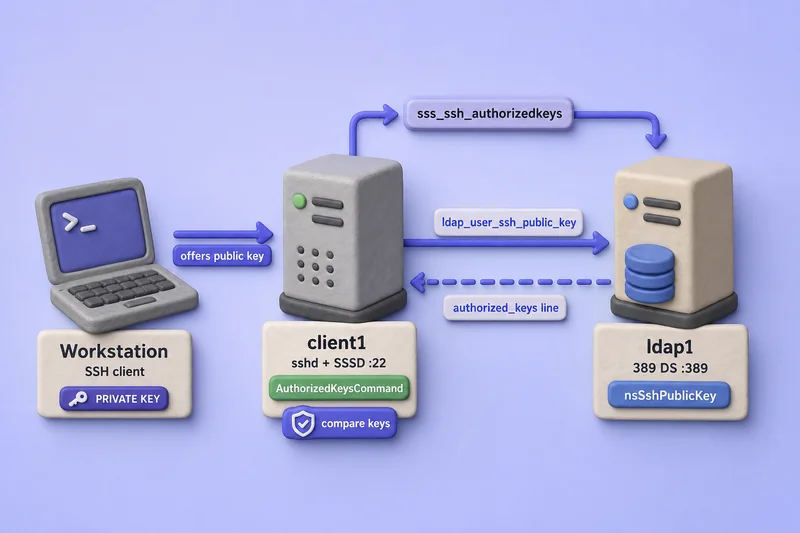
The diagram shows the request path, not SSH packet timing. OpenSSH still checks AuthorizedKeysFile before it calls AuthorizedKeysCommand; a matching local key skips the LDAP lookup entirely.
- The SSH client on the workstation offers a public key to
sshdonclient1. The private key never leaves that host. - When no local
authorized_keysentry matches,sshdrunssss_ssh_authorizedkeysas the unprivileged helper user. - The SSSD SSH responder resolves the POSIX user name to a directory identity.
- SSSD reads the attribute named in
ldap_user_ssh_public_key— for 389 DS,nsSshPublicKeyon the user'snsAccountentry. - The helper prints the stored public-key line in OpenSSH
authorized_keysformat. - OpenSSH compares that line with the key the client presented and accepts or rejects the authentication attempt.
Only the public key belongs in LDAP. The private key must remain on the user's workstation or secure storage and is never uploaded to the directory server.
The server-side lab uses two Rocky Linux 10 VMs plus a separate workstation that initiates the SSH connections. Run directory commands on VM1 (ldap1.example.com), SSSD and OpenSSH server commands on VM2 (client1.example.com), and generate SSH keys on the workstation.
| Role | Host | Notes |
|---|---|---|
| VM1 — directory server | ldap1.example.com |
Instance ldap1, suffix dc=example,dc=com |
| VM2 — SSSD client and SSH server | client1.example.com |
OpenSSH server with AuthorizedKeysCommand |
| Workstation | Your admin laptop or jump host | Holds the test private keys; copies only .pub files to VM1 |
| Test LDAP user | sssduser1 |
POSIX account from the SSSD foundation guide |
| Native key attribute | nsSshPublicKey |
On nsAccount entries |
| SSSD mapping | ldap_user_ssh_public_key = nsSshPublicKey |
Required for 389 DS |
Prepare the test environment
Confirm the SSSD foundation from the SSSD LDAP authentication guide before you store keys:
VM2 (client1.example.com): Verify identity resolution and domain health. Client checks and cache clears use sudo command:
id sssduser1Sample output:
uid=15101(sssduser1) gid=15100(sssd-clients) groups=15100(sssd-clients)getent passwd sssduser1Sample output:
sssduser1:*:15101:15100:SSSD User1:/home/sssduser1:/bin/bashsudo sssctl domain-status example.comSample output (trimmed):
Online status: Online
Active servers:
LDAP: ldap1.example.com
Keep access to the workstation that holds the test private key, because you will use it for the SSH login tests. Password login on VM2 can remain enabled as a recovery path while you validate public-key authentication.
Confirm the test user has no local authorized_keys entry that would satisfy the key before OpenSSH calls SSSD:
sudo test -f /home/sssduser1/.ssh/authorized_keys && echo "local keys present" || echo "no local authorized_keys"Sample output:
no local authorized_keysChoose the correct SSH public-key attribute
SSSD and 389 Directory Server use different default attribute names. Mapping the wrong attribute is the most common reason sss_ssh_authorizedkeys returns no output.
| Attribute | Origin | SSSD default |
|---|---|---|
nsSshPublicKey |
Native 389 DS nsAccount |
No — set ldap_user_ssh_public_key explicitly |
sshPublicKey |
OpenSSH-LPK LDAP schema | Yes — SSSD assumes this name when unset |
Use the native nsSshPublicKey attribute
For 389 Directory Server, use the built-in attribute:
- Ensure the user carries
objectClass: nsAccount - Store each key line in
nsSshPublicKey - Set
ldap_user_ssh_public_key = nsSshPublicKeyinsssd.conf
VM1 (ldap1.example.com): Confirm the attribute and object class exist in the server schema before you modify users. Schema checks use the ldapsearch command with -LLL and -o ldif-wrap=no:
ldapsearch -LLL -o ldif-wrap=no -x -H ldap://ldap1.example.com:389 -D "cn=Directory Manager" -y /root/dm.pw -b "cn=schema" -s base "(objectClass=*)" attributeTypes | grep "NAME 'nsSshPublicKey'"Sample output (trimmed):
attributeTypes: ( 2.16.840.1.113730.3.1.2342 NAME 'nsSshPublicKey' DESC 'An nsSshPublicKey record' SYNTAX 1.3.6.1.4.1.1466.115.121.1.15 X-ORIGIN '389 Directory Server Project' )ldapsearch -LLL -o ldif-wrap=no -x -H ldap://ldap1.example.com:389 -D "cn=Directory Manager" -y /root/dm.pw -b "cn=schema" -s base "(objectClass=*)" objectClasses | grep "NAME 'nsAccount'"Sample output (trimmed):
objectClasses: ( 2.16.840.1.113730.3.2.331 NAME 'nsAccount' ... SUP top AUXILIARY MAY ( ... $ nsSshPublicKey $ ... ) X-ORIGIN '389 Directory Server Project' )The nsAccount definition confirms that nsSshPublicKey is a permitted attribute on account entries.
When sshPublicKey is used instead
sshPublicKey usually comes from the OpenSSH-LPK schema and is SSSD's default LDAP key attribute. A default 389 DS 3.2 instance does not define sshPublicKey in its core schema.
Do not import an additional schema when nsSshPublicKey meets your requirement. If an application specifically requires OpenSSH-LPK attribute names, load the schema through the custom schema guide and set ldap_user_ssh_public_key = sshPublicKey instead.
Generate a test SSH key pair
On the workstation from which you will initiate the SSH connection, create a directory for the test keys and generate an Ed25519 key pair for sssduser1:
mkdir -p ~/sshkey-labssh-keygen -t ed25519 -f ~/sshkey-lab/sssduser1_ed25519 -N '' -C 'sssduser1@workstation1'Sample output (trimmed):
Your identification has been saved in /home/admin/sshkey-lab/sssduser1_ed25519
Your public key has been saved in /home/admin/sshkey-lab/sssduser1_ed25519.pub
The key fingerprint is:
SHA256:JfPcGAi47cWsUASxvGN7unu3Yn5RxSk20H1nbbUDSUA sssduser1@workstation1sssduser1_ed25519is the private key. Keep it on the workstation. Copy only the.pubfile to VM1 for the LDAP update.sssduser1_ed25519.pubis the public key line that belongs innsSshPublicKey.- The comment after the key (
sssduser1@workstation1) helps identify the device during rotation.
Copy the public key to VM1 with scp. The ssh command covers scp and key-based transfers. Replace adminuser with the SSH username used to access VM1:
scp ~/sshkey-lab/sssduser1_ed25519.pub [email protected]:/tmp/sssduser1_ed25519.pubAdd the public key to the 389 DS user
VM1 (ldap1.example.com): The lab user must already exist as a POSIX account — see manage users and groups if you need the full workflow. Add nsSshPublicKey without replacing existing keys. The add operation appends a new value; use delete later to revoke one key.
PUBKEY=$(cat /tmp/sssduser1_ed25519.pub)
ldapmodify -x -H ldap://ldap1.example.com:389 -D "cn=Directory Manager" -y /root/dm.pw <<EOF
dn: uid=sssduser1,ou=people,dc=example,dc=com
changetype: modify
add: nsSshPublicKey
nsSshPublicKey: ${PUBKEY}
EOF
A successful update prints the DN of the entry being modified:
modifying entry "uid=sssduser1,ou=people,dc=example,dc=com"Verify the user entry carries nsAccount and the stored key:
ldapsearch -LLL -o ldif-wrap=no -x -H ldap://ldap1.example.com:389 -D "cn=Directory Manager" -y /root/dm.pw -b "uid=sssduser1,ou=people,dc=example,dc=com" -s base objectClass nsSshPublicKeySample output:
dn: uid=sssduser1,ou=people,dc=example,dc=com
objectClass: top
objectClass: nsPerson
objectClass: nsAccount
objectClass: nsOrgPerson
objectClass: posixAccount
objectClass: nsMemberOf
nsSshPublicKey: ssh-ed25519 AAAAC3NzaC1lZDI1NTE5AAAAIIn/Z2asO2D5u3LtWw0LkH/3kbacn0iXjI7l+fRp/5Xd sssduser1@workstation1
The objectClass list must include nsAccount, and nsSshPublicKey must contain the complete OpenSSH public-key line from the workstation. LDIF output may wrap long values unless you use -o ldif-wrap=no; that wrapping is not part of the stored key.
Configure SSSD to retrieve the SSH key
VM2 (client1.example.com): Edit the existing /etc/sssd/sssd.conf created in the SSSD LDAP authentication guide. Add ssh to the existing services list and add ldap_user_ssh_public_key to the existing domain section. Preserve all existing LDAP URI, search base, bind credentials, TLS, and access-provider settings from the foundation guide.
Add ssh to the existing services list. Do not remove responders already configured by the foundation guide. Your list may contain additional services; the important change is the addition of ssh. The 389 Project template includes nss, pam, ssh, and sudo:
[sssd]
services = nss, pam, ssh, sudo

[domain/example.com]
ldap_user_ssh_public_key = nsSshPublicKey
dsidm client_config sssd.conf sssd-clients on VM1 includes ldap_user_ssh_public_key = nsSshPublicKey and services = nss, pam, ssh, sudo in its template output. Merge the SSH mapping into your deployed client file on VM2 without removing the foundation LDAP settings.
Set permissions, validate syntax, and restart SSSD:
sudo chmod 600 /etc/sssd/sssd.confsudo sssctl config-checkSample output:
Issues identified by validators: 0

Messages generated during configuration merging: 0

Used configuration snippet files: 0sudo systemctl restart sssdA successful restart exits silently.
Clear the previously resolved user entry so the first helper test reads the newly added nsSshPublicKey value:
sudo sss_cache -u sssduser1The command exits silently on success. Verify the SSH responder with the helper test in the next step.
Test retrieval directly:
sss_ssh_authorizedkeys sssduser1Sample output:
ssh-ed25519 AAAAC3NzaC1lZDI1NTE5AAAAIIn/Z2asO2D5u3LtWw0LkH/3kbacn0iXjI7l+fRp/5Xd sssduser1@workstation1Test the helper under the same unprivileged account that sshd uses:
sudo -u nobody /usr/bin/sss_ssh_authorizedkeys sssduser1The output should match the direct test above. In this Rocky Linux 10.2 test environment, ssh was included in the SSSD services list before restarting SSSD.
Configure OpenSSH to use SSSD for authorized keys
VM2 (client1.example.com): Create a drop-in under /etc/ssh/sshd_config.d/:
PubkeyAuthentication yes
AuthorizedKeysCommand /usr/bin/sss_ssh_authorizedkeys
AuthorizedKeysCommandUser nobody
Save the drop-in as /tmp/99-sssd-authorizedkeys.conf on VM2, then install it:
sudo install -m 0644 /tmp/99-sssd-authorizedkeys.conf /etc/ssh/sshd_config.d/99-sssd-authorizedkeys.confValidate the configuration before reload:
sudo sshd -tA silent exit means the syntax is valid.
Confirm the effective OpenSSH settings after all main-file and drop-in processing:
sudo sshd -T | grep -E '^(pubkeyauthentication|authorizedkeyscommand|authorizedkeyscommanduser|authorizedkeysfile) 'Sample output:
pubkeyauthentication yes
authorizedkeyscommand /usr/bin/sss_ssh_authorizedkeys
authorizedkeyscommanduser nobody
authorizedkeysfile .ssh/authorized_keys
The pubkeyauthentication, authorizedkeyscommand, and authorizedkeyscommanduser values should match the drop-in. The authorizedkeysfile line shows whether OpenSSH will still check local key files before calling SSSD.
Reload the SSH service with the systemctl command:
sudo systemctl reload sshdA successful reload exits silently when sshd -t already passed.
OpenSSH checks AuthorizedKeysFile before AuthorizedKeysCommand. A matching local key can make the LDAP lookup appear unused even when SSSD is configured correctly. This guide does not disable local authorized_keys support; remove test keys from ~/.ssh/authorized_keys when you want to prove directory retrieval.
Test SSH login using the LDAP-stored key
Workstation: Connect to VM2 from the host that holds the private key. Use explicit key selection so SSH does not offer agent keys:
ssh -o IdentitiesOnly=yes -i ~/sshkey-lab/sssduser1_ed25519 [email protected] 'whoami; id; pwd'Sample output:
sssduser1
uid=15101(sssduser1) gid=15100(sssd-clients) groups=15100(sssd-clients)
/home/sssduser1
Generate a key that is not stored in LDAP, then test public-key-only rejection:
ssh-keygen -t ed25519 -f ~/sshkey-lab/wrong_ed25519 -N '' -C 'not-stored-in-ldap'ssh-keygen prints the same style of identification and public-key path messages as the first key generation.
ssh -o BatchMode=yes -o IdentitiesOnly=yes -o PreferredAuthentications=publickey -i ~/sshkey-lab/wrong_ed25519 [email protected] 'whoami'Sample output:
[email protected]: Permission denied (publickey,gssapi-keyex,gssapi-with-mic,password).The authentication methods shown inside Permission denied (...) can vary with your sshd configuration.
When a login fails after sss_ssh_authorizedkeys succeeds, use the journalctl command to inspect recent output from sshd and SSSD:
sudo journalctl -u sshd -u sssd --since "5 minutes ago" --no-pager | tail -20The SSH daemon log shows public-key acceptance or rejection; SSSD logs show LDAP lookup errors when the helper cannot read nsSshPublicKey.
Manage multiple keys, rotation, and revocation
nsSshPublicKey is multi-valued. Add one complete public-key line per device.
On the workstation, generate a second key pair and copy only the public key to VM1:
ssh-keygen -t ed25519 -f ~/sshkey-lab/sssduser1_laptop -N '' -C 'sssduser1@laptop'scp ~/sshkey-lab/sssduser1_laptop.pub [email protected]:/tmp/sssduser1_laptop.pubVM1 (ldap1.example.com): Add the laptop public key:
PUBKEY2=$(cat /tmp/sssduser1_laptop.pub)
ldapmodify -x -H ldap://ldap1.example.com:389 -D "cn=Directory Manager" -y /root/dm.pw <<EOF
dn: uid=sssduser1,ou=people,dc=example,dc=com
changetype: modify
add: nsSshPublicKey
nsSshPublicKey: ${PUBKEY2}
EOF
Sample output:
modifying entry "uid=sssduser1,ou=people,dc=example,dc=com"VM2 (client1.example.com): Invalidate only the affected user cache:
sudo sss_cache -u sssduser1sss_cache exits silently on success.
Confirm both keys are visible:
sss_ssh_authorizedkeys sssduser1Sample output:
ssh-ed25519 AAAAC3NzaC1lZDI1NTE5AAAAIIn/Z2asO2D5u3LtWw0LkH/3kbacn0iXjI7l+fRp/5Xd sssduser1@workstation1
ssh-ed25519 AAAAC3NzaC1lZDI1NTE5AAAAII3jmywMiiWUgUZvHswhvL/wT9xj8cQ4O0Yu7FE6OyCF sssduser1@laptop
Revoke the workstation key without removing the laptop key. VM1: read the public key from /tmp/sssduser1_ed25519.pub on VM1 (or copy it again from the workstation if needed):
PUBKEY=$(cat /tmp/sssduser1_ed25519.pub)
ldapmodify -x -H ldap://ldap1.example.com:389 -D "cn=Directory Manager" -y /root/dm.pw <<EOF
dn: uid=sssduser1,ou=people,dc=example,dc=com
changetype: modify
delete: nsSshPublicKey
nsSshPublicKey: ${PUBKEY}
EOF
Sample output:
modifying entry "uid=sssduser1,ou=people,dc=example,dc=com"VM2: Clear the user cache and retest from the workstation:
sudo sss_cache -u sssduser1Retest from the workstation:
ssh -o BatchMode=yes -o IdentitiesOnly=yes -o PreferredAuthentications=publickey -i ~/sshkey-lab/sssduser1_ed25519 [email protected] 'whoami'Sample output:
[email protected]: Permission denied (publickey,gssapi-keyex,gssapi-with-mic,password).ssh -o IdentitiesOnly=yes -i ~/sshkey-lab/sssduser1_laptop [email protected] 'whoami'Sample output:
sssduser1Use targeted sudo sss_cache -u after LDAP key changes instead of deleting the entire SSSD cache directory.
Troubleshoot SSH public-key retrieval
| Symptom | Likely cause | First fix |
|---|---|---|
sss_ssh_authorizedkeys returns no output |
Wrong ldap_user_ssh_public_key, missing nsAccount, empty nsSshPublicKey, or stale cache |
Verify ldap_user_ssh_public_key = nsSshPublicKey, ldapsearch the user entry, run sudo sss_cache -u |
| Helper returns key but SSH login fails | Wrong private key, PubkeyAuthentication off, AuthorizedKeysCommand misconfigured, account locked |
Run sshd -t, confirm drop-in, test matching private key, check account status |
| LDAP change not visible | SSSD entry cache | sudo sss_cache -u username for the affected user only |
| OpenSSH never calls SSSD | Matching local authorized_keys entry |
Remove or rename local keys during LDAP-only tests |
sss_ssh_authorizedkeys returns no output
Confirm user resolution, domain status, attribute mapping, and LDAP permissions for the SSSD bind identity:
id sssduser1id should resolve the LDAP user with the expected UID and primary group.
sudo sssctl domain-status example.comThe domain should report Online with the expected LDAP server.
grep ldap_user_ssh_public_key /etc/sssd/sssd.confThe line should read ldap_user_ssh_public_key = nsSshPublicKey.
Inspect SSSD logs:
sudo journalctl -u sssd --since "10 minutes ago" --no-pager | tail -30Confirm the SSSD bind identity can read nsSshPublicKey. On VM2, use the same ldap_default_bind_dn from /etc/sssd/sssd.conf and the same StartTLS CA file from the 389 DS TLS guide. The foundation lab binds as Directory Manager:
LDAPTLS_CACERT=/etc/openldap/certs/ldap1-ca.crt ldapsearch -LLL -o ldif-wrap=no -x -ZZ -H ldap://ldap1.example.com:389 -D "cn=Directory Manager" -W -b "uid=sssduser1,ou=people,dc=example,dc=com" -s base nsSshPublicKeySample output:
dn: uid=sssduser1,ou=people,dc=example,dc=com
nsSshPublicKey: ssh-ed25519 AAAAC3NzaC1lZDI1NTE5AAAAIIn/Z2asO2D5u3LtWw0LkH/3kbacn0iXjI7l+fRp/5Xd sssduser1@workstation1
This lab configures SSSD to bind as Directory Manager, so the command tests the same identity used by SSSD. If your sssd.conf uses another ldap_default_bind_dn, replace Directory Manager with that exact bind DN. A successful Directory Manager search alone does not prove that a separate SSSD bind account can read nsSshPublicKey. If the bind search itself returns no nsSshPublicKey values, SSSD cannot retrieve the key either. When the search succeeds but sss_ssh_authorizedkeys still returns nothing, check ACIs for your production bind account in the ACI examples guide.
The helper returns the key but SSH login fails
Confirm PubkeyAuthentication yes, the AuthorizedKeysCommand drop-in, and AuthorizedKeysCommandUser nobody. Run sudo sshd -t and sudo sshd -T after every edit. Verify the client offers the private key that matches the LDAP public-key line.
LDAP changes are not visible immediately
SSSD caches directory entries. After you add or remove nsSshPublicKey values, run sudo sss_cache -u affecteduser on VM2 before you retest sss_ssh_authorizedkeys or SSH login.
OpenSSH does not appear to run the command
If ~/.ssh/authorized_keys already contains a matching key, OpenSSH may never invoke AuthorizedKeysCommand. Test without a local key file to confirm LDAP retrieval.
References
- 389 Project: Configure SSSD with 389 Directory Server
- RHEL 10: Configuring SSSD to use LDAP with TLS
- SSSD LDAP attribute mappings (ldap_user_ssh_public_key)
- sss_ssh_authorizedkeys manual
- OpenSSH sshd_config — AuthorizedKeysCommand
Summary
Store SSH public keys in 389 Directory Server on nsAccount entries using nsSshPublicKey, set ldap_user_ssh_public_key = nsSshPublicKey in SSSD, and point OpenSSH at sss_ssh_authorizedkeys through AuthorizedKeysCommand with AuthorizedKeysCommandUser nobody. Verify with ldapsearch and sss_ssh_authorizedkeys before you test SSH login without a local authorized_keys file. Add and revoke individual key values with ldapmodify, then invalidate only the affected user with sudo sss_cache -u.
